
4 Steps to Perform Remote Diagnostics with a Bidirectional Scanner on Site: AI Report Sharing Steps Explained
Get the fault data before the real clue disappears
A warning light can pop up in a parking lot, on a job site, or at a customer’s driveway, while the best diagnostic judgment is still back at the shop. That gap is where remote vehicle diagnostics often break down. Someone clears codes too early, forgets to save freeze-frame data, or sends one blurry screenshot that tells the remote reviewer almost nothing. Once that happens, your next step becomes guesswork instead of diagnosis.
A better remote car diagnostics workflow starts with preserving evidence, then adding safe bidirectional checks, AI-assisted review, and clean report sharing. That approach matters because OBD systems are a core part of diagnostics on 1996 and newer passenger vehicles, and the data they store can quickly lose value if you overwrite it or fail to record the original conditions. According to EPA, all 1996 and newer passenger vehicles are required to have OBD systems. For an on-site workflow, that means your first scan is often your best scan.
Check these on-site items before you plug in the scanner
You do not need a complex setup to make AI diagnostic report sharing useful, but you do need a repeatable process. Before you scan, make sure the vehicle, scanner, and remote reviewer are all set up for the same job.
Basic setup checks
- Confirm the vehicle supports the systems or active tests you plan to use.
- Keep battery voltage stable before long scans or actuation tests.
- Use a phone, tablet, or scanner that can save reports before clearing codes.
- Make sure mobile data or Wi-Fi is strong enough to send reports and screenshots.
- Decide who will review the scan: a shop foreman, senior tech, or trusted repair contact.
- Write down the complaint in plain language before touching anything.
Shop: Bidirectional Scanner
Safety guardrails that matter during on-site automotive diagnostics
Active tests are useful, but they can move parts unexpectedly. That is why you should secure the vehicle, keep hands clear, and avoid running commands unless you understand what the component is supposed to do.
What to watch
- Keep clear of fans, belts, pulleys, and throttle bodies.
- Use wheel chocks if the vehicle is on uneven ground.
- Do not command brake or body functions unless the area is safe.
- Record codes, freeze-frame, readiness, and symptom notes before clearing anything.
- Treat AI suggestions as triage, not final proof of a failed part.
Air bag systems deserve extra caution. NHTSA explains that air bags are supplemental protection devices and can deploy in certain crash conditions, so you should avoid casual probing or unnecessary command activity around restraint systems. In practice, that means your bidirectional scanner workflow should stay focused on supported, understood tests rather than curiosity clicks.
Why a bidirectional scanner makes remote support more useful

A basic code reader can tell you that a fault exists. A bidirectional scanner can do more: it can command certain vehicle functions and let you observe whether a component responds. That difference is what makes a remote car diagnostics workflow more actionable.
Two layers make remote diagnostics work
- Vehicle-side capture: the scanner pulls DTCs, freeze-frame data, readiness status, live data, and system results.
- Remote support layer: the saved information gets shared so another person can review it and recommend the next physical test.
Why command-and-response evidence changes the conversation
If the on-site user can say, “The fan command was sent and the fan did not run,” that is far more helpful than saying, “I have a cooling code.” Likewise, if a purge valve clicks, a window motor responds, or ABS pump activity is confirmed, the remote reviewer can narrow the diagnostic path faster.
This is also where software-based remote access fits. FlexiHub describes a different style of remote vehicle diagnostics, where a vehicle-side setup shares connected diagnostic hardware over the internet so a remote technician can access it from another machine. FlexiHub says that workflow relies on an OBD scanner with network connectivity and software installed on both ends, which is different from simple AI diagnostic report sharing but useful in certain advanced support cases. FlexiHub also notes that its platform supports remote access to car diagnostic tools over the internet.
Run this 4-part remote vehicle diagnostics workflow
The easiest way to avoid confusion is to use the same order every time: capture, confirm, interpret, then share. Each stage supports the next one.
First move: capture the complaint before you lose the original evidence
Your first pass should build a clean record of what the vehicle is doing right now. If the symptom is intermittent, this record may be the only solid evidence you get before the condition changes.
What to do
- Record the customer complaint in one or two sentences.
- Scan all relevant systems, not just engine codes.
- Save stored codes and pending codes.
- Save freeze-frame data.
- Note battery condition and charging behavior.
- Record whether the symptom is active, intermittent, hot, cold, or load-related.
- Save screenshots if the app supports them.
Why this matters
A remote reviewer needs context, not just one DTC. Good remote vehicle diagnostics depends on seeing the original fault picture before anyone clears codes, disconnects the battery, or changes the symptom.
Common mistake
- Clearing codes first to “see what comes back.”
- Sending only one engine-code screenshot.
- Forgetting readiness status and freeze-frame.
Next, run targeted bidirectional checks instead of random active tests
Once you have baseline evidence, use the bidirectional scanner to confirm or rule out the most likely path. This is where the tool stops being a passive reader and becomes part of the testing process.
What to do
- Pick one likely subsystem based on the complaint and codes.
- Run the shortest safe active test that can confirm response.
- Watch and listen for actual behavior during the command.
- Record what should have happened and what did happen.
- Save the result in the report or screenshot set.
Good on-site examples
- Cooling fan command for an overheating or fan-circuit complaint
- EVAP purge or vent actuation when chasing emissions faults
- Window or door function checks for body-control issues
- Pump, solenoid, or relay response checks when supported
- ABS-related function checks only when conditions are controlled and safe
What to watch
- Do not stack several unrelated actuation tests in a row.
- Stop if the battery voltage drops or the response becomes erratic.
- If the symptom is not active, log live data before forcing commands.
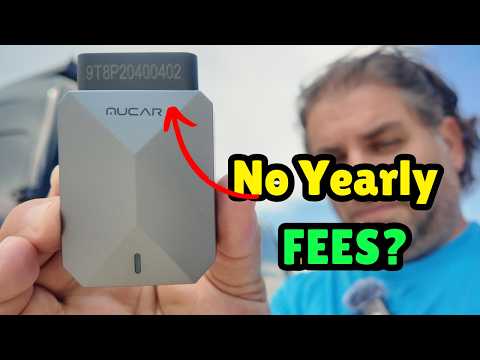
A practical Bluetooth OBD2 scanner with report sharing can fit well here because it lets you capture the response at the vehicle and send it quickly. The MUCAR BT200 MAX is a strong fit for this part of the remote car diagnostics workflow because Thinkcar positions it around bi-directional control, full OBD2 functions, and AI-powered diagnostics. Its listed specs include Bluetooth 5.2, Android 5.0 or iOS 13 and above compatibility, a 9–18V working voltage range, and a working current of 130mA or less. Thinkcar also highlights 15+ reset functions, CAN-FD support, and full-system diagnostics on the product page.
Then use AI to organize the next diagnostic move
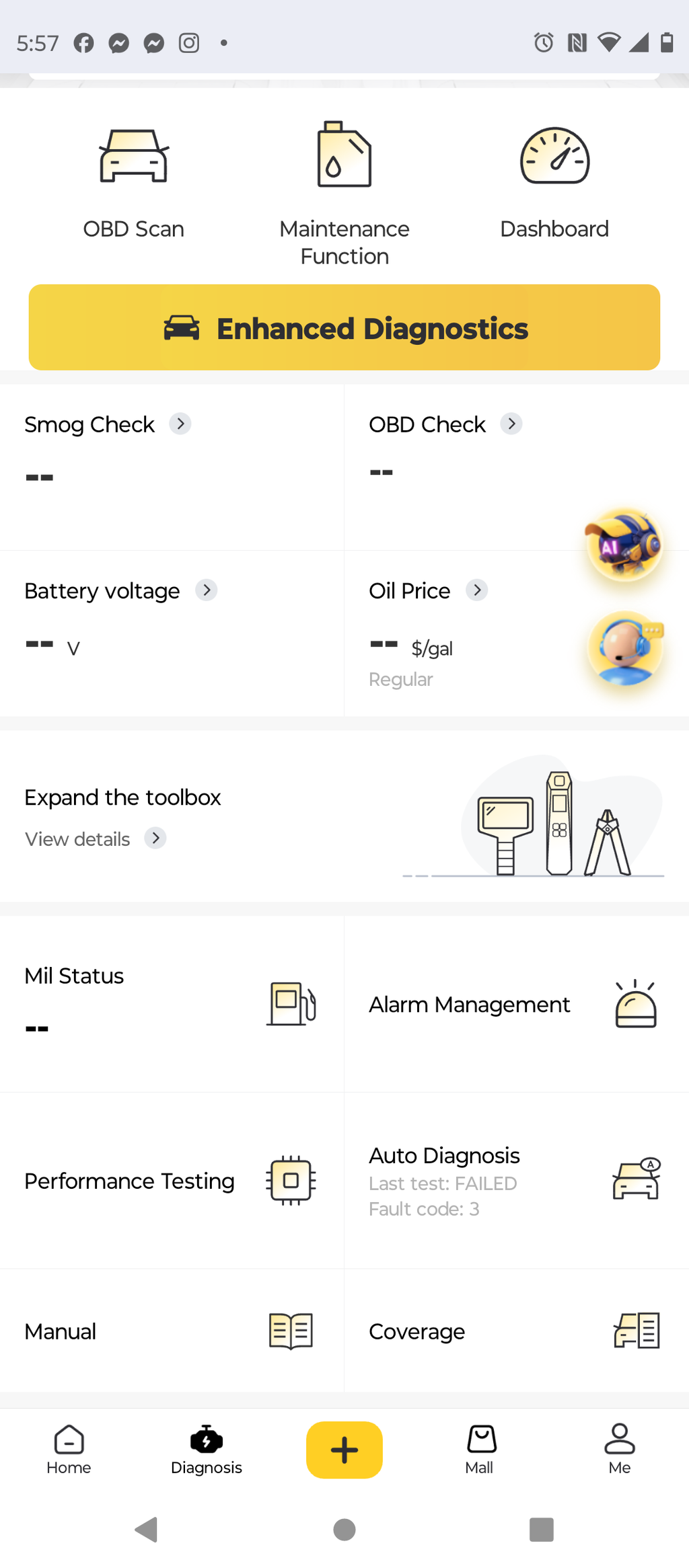
AI-assisted diagnostics work best when they reduce the search space. They are not there to replace your judgment. They are there to help turn raw scan output into a cleaner next-step list for you or the remote reviewer.
What to do
- Review the saved codes, live data, and active-test notes together.
- Use the scanner’s AI summary or report-parsing features after the first evidence capture.
- Compare AI suggestions against the actual symptom and command response.
- Turn the result into one shortlist: likely cause, likely circuit, and next manual check.
Why this matters
If you are dealing with multiple symptoms, repeated comeback issues, or related modules, AI can make the handoff faster. Thinkcar’s recent guidance on AI-assisted diagnostics frames the value correctly: the tool is most helpful when it moves you from code reading to the next confirm-or-reject test instead of pushing you into parts swapping. Their 2026 article also emphasizes saving DTCs, freeze-frame, readiness, and battery voltage before clearing anything.
Tool fit for guided analysis
For a fuller on-device workflow, MUCAR 892BT is better suited when you want more screen space and stronger scanner-first operation rather than a small dongle setup. The current Thinkcar product page lists an 8-inch touchscreen, 1280×800 resolution, 4GB of RAM, 64GB of storage, Android 10, Bluetooth 5.0, a 4,150mAh battery, and a 9–18V working voltage range. Thinkcar also says MUAI in the MUCAR 892BT is built on the DeepSeek large model as its core engine for AI-focused diagnostic support.
What to watch
- Do not treat AI output as proof of a bad part.
- If the output feels broad, add more source data first.
- Use the AI result to choose the next physical check, not to skip it.
Finally, share the report and agree on one next physical test
This last step is where many teams either save time or create a second round of confusion. The report should lead to one next decision, not ten half-formed opinions.
What to do
- Send the saved report, screenshots, and symptom notes together.
- Include the active-test result in plain English.
- Ask the remote reviewer for one next confirm-or-rule-out test.
- Hold off on parts replacement until that step is complete.
A simple handoff format
- Complaint: “Cooling fan does not run with A/C on.”
- Codes: stored, pending, and module location
- Freeze-frame: temperature, RPM, load, voltage
- Active test: fan commanded, no response
- Next ask: confirm power, ground, relay, or module command path
Why this matters
AI diagnostic report sharing is only useful if the receiver can act on it. A structured package shortens back-and-forth and reduces the chance of replacing a part too early.
Match the Thinkcar tool to the depth of your on-site workflow

Not every field job needs the same hardware. The right tool depends on whether you mainly need fast report sharing, stronger guided analysis, or a compact setup that stays easy to carry.
MUCAR 892BT for broader on-site control and guided diagnostics
If your remote vehicle diagnostics workflow often includes full-system scans, repeated troubleshooting, and on-device review, MUCAR 892BT is the best fit from the provided Thinkcar options. It is built more like a self-contained scanner than a simple adapter, and the 8-inch touchscreen helps when you need to review multiple systems without relying on a small phone display.
Best fit
- Mobile mechanics handling varied calls
- Shop assistants gathering data for a senior diagnostician
- DIY users who want stronger guided analysis on site
Why it stands out
- 8-inch touchscreen
- 1280×800 resolution
- 4GB RAM and 64GB storage
- Android 10 platform
- MUAI positioning for AI-guided support
MUCAR BT200 MAX for report-centered bidirectional work
When your main goal is to scan, run a focused active test, and send the results remotely, MUCAR BT200 MAX fits especially well. Thinkcar positions it around AI-powered diagnostics, bi-directional control, actuation testing, and full OBD2 functions, which lines up closely with a send-scan-results-to-a-shop-remotely workflow.
Best fit
- Fast field checks with a phone-based workflow
- Report sharing after one or two targeted commands
- Users who want portability without giving up active-test capability
Notable details
- Bluetooth 5.2
- 9–18V working voltage
- ≤130mA working current
- CAN-FD support
- 15+ reset functions
MUCAR DriverScan for a lighter Bluetooth field setup
If portability matters more than a larger scanner interface, MUCAR DriverScan is the lighter option to consider. The product page imagery and listing language emphasize Bluetooth use, active test capability, 15+ maintenance functions, OE-level full-system diagnostics, and support across 120+ car makes.
Best fit
- DIY users who want a compact tool in the glove box or bag
- Field users who prefer app-connected scanning
- Quick handoff cases where size matters more than a built-in screen
What to watch
- A phone-based workflow is convenient, but it can feel tighter when you need to compare several data views at once.
- For heavier daily use, a larger dedicated screen may be easier to manage.
Use these real-world scenarios to keep the workflow grounded
Remote support works best when you know what kind of case you are trying to solve. The same scan-save-share process can serve different people.
Parking-lot cooling fan complaint
A mobile technician arrives at a vehicle with an overheating complaint and no active fan operation. The on-site user captures full-system results, saves freeze-frame, runs a cooling-fan active test, and sends the result to the shop lead. Because the report includes both fault data and command-response evidence, the remote reviewer can narrow the next check to wiring, relay, module command, or motor response.
Check-engine light review before booking service
A DIY user gets a recurring warning light but does not want to approve a repair blindly. The user saves codes, readiness status, and live symptom notes, then sends them to a trusted shop for review. That remote car diagnostics workflow gives the shop a better starting point than a phone photo of one generic code.
Shop-to-shop escalation
A junior technician or service assistant collects scan data while a senior diagnostician reviews the case from another location. This arrangement works especially well when the on-site person follows a strict sequence and does not clear anything prematurely.
Fleet approval check
A service coordinator scans a fleet vehicle on site before approving downtime or parts ordering. The shared evidence can help the off-site reviewer decide whether the vehicle needs immediate repair, further confirmation, or simple scheduling.
Troubleshoot the handoff when remote diagnostics stalls
Even a good scanner will not fix a messy process. If the remote reviewer says the report is not enough, the issue is usually the capture method, not the connection itself.
| Problem | Cause | Solution |
|---|---|---|
| Reviewer cannot confirm fault | One screenshot only | Save full-system report |
| Active test seems unclear | No baseline noted | Record expected response |
| AI output feels too broad | Thin source data | Add live data |
| Part replaced too early | No agreed next test | Confirm one next check |
| Shared results feel messy | Fragments in messages | Send one report set |
What usually fixes the process fastest
- Save the report before you text anyone.
- Keep screenshots in the same order as the diagnostic steps.
- Write one line explaining the symptom and one line explaining the active-test result.
- Ask for one next action, not a full diagnosis from incomplete data.
FAQ
Can I get expert help remotely for car diagnostics?
Yes, remote help is practical when the person on site captures full scan evidence instead of sending a single code photo. The most useful package includes stored and pending codes, freeze-frame data, readiness status, battery condition, and symptom notes. If you can also add one safe bidirectional test result, the remote reviewer can usually give you a much more focused next step. That is the difference between general advice and a real remote vehicle diagnostics workflow.
How do remote automotive experts assist in diagnostics?
Remote automotive experts assist by reviewing the live and stored vehicle data you share from a bidirectional scanner, such as fault codes, freeze-frame information, sensor readings, and system status across multiple modules. They compare that data with the reported symptoms to identify likely causes, rule out unrelated faults, and suggest targeted tests or active commands to run on site. With AI report sharing and full-system scans, they can often spot patterns faster and guide the technician through the next diagnostic steps in real time. This makes troubleshooting more accurate, especially for intermittent or complex issues.
Which diagnostic tool is best for sending scan results to a shop remotely?
A bidirectional scanner is usually better for remote support because it can provide command-and-response evidence, not just stored faults. A basic reader may show a code, but it cannot always help you confirm whether a fan, valve, pump, or actuator actually responds when commanded. That extra confirmation step makes the handoff more useful for a shop or remote expert. In Thinkcar’s lineup here, the Bidirectional Scanner route is the stronger fit when confirmation testing matters.
How does AI-assisted diagnostics actually help during an on-site scan?
AI-assisted diagnostics helps by organizing raw scan data into likely causes and more logical next checks. In a good workflow, you use AI after you capture the original evidence and after you log any targeted active-test result. That keeps the AI output tied to real vehicle behavior instead of generic fault-code definitions. You should still verify the suggested path with one physical test before approving parts replacement.
Which Thinkcar option makes the most sense for sending scan results to a shop remotely?
For report-centered sharing, Thinkcar’s clearest fit is the MUCAR BT200 MAX because it is positioned around bidirectional testing, app-connected use, and AI-powered report handling. If you want a more self-contained on-device workflow with a larger display, MUCAR 892BT is the better direction. If compact size is your priority, MUCAR DriverScan is the lighter Bluetooth choice. The right pick depends on whether your remote car diagnostics workflow values portability, guided analysis, or broader scanner-first control.
Table of Contents
-
4 Steps to Perform Remote Diagnostics with a Bidirectional Scanner on Site: AI Report Sharing Steps Explained
- Get the fault data before the real clue disappears
- Check these on-site items before you plug in the scanner
- Why a bidirectional scanner makes remote support more useful
- Run this 4-part remote vehicle diagnostics workflow
- Match the Thinkcar tool to the depth of your on-site workflow
- Use these real-world scenarios to keep the workflow grounded
- Troubleshoot the handoff when remote diagnostics stalls
-
FAQ
- Can I get expert help remotely for car diagnostics?
- How do remote automotive experts assist in diagnostics?
- Which diagnostic tool is best for sending scan results to a shop remotely?
- How does AI-assisted diagnostics actually help during an on-site scan?
- Which Thinkcar option makes the most sense for sending scan results to a shop remotely?

Share:
Remote Pre-Checks: 3 Scan Tools for Faster Troubleshooting
Basic Code Readers vs AI Full-Vehicle Diagnosis: What You Gain in Root-Cause Reasoning and Time Saved