
At first glance, the THINKSCAN 689BT and THINKSCAN 689BT PRO look very similar. They share the same professional diagnostic foundation, including OE-level full-system diagnostics, ECU coding, bi-directional control, 35+ service functions, CAN-FD and DoIP support.
So what exactly are you getting when you choose the PRO model?
The THINKSCAN 689BT PRO isn't designed to replace the 689BT.
Instead, it's built for technicians who want to move beyond traditional scan-tool diagnostics into a more advanced repair workflow.
Both models provide the core capabilities expected from a professional bidirectional scan tool. Where they begin to differ is in how technicians diagnose complex faults and what they can do after the fault has been identified.
The THINKSCAN 689BT PRO adds three major capabilities: Vehicle Topology Mapping, AI Repair Guidance, and J2534 Pass-Thru support.

If your work focuses on fault diagnosis, maintenance, ECU coding, active testing, and everyday repair, the THINKSCAN 689BT already provides a powerful professional diagnostic platform.
If you regularly diagnose complex vehicle networks, want AI-assisted fault analysis, or need compatible OEM programming workflows, the THINKSCAN 689BT PRO is built for that next level of work.
In this comparison, we'll explain exactly where the two scanners differ, who each model is designed for, and whether choosing the THINKSCAN 689BT PRO makes sense for your workshop.
Same Diagnostic Foundation, Different Workflow
Before looking at the differences, it's important to understand how much the two scanners already have in common.
| Capability | THINKSCAN 689BT | THINKSCAN 689BT PRO |
|---|---|---|
| OE-Level Full-System Diagnostics | ✅ | ✅ |
| ECU Coding | ✅ | ✅ |
| Bi-Directional Control / Active Tests | ✅ | ✅ |
| 35+ Service Functions | ✅ | ✅ |
| CAN-FD & DoIP Support | ✅ | ✅ |
| FCA SGW Access | ✅ | ✅ |
| Mercedes-Benz SGW Access | ✅ | ✅ |
| AutoVIN & AutoScan | ✅ | ✅ |
| 8" Touchscreen | ✅ | ✅ |
| 4GB + 64GB Memory | ✅ | ✅ |
| Vehicle Topology Mapping | — | ✅ |
| AI Repair Guidance | — | ✅ |
| J2534 Pass-Thru | — | ✅ |
| Compatible OEM Programming Workflow | — | ✅ |
| Best For | Advanced DIYers & Repair Shops | Professional Workshops & Advanced Repair |
Both models are professional diagnostic scanners capable of handling full-system diagnostics, ECU coding, active tests, maintenance functions, and modern vehicle communication protocols.
The difference isn't simply that the PRO can diagnose vehicles while the standard model cannot.
Both can.
The real difference is what happens around and after the diagnostic process.
The THINKSCAN 689BT PRO adds tools that help technicians understand complex faults faster, determine what to check next, and continue into compatible OEM programming workflows when necessary.
Find Complex Faults Faster with Topology Mapping
One of the biggest differences between the THINKSCAN 689BT and THINKSCAN 689BT PRO is Vehicle Topology Mapping.
With the standard THINKSCAN 689BT, technicians can perform OE-level full-system scans and access individual control modules to read fault codes, view live data, retrieve ECU information, perform active tests, and access available special functions.
The THINKSCAN 689BT PRO adds another way to view the results.

Instead of relying only on a conventional system list, the Topology Map displays supported control modules and their communication relationships as a visual vehicle network.
This helps technicians quickly identify:
- Which control modules are installed
- Which modules are communicating normally
- Which modules contain faults
- How different ECUs are connected
- Which area of the vehicle network may require further diagnosis
The advantage becomes much clearer when diagnosing vehicles with multiple warning lights or communication faults.
Imagine a vehicle arrives with ABS, SRS, EPS, and transmission-related faults at the same time.
With the THINKSCAN 689BT, you can still diagnose each affected system, read the fault codes, inspect live data, and perform active tests.
With the THINKSCAN 689BT PRO, the Topology Map gives you a visual overview of the network first.
If several faulted modules appear along the same communication branch, the technician can recognize that the faults may be related to a shared communication, gateway, wiring, or power issue instead of immediately treating every fault code as an independent problem.
Topology Mapping doesn't replace DTC analysis, live data, or active testing.
Instead, it helps technicians decide where to investigate first.
For routine diagnostics and straightforward faults, the THINKSCAN 689BT already provides the diagnostic capabilities most users need.
For workshops that frequently work with modern vehicles containing increasingly complex electronic networks, the THINKSCAN 689BT PRO can make the diagnostic process faster and easier to organize.
Go from Fault Codes to Next Steps with AI Repair Guidance
Another major upgrade on the THINKSCAN 689BT PRO is AI-assisted diagnostics and repair guidance.

Traditional diagnostic scanners give technicians information.
They identify DTCs, display live data, provide ECU information, and allow technicians to perform tests.
But identifying a fault code is often only the beginning of the repair.
A technician still needs to determine:
- What is most likely causing this code?
- What should I inspect first?
- Which component or circuit should I test next?
The THINKSCAN 689BT PRO adds AI-assisted tools designed to help organize that process.
A typical workflow can move from:
DTC Analysis → Likely Causes → Recommended Next Checks → Repair Guidance
For example, after a fault code is identified, AI Repair Guidance may provide information such as likely causes and recommended diagnostic directions, helping the technician determine whether to continue with circuit inspection, system testing, component testing, or other repair procedures.
The THINKSCAN 689BT PRO also supports AI analysis of diagnostic reports, providing another way to interpret scan results before beginning further testing.
This doesn't replace technician experience.
It also doesn't mean the scanner automatically repairs the vehicle or guarantees that the first suggested cause is the failed component.
Instead, AI Repair Guidance is designed to help technicians turn diagnostic information into a more structured troubleshooting process.
For experienced technicians, this can reduce the time spent organizing possible causes.
For less experienced users, it can provide useful direction on what to investigate after a fault code appears.
The standard THINKSCAN 689BT still provides the diagnostic data and testing capabilities required to diagnose the vehicle manually.
The PRO simply adds another layer between finding the fault and deciding what to test next.
Expand Your Capabilities with J2534 Pass-Thru
The third major difference between the THINKSCAN 689BT and THINKSCAN 689BT PRO is J2534 Pass-Thru support.
Like Topology Mapping and AI Repair Guidance, J2534 doesn't replace the scanner's existing diagnostic functions. It extends what a workshop can do when a repair requires compatible OEM software.
With the THINKSCAN 689BT, technicians can perform full-system diagnostics, ECU coding, active tests, maintenance functions, and other supported repair procedures directly through the diagnostic platform.
For many repair shops, these capabilities are sufficient for everyday diagnostics and repairs.
The THINKSCAN 689BT PRO adds a J2534-capable interface for communication between compatible OEM software on a Windows PC and the vehicle.

A typical J2534 workflow looks like this:
OEM Software → Windows PC → THINKSCAN 689BT PRO GVCI → Vehicle → ECU
This becomes important when a repair requires manufacturer software.
For example, imagine that a technician diagnoses a failed control module and installs a replacement.
The physical repair may be complete, but the replacement module could still require manufacturer programming or software configuration before the vehicle can return to service.
With the THINKSCAN 689BT, the workshop may need a separate J2534 Pass-Thru device or may need to outsource the programming procedure.
The PRO model includes a J2534-capable GVCI for compatible OEM software workflows, reducing the need for an additional dedicated Pass-Thru interface.
This can be particularly valuable for workshops that regularly handle:
- Module replacement
- ECU reprogramming
- OEM software updates
- Manufacturer-specific programming procedures
- Software-related repair workflows
However, J2534 support does not mean the THINKSCAN 689BT PRO includes OEM programming software.
OEM software, manufacturer subscriptions, security authorization, calibration files, and other manufacturer-specific requirements must be obtained separately where required.
J2534 compatibility also varies by manufacturer, vehicle, model year, ECU, OEM software, and programming procedure.
If you're new to J2534, see our guides:
These guides explain what J2534 does, how Pass-Thru devices work, what OEM software is required, and what technicians should know before performing ECU programming.
What Does the Complete THINKSCAN 689BT PRO Workflow Look Like?
The three PRO features make more sense when they're viewed as part of one workflow rather than as three unrelated specifications.
A typical diagnostic process can look like this:
That is the main reason to choose the PRO model.
It isn't simply about adding three more items to a feature list.
It creates a more complete workflow:
Find the fault → Understand the network → Determine what to check → Test the system → Complete compatible OEM programming when required.
Do You Need the THINKSCAN 689BT PRO?
Not necessarily.
The THINKSCAN 689BT remains a capable professional diagnostic scanner.
It already includes the functions many technicians use every day:
- OE-level full-system diagnostics
- ECU coding
- Bi-directional control
- 35+ maintenance services
- AutoVIN and AutoScan
- CAN-FD and DoIP
- FCA SGW access
- Mercedes-Benz SGW access
- Expansion accessory support
If your work primarily involves fault diagnosis, maintenance, active testing, ECU coding, and general repair, paying for J2534 and the additional PRO workflow features may not be necessary.
The THINKSCAN 689BT PRO makes more sense when your work increasingly involves complex electronic systems.
Consider the PRO if you regularly:
- Diagnose multi-module or communication faults
- Want a visual topology overview of vehicle networks
- Want AI assistance when moving from DTCs to diagnostic next steps
- Replace control modules
- Perform or plan to perform compatible OEM programming
- Want to keep more advanced repair jobs in-house
The decision therefore isn't simply about which scanner has more features.
It's about how far your repair workflow needs to go.
Can You Upgrade the THINKSCAN 689BT to the THINKSCAN 689BT PRO?
One of the most common questions buyers may have is whether they can purchase the THINKSCAN 689BT today and upgrade it to the THINKSCAN 689BT PRO later.
The short answer is no.
Although the two scanners share many of the same core diagnostic capabilities, they are designed as two different products from the beginning. The THINKSCAN 689BT PRO combines exclusive features such as Vehicle Topology Mapping and AI Repair Guidance with a J2534-capable GVCI, making it a different platform rather than a software upgrade.
Because of this, the THINKSCAN 689BT cannot be upgraded into the THINKSCAN 689BT PRO through a software update, firmware update, paid activation, or by replacing the VCI alone.
Final Verdict
The THINKSCAN 689BT and THINKSCAN 689BT PRO share the same core purpose: giving technicians a professional platform for full-system vehicle diagnostics and repair.
For advanced DIYers, mobile mechanics, and repair shops focused primarily on diagnostics, maintenance, ECU coding, and active testing, the THINKSCAN 689BT already provides a comprehensive set of professional functions.
The THINKSCAN 689BT PRO extends that workflow.
Topology Mapping helps technicians understand complex vehicle networks and isolate faults faster.
AI Repair Guidance helps turn diagnostic information into clearer troubleshooting directions.
J2534 Pass-Thru allows the included compatible interface to participate in supported OEM software and programming workflows.
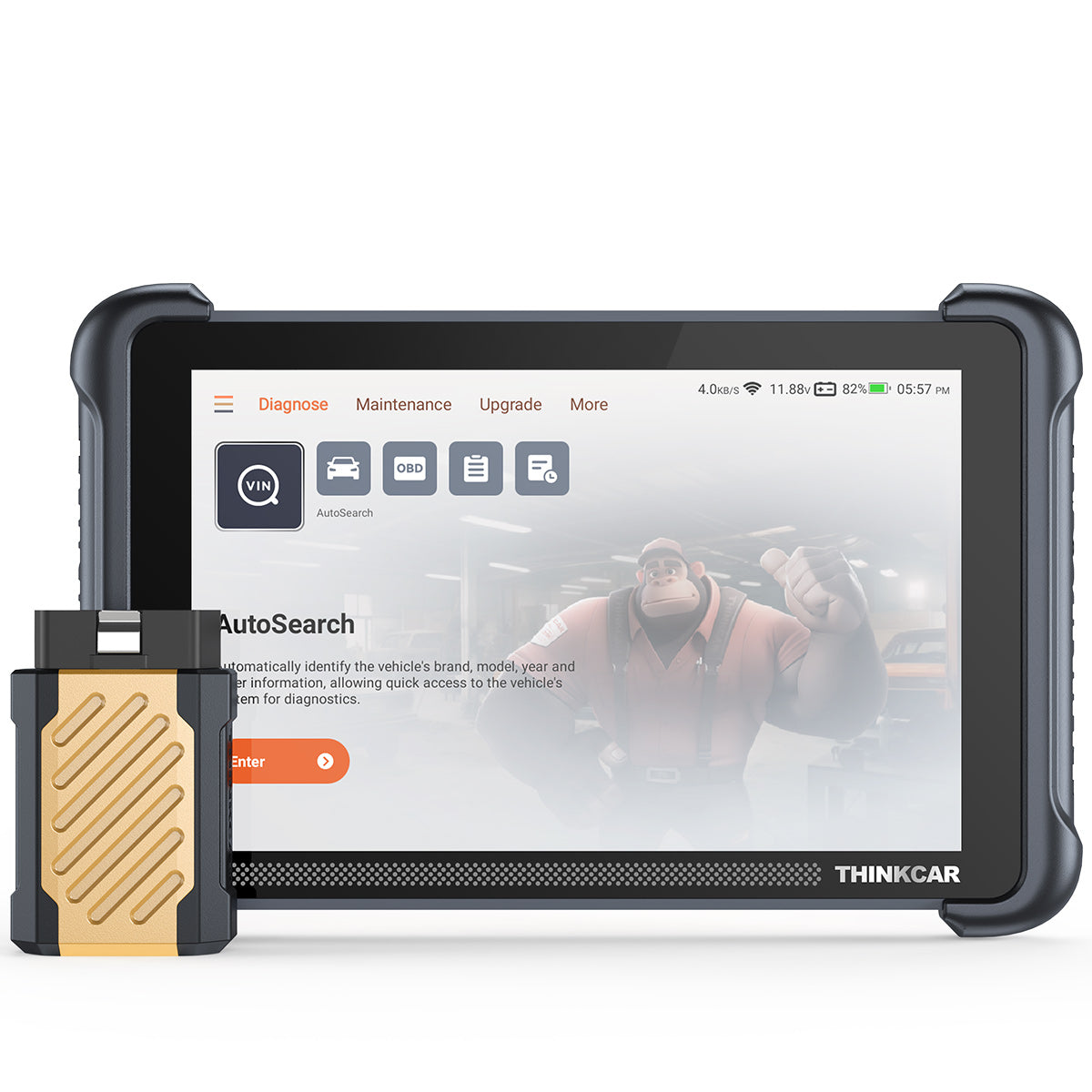
THINKSCAN 689BT
Best for advanced DIYers and professional repair shops.
A professional diagnostic platform for full-system diagnostics, ECU coding, active tests, and everyday repair work.
SHOP NOW
THINKSCAN 689BT PRO
Best for professional workshops and advanced repair workflows.
Adds Vehicle Topology Mapping, AI Repair Guidance, and J2534 Pass-Thru support for more advanced diagnostic and programming work.
SHOP NOWUltimately, the better choice depends on the work you perform today and the repair capabilities you expect to need in the future.
Frequently Asked Questions
What is the biggest difference between the THINKSCAN 689BT and THINKSCAN 689BT PRO?
The THINKSCAN 689BT PRO adds three major workflow capabilities: Vehicle Topology Mapping, AI Repair Guidance, and J2534 Pass-Thru support.
Both scanners provide OE-level full-system diagnostics, ECU coding, bi-directional control, 35+ service functions, CAN-FD, DoIP, and secure gateway access.
The standard THINKSCAN 689BT is designed primarily for professional diagnostics and everyday repair, while the PRO extends the workflow into advanced network analysis, AI-assisted troubleshooting, and compatible OEM programming.
Does the THINKSCAN 689BT PRO include OEM software?
No.
J2534 Pass-Thru provides the communication interface between compatible OEM software running on a Windows PC and the vehicle.
OEM software, manufacturer subscriptions, security access, calibration files, and other required services must be obtained separately from the vehicle manufacturer or an authorized provider.
Can the THINKSCAN 689BT PRO program every vehicle?
No.
J2534 programming availability depends on the manufacturer, vehicle, model year, ECU, OEM software, subscription requirements, security authorization, communication protocol, and specific programming procedure.
Always verify OEM requirements and vehicle compatibility before beginning programming.
Where are the installation instructions for the THINKSCAN 689BT PRO GVCI?
For J2534 Pass-Thru use, the GVCI must first be set up on a Windows PC.
The basic setup process is:
- Download and install the THINKCAR J2534Plus / J2534 VCI Driver on your Windows PC. The official J2534 VCI Driver_28MB is available from the THINKCAR Software Download page. The J2534 driver must be downloaded and installed on your PC to communicate with the VCI and perform any reprogramming.
- Connect the THINKSCAN 689BT PRO GVCI to the vehicle's OBD2 port.
- Connect the GVCI to the Windows PC using the supported USB or Wi-Fi connection.
- Open J2534Plus and use Check Connect to verify that the PC can communicate with the GVCI.
- Update the GVCI firmware if required before beginning the diagnostic or programming session.
- Install and open the appropriate OEM diagnostic/programming software and make sure you have the required manufacturer subscription.
- When the OEM software asks you to select a VCI or communication interface, select J2534Plus or THINKCAR_J2534, depending on how the OEM application displays the driver.
- Follow the vehicle manufacturer's programming procedure.
Once the J2534Plus driver is installed, it operates as a background service. You do not need to keep the J2534Plus management window open during the actual OEM diagnostic or programming session.
For the complete installation and connection procedure, including USB/Wi-Fi configuration and OEM software setup, see our J2534 setup and programming guide .
Is J2534 the same as ECU coding?
No.
ECU coding and J2534 Pass-Thru serve different purposes.
ECU coding is a diagnostic-tool function used for supported configuration, adaptation, personalization, module matching, and related procedures.
J2534 is a standardized communication interface that allows compatible OEM software on a Windows PC to communicate with supported vehicle ECUs.
A scanner can therefore support ECU coding without supporting J2534 Pass-Thru.
What is Topology Mapping on the THINKSCAN 689BT PRO?
Topology Mapping visually displays supported vehicle control modules and their communication relationships.
Instead of checking only a conventional system list, technicians can see which modules are communicating normally, which contain faults, and how different modules are connected.
This can help speed up diagnosis when several modules report faults or when the vehicle has a network communication problem.
Does AI Repair Guidance automatically diagnose the vehicle?
No.
AI Repair Guidance assists the diagnostic process by analyzing available fault information and providing likely causes, recommended checks, and repair guidance.
It should be used together with DTC information, live data, active tests, circuit inspection, technician judgment, and the appropriate service information.
Do both scanners support ECU coding?
Yes.
Both the THINKSCAN 689BT and THINKSCAN 689BT PRO support ECU coding on compatible vehicles.
Available coding functions vary by vehicle make, model, model year, ECU, and supported system.
Do both scanners support bi-directional control?
Yes.
Both models support bi-directional control / active tests on compatible vehicles, allowing technicians to send commands to supported components and actuators to help isolate faults.
The THINKSCAN 689BT PRO supports 4,000+ active tests across supported applications.
Do both scanners support CAN-FD and DoIP?
Yes.
Both THINKSCAN 689BT and THINKSCAN 689BT PRO support CAN-FD and DoIP for compatible vehicles.
Which model is better for advanced DIY users?
For most advanced DIY users, the THINKSCAN 689BT provides better value.
It already includes professional capabilities such as full-system diagnostics, ECU coding, bi-directional control, service functions, CAN-FD, DoIP, and secure gateway access.
Unless you specifically need Topology Mapping, AI Repair Guidance, or J2534 workflows, the standard 689BT will cover most advanced DIY diagnostic and repair needs.
Which model is better for a repair shop?
It depends on the type of work the shop performs.
For routine diagnostics, maintenance, ECU coding, and active testing, the THINKSCAN 689BT is already a capable professional platform.
For workshops dealing with more complex network faults, module replacement, or compatible OEM programming, the THINKSCAN 689BT PRO provides a more complete long-term workflow.

Share:
Symptoms of a Bad Camshaft Position Sensor
How to Test a Crankshaft Position Sensor