
Beyond the Basics: How to Use Advanced Scan Tool Features for At-Home Diagnostics
When your car has multiple warning lights, an intermittent fault, or a repair that still needs proof after parts replacement, basic code reading stops being enough. For accurate at-home car diagnostics, you need full-system access, live data automotive diagnostics, active tests for car diagnostics, and service resets and relearns. The MUCAR 892BT fits that workflow because it combines full-system diagnostics, ECU coding, bidirectional control, AI fault-code analysis, and lifetime software updates in one handheld setup.
That matters because modern vehicles spread one problem across several modules. A charging issue can trigger engine, ABS, and body faults at the same time. A proper full-system scan for DIY repair gives you the first clean picture before you clear codes, disconnect the battery, or replace parts that were never bad.
Which advanced scan tool features matter most in a home garage?
A basic OBD2 reader usually focuses on engine and emissions faults. Once you move into brake, airbag, transmission, body, TPMS, HVAC, or communication problems, you need a tool that can reach more modules and do more than read codes. XTOOL’s scanner-selection guide draws that same line between entry-level readers and professional full-system tools with bi-directional control and service functions. (xtooltech.com)
The capability jump from code reading to diagnosis
The difference is not just a longer feature list. It is the shift from passive reading to active decision-making.
- Full-system diagnostics let you scan engine, transmission, ABS, SRS, BCM, TPMS, HVAC, and other modules instead of engine codes alone. (xtooltech.com)
- Live data automotive diagnostics help you compare sensor behavior in real time instead of guessing from one stored code. XTOOL highlights live-data graphing and interface clarity as important usability factors. (xtooltech.com)
- Active tests for car diagnostics let the tool command supported components such as fans, pumps, relays, windows, lights, and other actuators on compatible vehicles. The MUCAR 892BT and THINKSCAN 689BT both list bi-directional control for that kind of troubleshooting.
- Service resets and relearns matter after the repair, not before it. They help the vehicle complete maintenance and adaptation procedures when the root issue has already been fixed.
Why the MUCAR 892BT is the lead fit here
For an advanced OBD2 scanner for home garage use, the MUCAR 892BT lines up with the exact workflow this article covers. The official product page lists free lifetime updates, an AI Intelligent Diagnostic System, ECU coding, bi-directional test support, and 34+ maintenance functions, along with an 8-inch touchscreen and vehicle compatibility lookup. Coverage can vary by make, model, year, trim, ECU, and region, so function support should be checked before relying on any specific test or reset.
- Good fit when you want one tool for scan, live data, active tests, and post-repair resets
- Better fit than a basic code reader when warning lights cross multiple systems
- Safer choice when you need to verify coverage by vehicle before buying or before attempting a function
Shop: Mucar 892bt Automotive Scanner
How to use advanced scan tool features in the right order
If you jump straight to clearing codes or running a reset, you lose the most useful evidence. A repeatable workflow keeps the data trail intact and reduces unnecessary parts swapping.
Step 1: Run a full-system scan first
Start by identifying the vehicle correctly, then scan every available module instead of checking powertrain codes only. This is the foundation of a real full-system scan for DIY repair because shared faults often show up outside the engine menu.
What to do
- Use AutoVIN if the tool and vehicle support it
- Scan all available modules, not just engine
- Note which modules show current, history, or communication faults
- Look for low-voltage or gateway-related patterns across systems
Why this matters
XTOOL notes that full-system scanners expand access beyond engine diagnostics to systems such as ABS, SRS, BCM, TPMS, steering, and HVAC. That wider view is what separates advanced diagnostics from generic code reading. (xtooltech.com)
Step 2: Save the first fault snapshot before clearing anything
Your first scan is often the cleanest clue trail you will get. Once you clear codes, disconnect the battery, or road-test the car, freeze-frame context may be gone.
Shop: Thinkcar Thinkscan 689bt Bidirectional Scan Tool
What to save
- DTCs from each affected module
- Freeze-frame data
- Readiness status
- Module health report
- Any symptom notes from the driver
What to watch
- Intermittent faults may disappear after a restart
- Voltage-related faults can multiply across modules
- Stored and pending codes may tell different parts of the story
Step 3: Use live data to look for patterns
This is where at-home car diagnostics moves beyond code lookup. The goal is not to stare at one number. The goal is to compare related PIDs and see whether the data supports the stored fault.
Good live-data checks by complaint
- Misfire or fuel issue: fuel trims, O2 sensor activity, MAF or MAP, coolant temperature
- Cooling complaint: coolant temperature, fan command, battery voltage
- ABS concern: wheel-speed signals side to side
- Charging issue: system voltage before start, at idle, and under load
Why this matters
XTOOL specifically highlights live-data graphing as part of an effective advanced diagnostic workflow. A graph often makes a weak sensor, delayed response, or intermittent drop-out easier to spot than a static number list. (xtooltech.com)
Step 4: Use an active test when you need a yes-or-no answer
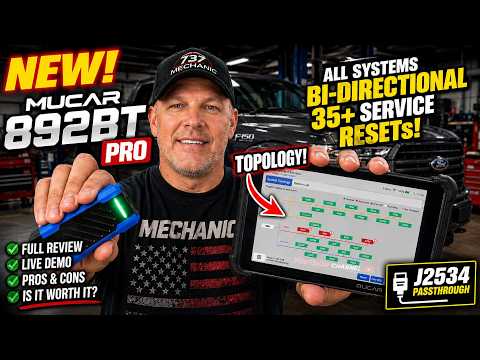
Active tests for car diagnostics are the quickest way to separate a command problem from a component problem. If the tool can command the part and the part responds, you can move your diagnosis upstream or downstream with more confidence.
What to do
- Command one supported actuator at a time
- Watch for the expected mechanical or electrical response
- Compare the commanded action with live data when possible
- Stop if the vehicle condition is unsafe for the test
Common examples
- Cooling fan
- Purge solenoid
- Fuel pump
- Relay
- Window or lock actuator
- Exterior or interior lighting functions
What to watch
- Vehicle support varies by exact model and function
- Some tests require ignition on, engine off
- Low battery voltage can block or distort test results
The MUCAR 892BT supports bi-directional control on compatible vehicles, and the official page lists supported component-command use cases such as fans, pumps, relays, windows, lights, and other actuators.
Step 5: Apply service resets and relearns only after the repair path is confirmed
Service resets and relearns are not repairs. They are the finishing step after you have fixed the fault or completed the maintenance task that triggered the warning.
Shop: Mucar 682 Bidirectional Scan Tool With Free Lifetime
Common reset or relearn uses
- Oil reset
- EPB service
- ABS bleeding support
- Injector coding
- A/F adjustment
- Transmission relearn
Common mistake
- Running a reset first and assuming the returning light means the scanner failed
On the MUCAR 892BT, the official product page lists ECU coding, bi-directional test support, and 34+ maintenance functions. On the MUCAR 682, the official page lists bi-directional test support and 20+ reset functions. Use those functions only after you confirm the tool supports the exact vehicle and job.
Step 6: Re-scan and road-test to confirm the fix
A repair is not confirmed when the light turns off in the driveway. It is confirmed when the original fault conditions are repeated and the system stays clean afterward.
What to do
- Clear codes if appropriate
- Recreate the original driving conditions
- Re-scan all affected modules
- Check whether pending or current faults return
- Review readiness status if emissions-related work was involved
Why this matters
This final check keeps you from mistaking a temporary reset for a real repair. It also helps you separate a fixed primary fault from secondary codes that were only along for the ride.
Setup checks before active tests and resets
Before using advanced scan tool features, make sure the vehicle and the tool are both in a stable state. Many failed tests come from setup mistakes rather than bad hardware.
Basic prerequisites that prevent false results
- Battery voltage should stay stable during long scans and actuation tests
- Use the correct ignition state for the procedure
- Confirm vehicle, year, and function coverage before starting
- Save pre-repair reports before clearing codes
- Keep the vehicle in a safe condition before commanding actuators
According to NHTSA, OBD systems are designed to monitor emissions-related faults and store diagnostic information, but that does not mean a generic reader can access every non-emissions module you need for modern troubleshooting. For electrical safety and battery-service risk, OSHA warns that energized systems can create shock and arc hazards, which is a good reminder to stabilize the vehicle and avoid careless actuator testing around moving components. (xtooltech.com)
A second Thinkcar option for regular bidirectional work

If your main priority is how to use bidirectional scan tool functions often, but you want a product positioned directly around full bidirectional control, the Thinkcar Thinkscan 689bt Bidirectional Scan Tool is a practical step up in workflow depth. Its official page lists AI repair guidance, FCA AutoAuth, CANFD and DOIP, ECU coding, 35 resets, and bi-directional capability. Coverage still varies by vehicle, so support should be verified by the exact make, model, year, and function.
- Better fit for users who expect to run active tests often
- Useful when newer protocol support matters in the home garage
- Stronger match when ECU coding is part of the planned workflow
Common at-home diagnostic scenarios

Most DIY diagnostic jobs follow a pattern. The right feature depends on the complaint, not on whichever menu looks most advanced.
Intermittent warning lights
Use a full-system scan first, then compare current and history faults. Save the first report before clearing anything. If several modules show low-voltage or communication codes, fix the power supply issue before chasing every downstream code.
Cooling fan, purge valve, or pump suspicion
This is where active tests for car diagnostics are most helpful. Command the supported component, then compare the response with live data and with the actual physical behavior. If the ECU command is present but the part does not respond, the fault is often at the component, wiring, relay, or power/ground level.
Battery replacement aftermath
After battery service, scan all modules for voltage and communication faults before doing resets. Some lights disappear after a clean voltage recovery, while others need a supported reset or relearn after the electrical system is stable.
ABS or chassis complaint
Start outside the engine menu. Compare wheel-speed data side to side and look for a sensor that drops out under motion. That is a more direct path than replacing parts based only on a warning lamp.
A lower-cost bidirectional path in the same lineup
For readers who want service resets and bidirectional functions in a smaller format, the MUCAR 682 fits as the lighter option in this article. Its official page lists lifetime free updates, AI fault-code analysis, bi-directional test support, 20+ reset functions, CAN FD, FCA AutoAuth, full-system diagnostics, full OBDII functions, and a 6.2-inch anti-glare touchscreen.
- Better for simpler home workflows that still need active tests
- Useful when you want a smaller handheld format
- Still requires function-by-vehicle verification before relying on a reset or test
What usually goes wrong during DIY diagnostics?
Advanced features help, but they do not remove the need for method. Most at-home mistakes come from sequence errors, weak battery voltage, or using a function the exact vehicle does not support.
Fast troubleshooting table
| Problem | Likely cause | Fix |
|---|---|---|
| No communication | Wrong key state | Switch ignition to ON |
| No communication | Weak port power | Check battery and port |
| Active test fails | Unsupported function | Verify coverage by vehicle |
| Too many module codes | Low voltage event | Fix power first |
| Reset returns light | Root fault remains | Recheck live data |
What to do next
- If multiple modules throw voltage codes, test the battery and charging system first
- If an active test fails, confirm support before assuming the component is bad
- If AutoVIN does not identify the vehicle, enter the vehicle manually and continue
- If a reset succeeds but the light returns, go back to root-cause diagnosis rather than repeating the reset
How Thinkcar compares with Autel and Innova for this type of job
The useful comparison is not brand versus brand in the abstract. It is capability tier versus capability tier.
Where the differences usually show up
- Innova is often the benchmark people recognize when moving up from basic DIY readers into more feature-rich home-use scanners.
- Autel is commonly compared in the advanced wireless and tablet-style diagnostic category.
- Thinkcar fits this article’s use case when you specifically want full-system scanning, active tests, service functions, and compatibility checking tied to the exact vehicle and function.
What to compare before you buy
- Full-system diagnostics access
- Bi-directional or active test support
- Service reset and relearn coverage
- CAN FD or newer protocol support
- Vehicle identification workflow
- Coverage verification by function and vehicle
- Update path and software support
XTOOL’s selection guide makes the same point at the category level: basic readers handle engine-code work, while advanced users and shops benefit from full-system diagnostics, bi-directional control, service functions, and broader coverage. That framework is more useful than picking a scanner by brand name alone. (xtooltech.com)
FAQ
What are the differences between entry-level and professional scan tools?
Advanced scan tool features add access to more modules, deeper live data, active tests, and post-repair functions. A basic reader usually stays focused on engine and emissions faults, while a full-system tool can also reach ABS, SRS, body, transmission, and other modules. That broader access matters when one electrical or communication fault affects several systems at once. It also gives you a better path for at-home car diagnostics because you can confirm patterns instead of guessing from one code.
What’s the best entry-level bidirectional tool for a real repair workflow?
For a real repair workflow, a strong entry-level bidirectional option is a Thinkcar tool that gives you both active tests and full-system diagnostics without jumping straight to a pro-level price. Models like the MUCAR 892BT or THINKSCAN 689BT are good starting points because they let you run common actuator commands, read live data, and verify repairs in one workflow. The best choice depends on your vehicle coverage and the specific tests you expect to use most often, so check supported functions by make and model before buying. Also look for stable wireless connection, clear test menus, and update support, since those matter just as much as raw feature count for at-home diagnostics.
Which affordable scanner can do active tests and service functions?
If you want an affordable scanner that can handle both active tests and service functions, Thinkcar is a strong place to start because several of its mid-range DIY and prosumer tools are built for exactly that step up from basic code reading. The right choice is one that offers bi-directional control for actuator tests, full-system access, and the specific service resets you need, such as oil, EPB, SAS, battery registration, or throttle relearn. Before buying, confirm vehicle coverage by year, make, model, and engine, since active test and service-function support varies by platform. In short, prioritize a Thinkcar model that matches your car and the maintenance jobs you actually plan to do, rather than choosing by price alone.
When should service resets and relearns be done?
Service resets and relearns should be done after the repair or maintenance work is complete, not as a shortcut before diagnosis. For example, an oil reset follows the service, and a relearn follows the repair path that actually caused the warning or adaptation issue. If you run the reset too early, the light may return immediately and hide the real problem for a short time. Thinkcar tools that support reset functions are most useful when you treat resets as the closing step rather than the starting point.
Which Thinkcar scanner makes the most sense as an advanced OBD2 scanner for home garage use?
The right Thinkcar pick depends on how deep your workflow goes. MUCAR 892BT makes sense when you want full-system diagnostics, bidirectional control, ECU coding support, and a larger-screen workflow in one tool. THINKSCAN 689BT is a stronger direction when your priority is regular bidirectional work, newer protocol support, and a model positioned around that advanced diagnostic lane. MUCAR 682 is the simpler path when you still want bi-directional testing and service functions in a smaller format, but feature support should always be checked by exact vehicle and function.
What is the safest order for at-home diagnostics on a modern vehicle?
The safest order is to scan all modules first, save the first report, study live data, run supported active tests only when needed, complete resets after the repair, and then re-scan after a road test. That sequence protects the original evidence and keeps you from confusing a temporary reset with a real fix. It also reduces random parts replacement because every step either confirms or disproves the fault path. For modern cars with several networked modules, that order is usually more important than any single feature on the tool.
Table of Contents
- Which advanced scan tool features matter most in a home garage?
-
How to use advanced scan tool features in the right order
- Step 1: Run a full-system scan first
- Step 2: Save the first fault snapshot before clearing anything
- Step 3: Use live data to look for patterns
- Step 4: Use an active test when you need a yes-or-no answer
- Step 5: Apply service resets and relearns only after the repair path is confirmed
- Step 6: Re-scan and road-test to confirm the fix
- Setup checks before active tests and resets
- Common at-home diagnostic scenarios
- What usually goes wrong during DIY diagnostics?
- How Thinkcar compares with Autel and Innova for this type of job
-
FAQ
- What are the differences between entry-level and professional scan tools?
- What’s the best entry-level bidirectional tool for a real repair workflow?
- Which affordable scanner can do active tests and service functions?
- When should service resets and relearns be done?
- Which Thinkcar scanner makes the most sense as an advanced OBD2 scanner for home garage use?
- What is the safest order for at-home diagnostics on a modern vehicle?

Share:
5 Steps to Choose a Diagnostic Scanner That Covers Both Your Old Daily Driver and Your Newer Car
How to Diagnose Car Problems with a Bluetooth Scanner When You're Not a Mechanic