
How to Share Scan Results With Remote Automotive Experts
Send a remote car diagnostics package that an expert can actually use
A check engine light is frustrating on its own, but remote help gets even slower when you send one blurry screenshot and a single fault code. In real remote car diagnostics, the expert needs context, not just a code number. If you want useful advice instead of guesswork, you need a clean workflow for capture, labeling, and sharing.
That workflow starts before you tap Scan. You need the vehicle details, the complaint in plain English, a full-system report, and only the live data that supports the symptom. Once you organize those pieces, share scan results remotely in a format a technician can review quickly, whether you are texting a mobile mechanic, emailing a shop advisor, or asking for remote automotive expert help from another state.
What to collect before you send anything
Before you run the first scan, make sure you can package the basics in one place.
- Year, make, model, engine, and mileage
- VIN if the expert requests a vehicle-specific check
- Warning lights now on the dash
- Stored, pending, and permanent codes
- Freeze-frame data if your tool supports it
- Symptom timing, such as cold start, hot idle, highway speed, or after refueling
- Recent repairs, battery replacement, jump-starts, or aftermarket parts
- Battery condition if cranking is slow or modules are dropping offline
Quick readiness check
A remote session goes much faster when your setup is stable.
- OBD2 scanner or app-connected tool paired and recognized
- Phone, tablet, or Wi-Fi connection ready for uploads
- Vehicle parked safely on level ground
- Battery voltage stable for a longer scan session
- Access to PDF export, screenshots, or report sharing
Confirm the vehicle story before you start scanning
A remote expert can sort codes much faster when the complaint is tied to a real symptom timeline. A rough idle that happens only after warm-up means something very different from a cold-start stumble. The same is true for a no-start, where crank-no-crank details may matter more than the first code you notice.
What to do
Capture the complaint in one short note before scanning.
- Verify year, make, model, engine, and mileage
- Note whether the fault is constant or intermittent
- Record when it happens: cold, hot, idle, load, braking, or after rain
- Write down recent work, including battery service or parts replacement
- For no-start issues, note crank/no-crank and whether the engine briefly fires
Why this matters
Remote automotive expert help works best when the data has a story attached. A P0303 misfire with “after coil swap, still rough at hot idle” gives more direction than the code alone. If you want to send a diagnostic report to a mechanic, the symptom note is what turns the report into an action plan.
Run a full-system scan, not just a quick code check

Many low-cost readers only pull generic powertrain information, so they can miss the systems that explain why a fault started in the first place. Road & Track notes that budget scanners often stop at generic engine codes, while enhanced diagnostics for ABS, SRS, and transmission systems can matter on newer vehicles. (roadandtrack.com) A full-system scan is usually the difference between basic code reading and usable OBD2 scanner report sharing.
What to do
Use the all-systems or auto-scan function instead of stopping at the check engine menu.
- Scan PCM, TCM, ABS, SRS, BCM, and any available body modules
- Save stored, pending, and permanent codes together
- Keep freeze-frame data when available
- Do not clear codes before the first report is saved
- If modules fail to communicate, note that in your message
Why this matters
Cross-system faults often tell the real story. Low voltage, network faults, or wheel-speed sensor issues can trigger complaints that look like engine problems at first. When you share scan results remotely, a complete report lets the reviewer connect those clues without asking you to start over.
A good fit for deeper remote review
If you want a larger dedicated tablet for full scans, MUCAR 892BT is built around that workflow. The official product page lists free lifetime updates, an AI intelligent diagnostic system, ECU coding, bi-directional tests, 34+ maintenance functions, an 8-inch touchscreen, 2.4G/5G Wi-Fi updates, and a technician community for case sharing. Thinkcar also states that shipping can come from a US warehouse and that the product includes a 30-day return window, 1-year warranty, and lifetime support.
What to watch
A full-system report is only useful if the vehicle is identified correctly.
- Confirm AutoVIN results match the actual vehicle
- Recheck trim or engine if coverage looks odd
- If a function is missing, verify by VIN before assuming the tool is wrong
Shop: MUCAR 892BT
Save the report in a format a remote expert can open fast
Good report sharing is not about sending the most files. It is about sending the right files in the right order. For most cases, a PDF or health report is the cleanest option because the technician can scroll through systems, code descriptions, and status flags without retyping screenshots from a text thread.
Which format works best
Choose the format based on the kind of review you want.
- PDF report: best for complete scans and email review
- PNG or JPG screenshots: best for quick text messages
- CSV or app data logs: best for trend analysis
- Short screen recording: best when live-data movement matters
- Dash warning photos: best for confirming exactly which lights are on
Preferred share package
Your file set should be small but complete.
- Full scan report
- Two or three dash photos
- One short symptom video if the issue is visible or audible
- Notes on battery work, recent repairs, or aftermarket parts
- One plain-language question, such as “Safe to drive?” or “What should I test next?”
Competitor context in the real world
Autel and Innova both support report-centered workflows, but they lean in different directions. Autel documentation shows PDF report saving and viewing from diagnostic history, while Autel Cloud is positioned for sharing reports, live data, images, and customer vehicle history. Innova pushes report creation through its RepairSolutions2 ecosystem and stores scan history for later review. (autel.com) If your goal is quick customer-to-expert sharing, app workflow and export speed matter more than raw feature count.
Add live data only when it supports the complaint
Sending every available graph usually slows remote car diagnostics down. A better move is to send three to five PIDs, meaning live data points, that relate directly to the symptom. That gives the expert a signal they can interpret instead of a giant dump they have to sort manually.
What to do
Pick the smallest useful group of live-data items.
- Misfire or rough running: short-term fuel trim, long-term fuel trim, O2 data, RPM, coolant temp
- Charging issue: battery voltage, charging voltage, load status
- Cooling complaint: coolant temp, fan command if supported
- Idle issue: throttle angle, RPM, fuel trims, MAF or MAP
- Transmission concern: fluid temp and commanded gear where supported
Why this matters
Selective data is easier to compare before and after a repair attempt. It also makes Bluetooth OBD2 report sharing more practical because you are not pushing large files unless the expert specifically wants a longer log.
A strong mobile option for app-based report sharing
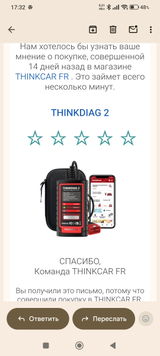
THINKDIAG 2 fits a phone-first or small-shop workflow where you want mobility and shareable reports. The official page lists CAN-FD support, ECU coding, bi-directional active tests, full-system diagnostics, 15 maintenance functions, adaptation, IMMO key matching, and Auto VIN. Thinkcar also positions it for broad vehicle coverage and app-connected use.
What to watch
Do not log extra data just because your tool can.
- Avoid unrelated PIDs
- Keep clips short for intermittent complaints
- Label each capture with the operating condition
- Save a baseline before clearing anything
Shop: THINKDIAG 2
Pick the right channel for share scan results remotely

The delivery method affects how fast you get a useful answer. Email is usually best for complete reports. Text works for urgent screenshots. App-based or platform-based workflows are better when the remote expert needs structured files, history, or even live support.
Recommended sharing order
Send the files in a sequence that is easy to review.
- Vehicle details
- Symptom summary
- Full scan report
- Relevant screenshots or live data
- Specific questions you want answered
When live remote help beats static screenshots
Static files work well for triage, but live support can be better for intermittent faults or guided testing. Thinkcar’s remote-diagnosis tutorial says the mechanic can use the remote workflow to select systems, read and clear fault codes, run supported action tests, generate reports, and check data streams after entering a verification code. (api.mythinkcar.com) That makes live remote sessions more useful when the expert wants you to repeat a test in real time.
A second device option for a dedicated tablet workflow
THINKSCAN 689BT is aimed at users who want a larger stand-alone scan tablet rather than a phone-first setup. The official product page lists ECU coding, bi-directional active tests, all-system diagnostics, CAN-FD and DoIP support, 35+ maintenance functions, AutoVIN, AutoScan, AutoAuth for FCA SGW, an 8-inch touchscreen, 4GB RAM, 64GB storage, Bluetooth 5.0, and lifetime free updates for supported brands.
Shop: THINKSCAN 689BT
Ask for an action plan, not just a code definition
A remote expert adds the most value when you ask for decisions. Code definitions are easy to find. What you really want is a priority list: how urgent the issue is, whether the vehicle is safe to drive, and what test should happen next.
What to ask
Use short, direct questions.
- Is this urgent or safe to monitor?
- Do these codes point to one root cause?
- What can I test at home first?
- Should I avoid driving the car?
- What evidence would confirm the likely fault?
Why this matters
When you send a diagnostic report to a mechanic, a focused question changes the kind of answer you get. Instead of “P0171 means lean condition,” you are more likely to hear “check for unmetered air first, then verify fuel-trim change at idle versus 2,500 rpm.” That is real remote repair advice, not a code glossary.
Re-scan after every change and label the follow-up clearly
Remote diagnostics works best when the expert can compare time-stamped snapshots. If you clear codes, charge the battery, replace a part, or perform a relearn, save a second report with a clear label. That lets the reviewer see what changed and what stayed the same.
What to do
Use a file name that shows both timing and action.
Initial Scan - 2018 Accord - Sep 8 2026Post Battery Charge - Sep 8 2026After Coil Swap - Cylinder 3 - Sep 8 2026After Clear and Drive Cycle - Sep 8 2026
What this improves
Chronological reporting helps with intermittent faults, low-voltage events, and false leads after parts swapping. It is one of the simplest ways to improve vehicle scan data for remote repair advice because the expert can compare before-and-after evidence instead of guessing what changed.
Plan for real-world remote diagnostics situations
This process is useful well beyond a check engine light at home. Once you can package a report clearly, remote review becomes a practical tool for scheduling, pre-purchase decisions, and early triage.
Common situations where it works well
- Used-car buyer wants a second opinion before purchase
- Mobile mechanic wants a full-system report before dispatch
- Shop advisor needs to decide tow-in versus drive-in
- DIY owner wants to avoid replacing parts from one code alone
Safety and prep points before a longer session
Longer diagnostic sessions deserve basic precautions. OSHA requires ventilation in battery-charging areas to prevent explosive gas buildup, and OSHA also requires adequate ventilation during charging and says chargers should be turned off before leads are connected or disconnected. If you need battery support during scanning, use a safe charging setup, keep the area ventilated, and avoid advanced active tests unless you understand the vehicle state.
Fix the most common report-sharing problems
Most failed remote reviews come down to missing context, low voltage, unreadable images, or too much irrelevant data. Solve those first and the quality of remote automotive expert help improves right away.
| Problem | Likely Cause | Fix |
|---|---|---|
| Report incomplete | Generic codes only | Run full-system scan |
| Codes keep changing | Low voltage | Charge, test, rescan |
| Screenshots unreadable | Cropped or blurry | Export PDF instead |
| Coverage unclear | Trim or ECU variance | Verify by VIN |
| Too much data | Wrong PIDs logged | Send complaint-only data |
What to watch when troubleshooting
Keep your first report untouched. Save it before clearing codes, before charging, and before swapping parts. That baseline often explains whether the problem is a true component fault, a battery event, or a communication issue.
Choose the remote workflow that matches how you work
The best remote car diagnostics setup is the one that matches your actual workflow. If you want a larger dedicated interface and broader in-tool collaboration, MUCAR 892BT makes sense. If you prefer a dedicated tablet-style bidirectional scanner for shop or bay use, THINKSCAN 689BT is easier to center in that process. If mobile scan tool for remote diagnostics is your priority, THINKDIAG 2 gives you a lighter app-based route.
What matters most is not the brand label by itself. It is whether your tool can run a full-system scan, export clean reports, capture complaint-specific live data, and support the way you plan to share scan results remotely. Once those pieces are in place, remote expert review becomes faster, clearer, and much more useful.
FAQ
Can I get expert help remotely for car diagnostics?
Yes, remote car diagnostics can work well for triage and next-step guidance when you send a complete report package. The minimum useful set is vehicle details, symptom notes, stored and pending codes, and a full-system scan rather than one engine code. For many owners, THINKDIAG 2 is the easiest mobile-first option, while MUCAR 892BT fits a larger-screen workflow.
How do remote automotive experts assist in diagnostics?
Remote automotive experts assist by reviewing your scan results, vehicle details, symptom notes, and any relevant photos or live data to narrow down the likely cause of the problem. They use that information to spot code patterns, identify whether the issue is urgent, and determine which systems or components need further testing. Based on the scan data, they can recommend the next diagnostic steps, such as specific live-data checks, visual inspections, or electrical tests. This helps avoid guesswork and makes troubleshooting faster and more accurate, even when the expert is not physically with the vehicle.
Which diagnostic tool is best for sending scan results to a shop remotely?
For sending scan results to a shop remotely, a Thinkcar diagnostic tool is a strong choice because it combines Bluetooth connectivity, full-system diagnostics, and easy report sharing through a mobile app. The best option is one that can generate clear diagnostic reports, capture live data, and export or share results quickly by email or messaging. In practice, that means looking for a Thinkcar scanner or interface that supports your vehicle and offers stable wireless communication with reliable cloud or app-based report management. If you compare models, prioritize coverage, report detail, and how easily the receiving shop can review the files.
When should I send live data instead of just a static scan report?
Send live data when the complaint depends on change over time, such as misfires, charging issues, overheating, or idle instability. Keep it tight by sending three to five relevant PIDs and labeling the operating condition, like hot idle, cold start, or 55 mph cruise. A short targeted clip is usually better than a long file full of unrelated graphs. That keeps the expert focused on the signal instead of sorting through noise.
Can a mobile mechanic use customer-shared scan results before the appointment?
Absolutely, and it often improves scheduling and parts planning. A customer-shared full-system report can help a mobile mechanic decide whether the car is likely drivable, whether the visit should focus on diagnosis first, and which tools to bring. Thinkcar makes sense for this use case because it offers both phone-connected and tablet-style tools suited to report sharing. In practice, THINKDIAG 2 is the clearest option when the customer needs to scan and send results from a phone.
What is the biggest mistake people make when they share scan results remotely?
The biggest mistake is sending one code screenshot without the vehicle story or full-system context. That usually leads to generic advice, extra back-and-forth, and sometimes the wrong repair direction. A close second is clearing codes before saving the first report, which erases useful evidence like freeze-frame conditions and module history. Save the original scan first, then make changes and rescan in a clearly labeled follow-up.
Table of Contents
-
How to Share Scan Results With Remote Automotive Experts
- Send a remote car diagnostics package that an expert can actually use
- Confirm the vehicle story before you start scanning
- Run a full-system scan, not just a quick code check
- Save the report in a format a remote expert can open fast
- Add live data only when it supports the complaint
- Pick the right channel for share scan results remotely
- Ask for an action plan, not just a code definition
- Re-scan after every change and label the follow-up clearly
- Plan for real-world remote diagnostics situations
- Fix the most common report-sharing problems
- Choose the remote workflow that matches how you work
-
FAQ
- Can I get expert help remotely for car diagnostics?
- How do remote automotive experts assist in diagnostics?
- Which diagnostic tool is best for sending scan results to a shop remotely?
- When should I send live data instead of just a static scan report?
- Can a mobile mechanic use customer-shared scan results before the appointment?
- What is the biggest mistake people make when they share scan results remotely?

Share:
How to Inspect a Used Car With a Budget OBD2 Scanner
Future-Proof Scan Tools for Modern Vehicle Systems and EVs