
Introduction
Choosing an AI-assisted automotive diagnostic tool under $200 can feel simple until you compare real-world details: vehicle coverage, bi-directional control, reset functions, and how updates work long term. If you buy the wrong unit, you can end up with a tool that reads codes but cannot run active tests, cannot access key modules, or cannot perform the service reset you actually need.
This guide shows how to choose a Vehicle Scanner & Diagnostic Tool that fits your car and your workflow, while still keeping the budget tight. It focuses on practical checks you can do before purchase, plus what to verify on day one after you unbox.
Because many buyers now want AI-powered Insights, this article also explains where AI helps most (pattern recognition, guided repair steps, faster triage) and where you still need basic fundamentals.

Official Site: THINKCAR
How to Choose an Automotive Diagnostic Tool Step-by-Step
Step 1: Confirm your vehicle coverage

Start by matching the scanner to your exact vehicle, not just your model name.
- Write down year, make, model, engine, and transmission (for example, 2017 2.0T with automatic).
- Confirm the tool supports your region and protocol needs (common items include CAN, ISO 9141-2, ISO 14229 UDS).
- Look for Auto VIN or AutoScan style workflows, because they reduce wrong-module mistakes.
If you are buying for more than one car, prioritize broad coverage first. A solid under-$200 tool should be a dependable OBD2 Intelligent Diagnosis option for daily jobs like reading codes, viewing live data, and clearing faults, but it should also have stable brand and model support.
For THINKCAR shoppers, THINKSCAN 662 is positioned as a plug-and-play diagnostic tablet that supports 140+ brands and includes CAN FD plus Auto VIN diagnostics for faster matching.
Shop: THINKSCAN 662
Step 2: Decide AI-assisted workflow needs
AI features vary a lot. Some tools label basic code lookups as AI, while others add guided paths that reduce diagnostic time.
Use this quick checklist:
- If you mostly want faster triage, prioritize AI-powered Insights that cluster related DTCs, suggest likely systems, and highlight what to check first.
- If you are doing repeat work (misfires, EVAP, intermittent sensors), prioritize a tool that can log data, graph it, and help you compare before/after.
- If you buy and sell cars, prioritize Auto VIN plus a clean report export.
In THINKCAR and MUCAR lineups, AI positioning often appears under terms like AI Diagnostic Series, smart workflows, or guided repair language. That matters most when you are not diagnosing every day and you want a tool that feels more like a Diagnostic Tools Guide than a raw data terminal.
A practical tip: AI is only as helpful as the data it can access. Therefore, do not pick AI first and coverage second. Reverse that order.
Step 3: Choose required system depth
Most budget tools can read generic powertrain codes. Fewer can scan multiple modules reliably.
Before you buy, decide what you actually need to access:
- Minimum for serious DIY: ECM and live data.
- Better for safety and drivability: ABS and SRS.
- Useful for shift complaints and limp mode: TCM.
A good under-$200 choice should clearly state the module scope and should not hide it behind vague wording.
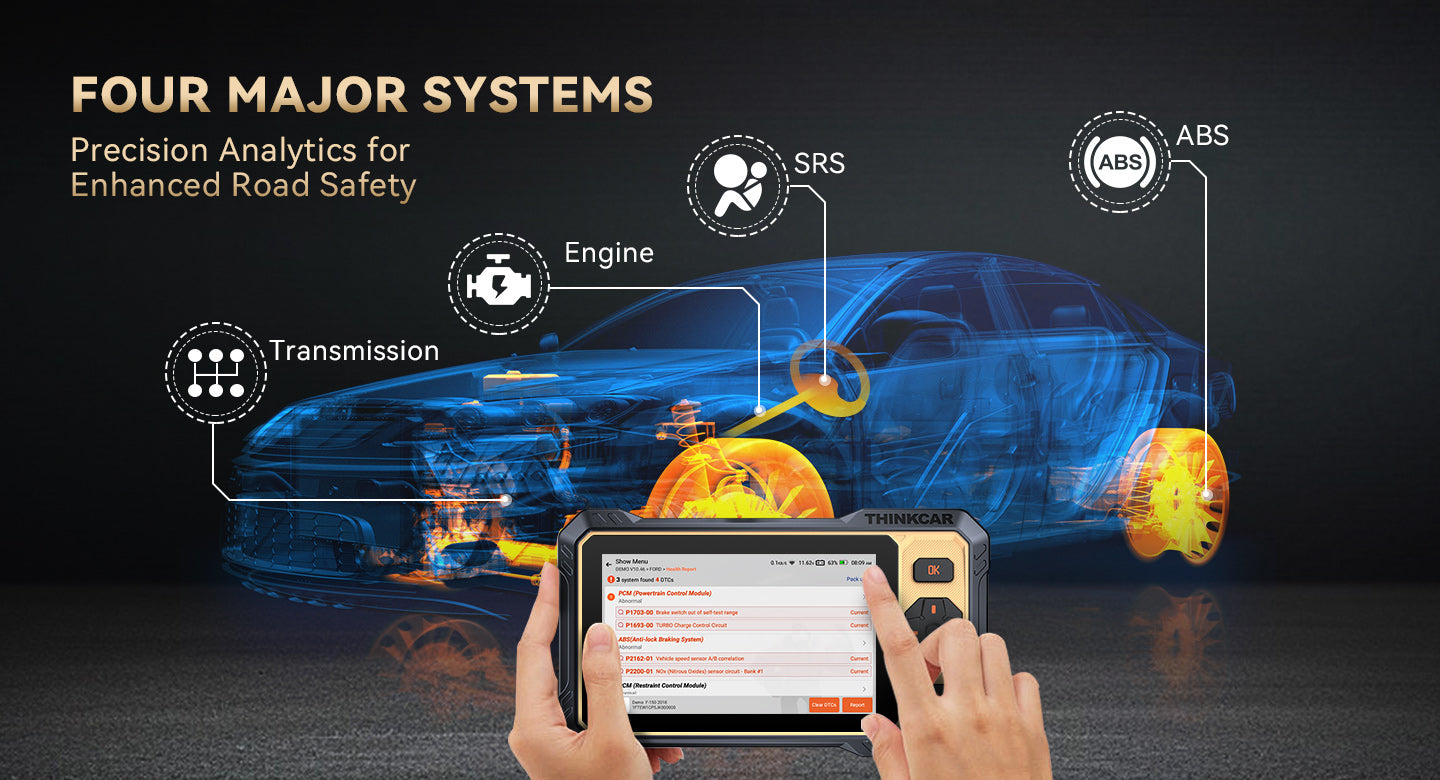
THINKSCAN 662 is built around 4-system diagnostics (ECM, TCM, ABS, SRS). This is a common sweet spot for buyers who want more than Code Readers but do not want to jump into high-cost shop platforms.
If you are comparing within the THINKCAR ecosystem, you will see families like ThinkScan Series and app-driven devices (for example, THINKDIAG, THINKDIAG 2, and THINKDIAG MINI). App-driven tools can be excellent for portability, especially if OBD2 Scanner Bluetooth use is your priority, but you must verify phone compatibility and update policies.
Step 4: Validate bidirectional and active tests
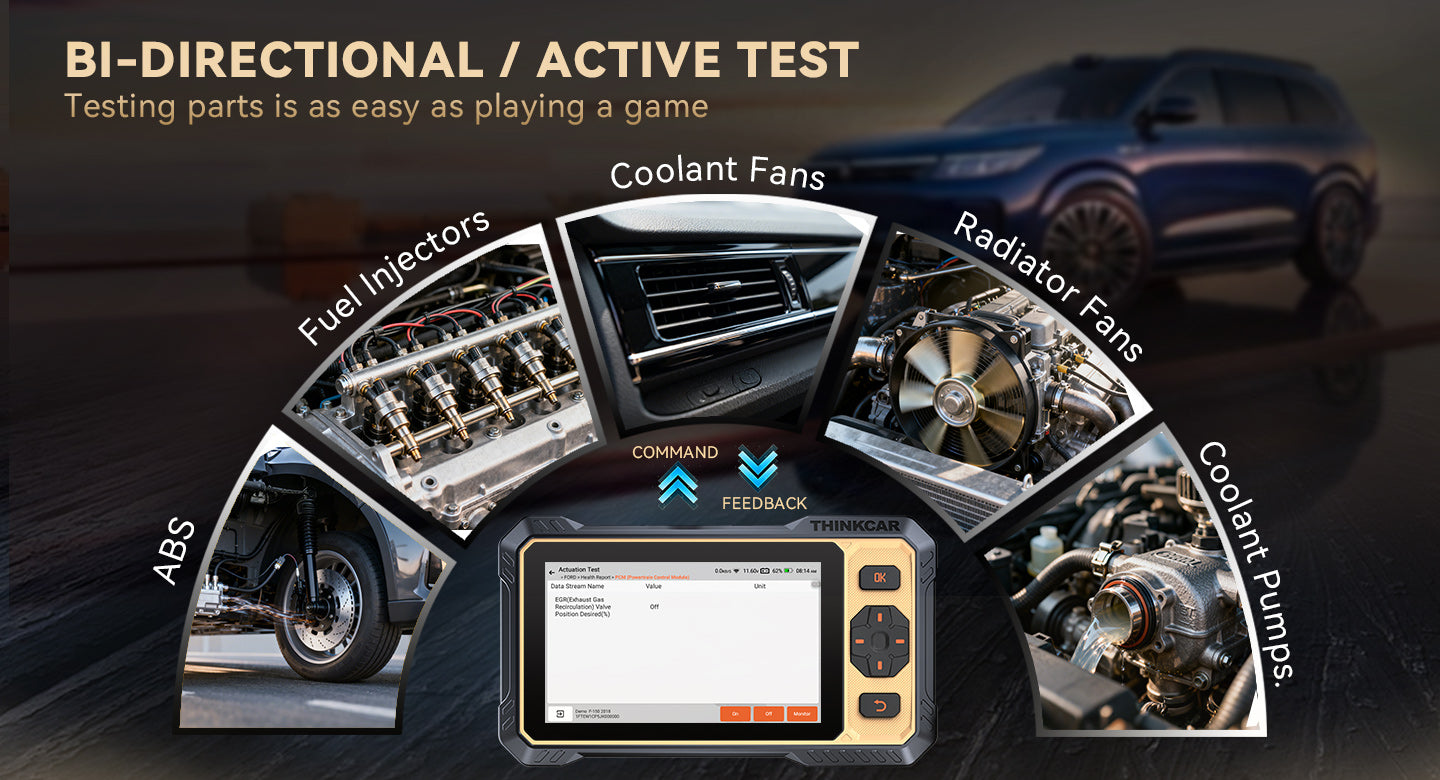
If you want a true Bidirectional scanner, confirm that it supports active tests for your vehicle.
Active tests matter because they let you command components to isolate faults. Examples include:
- Cycling a radiator fan to confirm relay and wiring.
- Running an EVAP purge command to validate flow.
- Activating fuel pump control (where supported) to separate pump issues from sensor logic.
On the THINKSCAN 662 product page, bi-directional control is positioned as one-click action tests for components such as sensors, fuel pumps, headlamps, and sunroof systems. That is the kind of wording you want to see, because it implies actuator control rather than only passive monitoring.
When comparing tools like THINKSCAN 689BT, THINKSCAN 689, THINKSCAN 672, and THINKSCAN 662, treat bi-directional support as a yes/no gate. If you need it, do not compromise. If you do not need it, you can often simplify your buy.
Step 5: Compare reset and service functions
Reset functions are where many under-$200 buyers get disappointed. Tools may list resets, but the real question is whether they work on your exact vehicle and year.
Start by listing the jobs you plan to do in the next 12 months:
- Oil service reset
- Brake pad reset / EPB service mode
- SAS reset (steering angle)
- ABS bleeding (if you do brake hydraulic work)
- Battery matching / registration (common on many modern platforms)
- TPMS Service needs (TPMS reset, sensor relearn)
- IMMO and keys (often limited and highly vehicle dependent)
THINKSCAN 662 lists 12 critical maintenance resets including oil reset, injector coding, SAS reset, IMMO, ABS bleeding, battery matching, brake-pad reset, DPF regeneration, electronic throttle adaptation, gearbox learning, TPMS reset, and airbag reset.
If your priority is TPMS & Sensor work, separate your needs into two buckets:
- TPMS reset functions inside the diagnostic tablet.
- Dedicated TPMS Programming and sensor activation functions.
For dedicated TPMS workflows, THINKCAR also offers standalone TPMS tools such as THINKTPMS VENU iPro and THINKCAR VENU 90 TPMS Activation & Diagnostic Tool. Those are usually a better match if you frequently handle sensors, because they focus on activation, diagnostics, and repeat programming.
Step 6: Check update model and ownership
Update policy is the biggest long-term difference between two tools that look identical on paper.
Here is what to confirm before purchase:
- Does the tool include Free Lifetime Software Updates, or will you face a Software Subscription or Software Renewal later?
- How does Software Download work (Wi-Fi, app, or PC)?
- Is there a Software Update Notice page and a predictable update cadence?
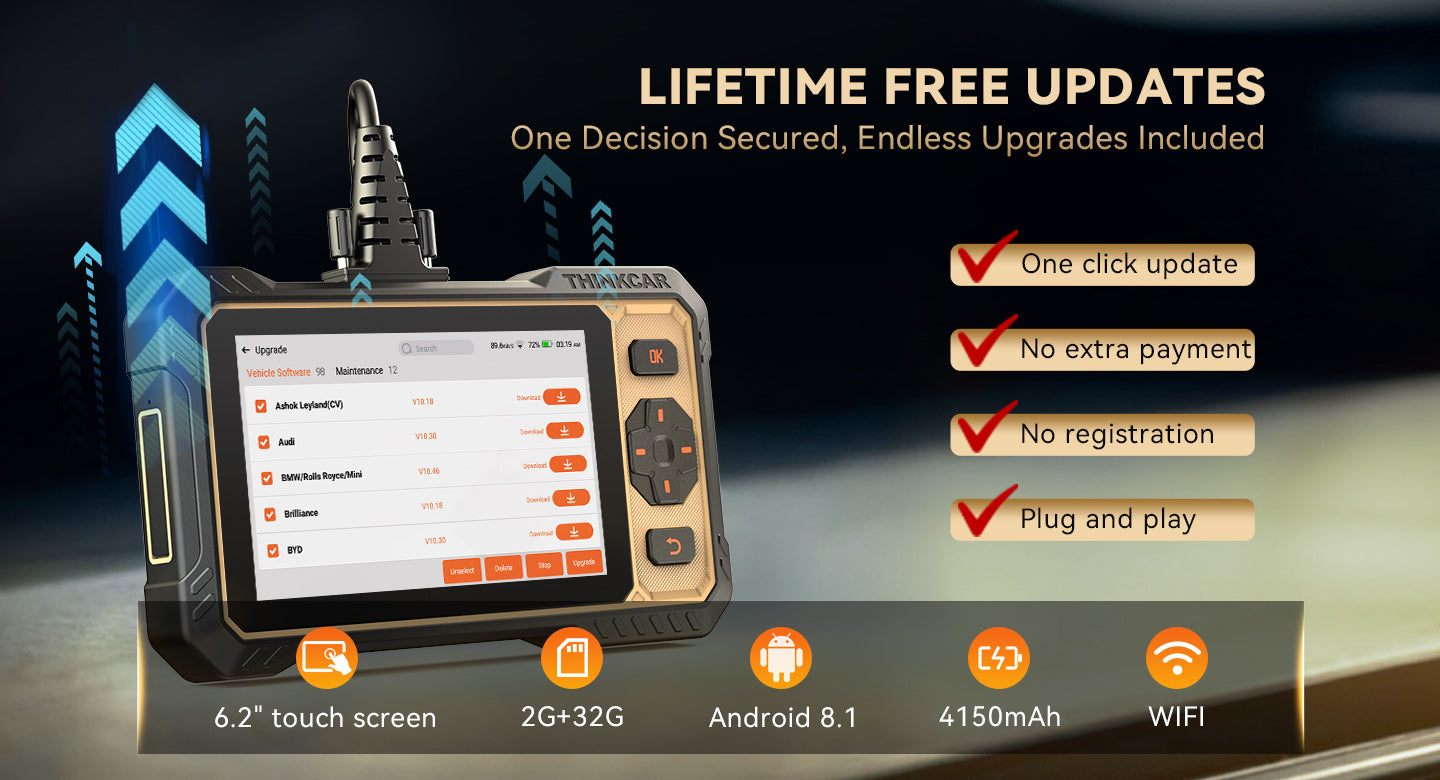
THINKSCAN 662 is marketed with lifetime free updates and monthly updates. If you are trying to keep total ownership under $200, this matters more than small differences in screen size or accessories.
Also check warranty terms. THINKSCAN 662 lists a 12-month warranty and includes a return window policy on the product page. Warranty length is not a performance feature, but it is a risk reducer.
Step 7: Confirm data and reporting features
Do not underestimate live data quality. Even for basic DIY, clear data is how you avoid parts swapping.
Look for:
- Live data graphing (not only a text list).
- Record and playback.
- Multiple PIDs on one screen (useful for diagnosing correlation issues).
- Report export for documentation.
THINKSCAN 662 highlights 3-second access to vehicle data streams and a 4-channel real-time comparison feature. In practice, this helps you compare items like throttle position vs RPM, O2 sensor behavior vs fuel trims, or battery voltage vs load.
A quick standards note: generic OBD communications are built around standardized diagnostic services defined in SAE J1979 (reaffirmed May 23, 2025), which is why most cars can be read with a universal scan approach even though advanced modules vary by brand. According to SAE International, SAE J1979 and ISO 15031-5 specify communication between a vehicle OBD system and test equipment for legislated emissions-related OBD.
Adapting Your Approach in Different Scenarios
DIY check engine light and code readers
If you only need Code Readers behavior (read, clear, I/M readiness), prioritize stability and clear live data. A compact OBD2 Scanner Bluetooth device can be enough if the app is reliable. If you want to grow into deeper work, choose a ThinkScan Series tablet with core module access.
Small shop needs bidirectional control
If you diagnose weekly, bidirectional control is worth prioritizing. Choose a Bidirectional scanner that supports active tests you actually use (fans, purge, throttle relearn, ABS bleed where supported). Also prioritize reporting, because it helps you document pre- and post-repair results.
TPMS and sensor focused resets
If your main work is TPMS Service, split responsibilities: use a diagnostic tablet for module scans and resets, and use a dedicated TPMS & Sensor tool when you need activation and repeat sensor programming. Tools like THINKCAR VENU 90 TPMS Activation & Diagnostic Tool are built for that dedicated workflow.
What You Will Need Before You Start
Required Tools and Materials
- Your vehicle details: year, make, model, engine, and trim.
- A stable power plan: healthy battery or a maintainer if you will do long sessions.
- Wi-Fi access: needed for Software Download and update installs on tablet tools.
- A phone or tablet (for app-based tools): required if you choose OBD2 Scanner Bluetooth and app-driven devices.
- Basic hand tools: to access the OBD2 port area safely if a trim panel blocks it.
- A note-taking method: photos or a simple log so you can compare symptoms to results.
Safety Considerations
- Keep the vehicle in Park (or Neutral with parking brake set) before running active tests.
- Maintain ventilation if the engine will run during diagnostics.
- Stop an active test immediately if you hear mechanical binding or abnormal noise.
- Avoid long key-on sessions with a weak battery, because low voltage can create false codes.
OBD diagnostics are also closely tied to emissions checks. According to the US EPA, federal on-board diagnostics rules exist to ensure emission control systems are monitored for malfunctions, which is one reason standardized OBD functions matter for inspections and repairs.
Troubleshooting Guide
| Problem | Likely cause | Solution |
|---|---|---|
| Tool will not connect to the car | Wrong ignition state or loose connector | Turn ignition to ON (engine off) and reseat the connector firmly. Retry Auto VIN after 10 seconds. |
| No modules found in a system scan | Vehicle not supported for that module or incorrect profile | Re-run Auto VIN, then manually select make/model/year. Confirm the tool supports that module for your vehicle. |
| Active test option is missing | The car does not expose that actuator via supported functions | Try a different module path (ECM vs body), update software, and confirm the function is supported for your platform. |
| Update fails or stalls | Weak Wi-Fi or insufficient storage | Use strong 2.4G/5G Wi-Fi, free storage space, reboot, and retry the update. |
| Codes return right after clearing | The fault is still present or a monitor immediately re-triggers | Use live data and freeze frame to verify root cause. Fix the underlying issue before clearing again. |
Conclusion
Choosing an AI-assisted diagnostic tool under $200 is less about flashy features and more about matching coverage, system depth, and update ownership to your real jobs. Start with vehicle compatibility, then confirm whether you need bidirectional control, reset functions, and high-quality data logging.
If you want a ThinkScan Series tablet-style workflow with lifetime updates, 4-system diagnostics, and bi-directional active tests, THINKSCAN 662 is designed as a practical all-around Vehicle Scanner & Diagnostic Tool for DIYers and small shops.
Official Site: THINKCAR
Frequently Asked Questions
What car diagnostic tools use AI to interpret fault codes?
Tools that advertise AI-powered Insights often group fault codes by likely systems, suggest basic checks, or highlight common patterns in live data. However, AI interpretation varies by brand, so you should verify what the feature actually does before buying. For best results, choose a tool that can record and graph data, because AI plus clear evidence is more reliable than AI alone. You should also confirm the tool supports your vehicle modules beyond generic OBD.
What is the best Bluetooth diagnostic scanner for DIY repairs?
A good OBD2 Scanner Bluetooth option should have a stable app, fast pairing, and clear live data displays, including graphing when possible. You should verify that the app supports your phone OS version and that updates are straightforward. For DIY repairs, Bluetooth scanners work well for basic code reading, I/M readiness checks, and simple data checks during a test drive. If you plan to do module resets or active tests, confirm the device and app support those functions on your specific vehicle.
What features should I look for in a diagnostic scanner as a DIY user?
Most DIY users should prioritize Auto VIN, live data graphing, and the ability to save or export a basic report. Next, add only the reset functions you will actually use, such as oil reset or brake service mode, because unused functions do not add real value. If you diagnose intermittent problems, choose a tool that can record and replay data during a drive. Finally, consider screen readability and battery stability if you plan longer sessions.
How do I select a diagnostic tool that offers lifetime updates for cheap?
Look for clear wording that updates are free for the life of the tool, not only free for the first year. Confirm how updates install, such as direct Wi-Fi updates on a tablet or in-app updates for Bluetooth tools. You should also check how often the brand publishes updates, because monthly or frequent updates can matter for newer models. If the tool requires a T-code, TCODE, or other unlock model for major functions, verify what is included and what is optional before you commit.

Share:
Top 3 Car Diagnostic Tools Use AI to Interpret Fault Codes
3 Best Value-for-money Diagnostic Tools Under $200 for Automotive Repair