
Introduction
You pull up to a driveway with three cars waiting, the sun dropping, and one customer already asking, "Can you just scan it real quick?" Then your wireless dongle drops connection mid-live-data pull, your report never saves, and you are stuck repeating the same checks while the customer watches. That one glitch can turn a 20-minute diagnosis into a second trip you did not plan for.
If you choose the right wireless scan tool, you can run stable all-system scans, finish bidirectional checks in one visit, and standardize your workflow even without a shop bay. This guide walks you through five practical steps: define your job mix, lock in connection reliability, confirm diagnostic depth, match reset coverage to what you sell, and compare ownership terms and support so you buy once and stop fighting your tools.
Step-by-Step Guide: Choosing the Right Wireless Scan Tool
Step 1: Define your mobile job mix
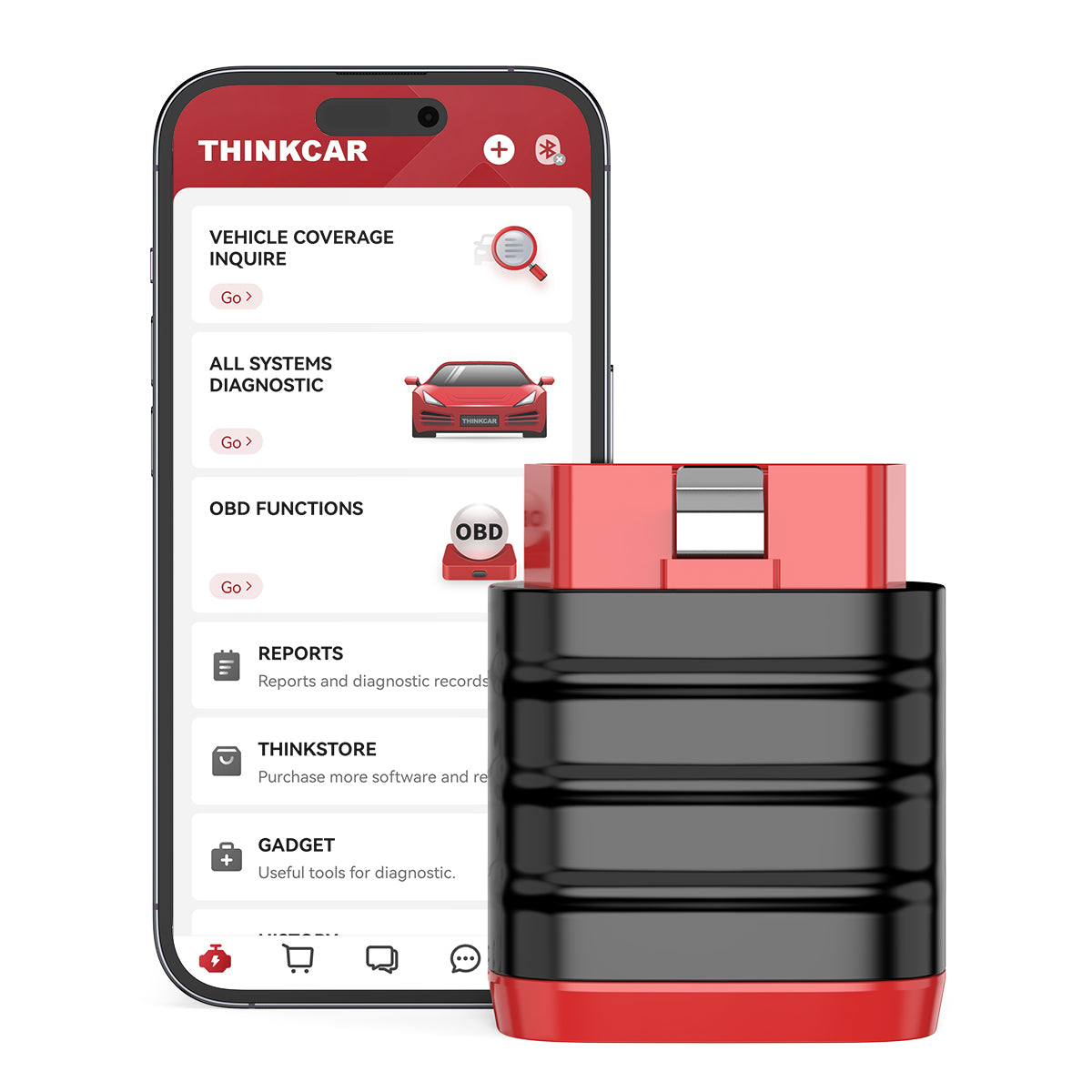
Before you compare features, list what you actually touch in a typical week: makes, model years, and the services you get paid for. Mobile work usually skews toward fast triage (no-start, misfire, battery/charging), light maintenance, and "prove it" checks like readiness monitors. If you do even a little European work, add that separately because coverage and workflows can change a lot.
Use this quick checklist, then keep it next to your phone when you evaluate any Vehicle Scanner & Diagnostic Tool:
- The top 10 makes you see the most
- Model year range (for example, 2008 to 2026)
- Services you sell weekly (oil reset tool, EPB, BMS)
- Services you want to upsell (TPMS Service, ADAS calibration)
- What you must do onsite (clear codes, print/share reports)
On the THINKCAR side, the easiest way to stay honest is to map your list to product tiers. For quick onsite coverage and portability, THINKDIAG MINI is built around a phone-based workflow and advertises full-system diagnostics plus AutoVIN, with compact size for glovebox-style carry. It also lists parameters like Bluetooth dual mode (hardware supports 4.2BLE) and a 0 degrees C to 50 degrees C working range, which matters when you are diagnosing outdoors.
Shop: THINKDIAG MINI
Step 2: Lock connection reliability first
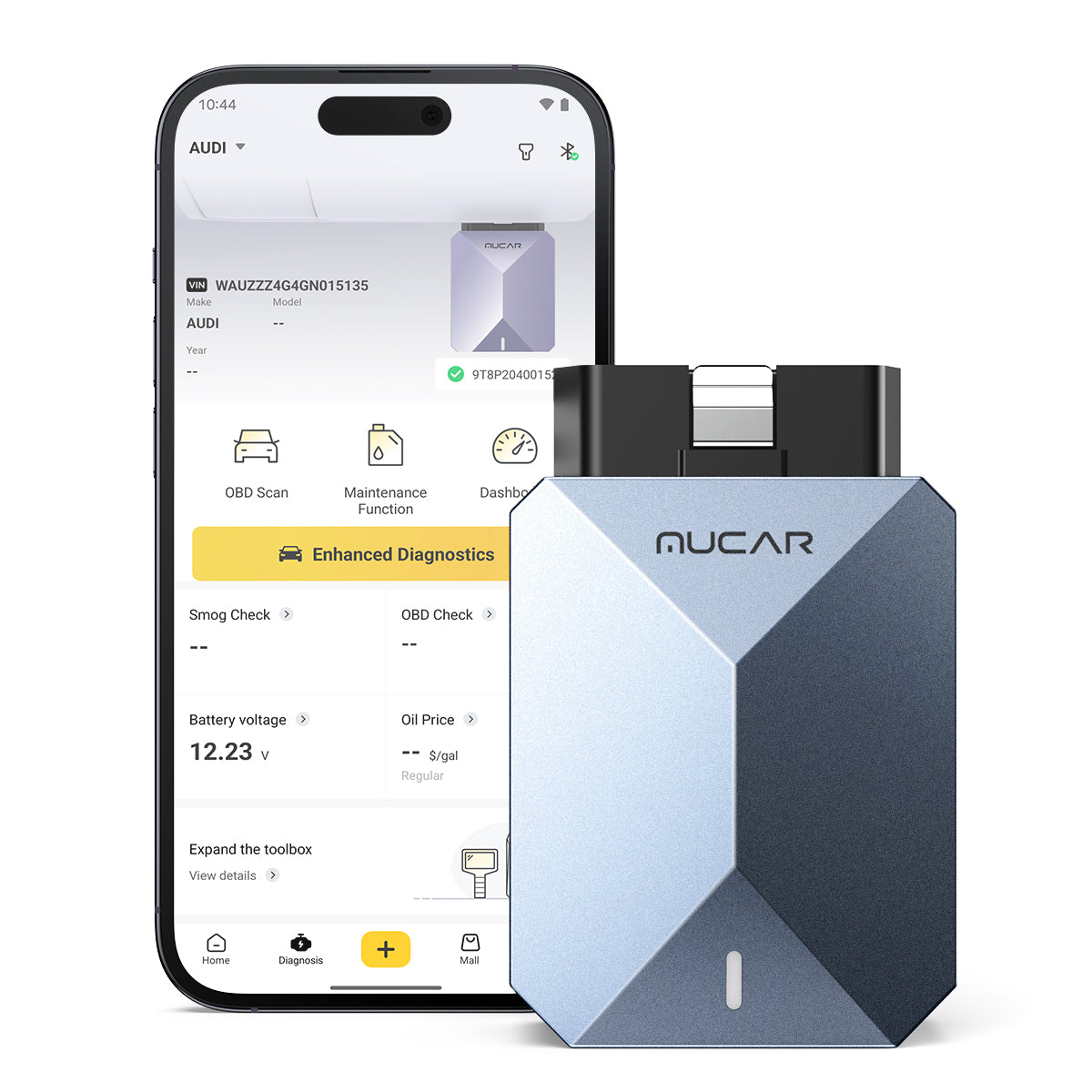
In mobile diagnostics, connection stability is not a nice-to-have. If Bluetooth OBDII drops during an active test or while graphing a noisy sensor, you lose time, and you lose confidence in the call you are about to make. Therefore, you should treat reliability as a gating requirement: if it cannot stay connected in your worst driveway scenario, it is not "good enough."
Do this simple field test before you commit to a scanner:
- Pair and connect, then start a 10-minute live-data graph
- Walk 10 to 20 feet away (typical driveway distance)
- Lock and unlock the phone screen twice
- Switch between two app views (live data to DTCs)
- Start one actuation, then stop it
If any step causes a drop, you should assume it will happen at the worst time on a paying job.
Two examples from the THINKCAR and MUCAR lineup show what to look for. THINKDIAG MINI lists Bluetooth dual mode and is designed around a dedicated smartphone app workflow. If you want a newer Bluetooth spec and a dongle built around staying plugged in, MUCAR BT200 MAX lists Bluetooth 5.2 and includes an "Intelligent Sleep Mode" claim intended to prevent battery drain when left connected. It also lists operating voltage (9 to 18V) and low working current (less than or equal to 130 mA), which is useful when you are diagnosing vehicles with weak batteries.
Shop: MUCAR BT200 MAX
Step 3: Require the right diagnostic depth
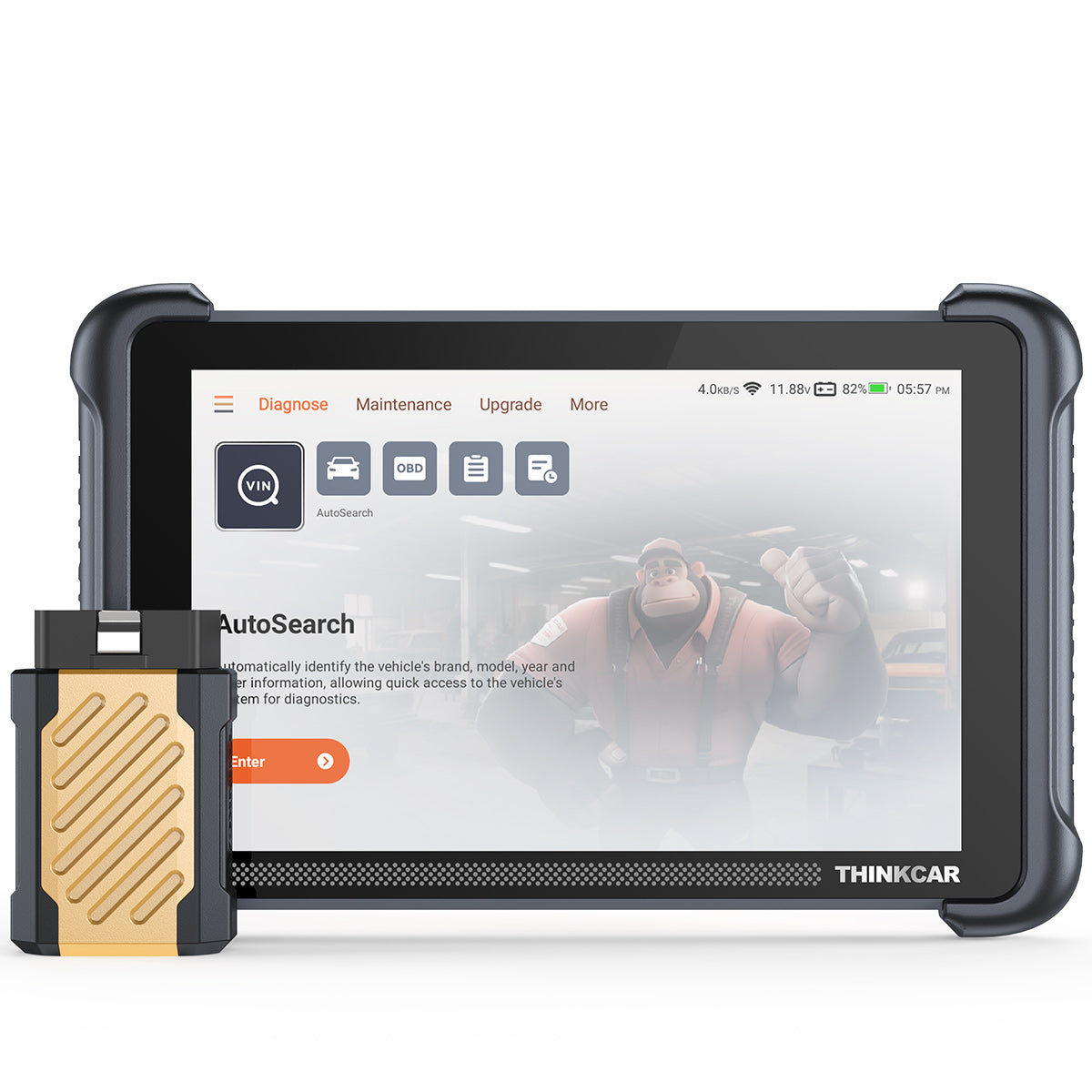
Start by deciding what "done" means for you onsite. If your workflow is more than check-engine triage, you should require all-system access, live data, and a true bidirectional scanner capability for actuations. Bidirectional control means the tool can command components (for example, cycling a fan, commanding a purge valve, triggering an ABS bleed routine) so you can confirm a diagnosis without guessing.
Use these requirements as your baseline for a mobile-ready Advanced Scanner:
- All-system scan (not just powertrain)
- Live data with graphing
- Freeze-frame access
- Module information and manufacturer-specific codes
- Bidirectional scanner functions (active tests)
From the THINKCAR product pages, THINKDIAG MINI describes coverage across major systems like engine, transmission, ABS, SRS, TPMS, and A/C. If you need deeper functions like ECU coding and active tests, THINKDIAG 2 is positioned as an upgraded tool and explicitly calls out ECU Coding and "Active Test" as a bidirectional scan tool use case, plus a menu of 15 standard special functions (for example, oil reset, EPB reset, DPF, SAS, ABS bleeding, injector code, IMMO matching, TPMS reset). This is the practical breakpoint for many mobile mechanics: basic all-system scans are not enough once you start proving actuators and completing relearns onsite.
Step 4: Match resets and special functions

Do not buy resets, you will not sell. Instead, write down the top 5 services you get asked for every week, then verify the tool supports those resets on the vehicles you actually see. In a driveway, resets are where time gets lost because you cannot "work around" a missing function the way you can with basic code reading.
- A simple way to choose is to categorize your resets:
- Always: oil service reset, Battery Management System (BMS) registration, SAS calibration
- Often: EPB reset, DPF regeneration, ABS bleed
- Seasonal: TPMS Service (sensor activation, relearn prompts)
On the product side, THINKDIAG 2 calls out a set of 15 standard special functions (including oil reset, EPB, DPF, SAS, ABS bleeding, TPMS reset, and more), which makes it easier to standardize a "show up and finish" maintenance workflow. If TPMS work is a core revenue stream for you, you should consider a dedicated TPMS & Sensor tool rather than forcing a general scanner to do everything.
For example, THINKCAR VENU 90 TPMS Activation & Diagnostic Tool is positioned as an independent TPMS device (no app required), and lists support for 315MHz and 433MHz sensor activation, repeat programming, and guided TPMS fault diagnosis with learning steps. That combination is useful during TPMS season because you can keep TPMS work moving even if your phone is tied up generating reports or your diagnostic tablet is busy scanning another module.
Shop: THINKCAR VENU 90 TPMS Activation & Diagnostic Tool
Step 5: Compare ownership costs and support
Mobile work punishes unclear software terms. If a tool locks functions behind a surprise Software Subscription or a confusing Software Renewal process, it creates awkward conversations with customers and can stall jobs. Therefore, you should compare the ownership model as carefully as the features.
Evaluate each option using a simple scorecard:
- Software Download process: Can you preload at home?
- Software Update Notice: Are updates predictable?
- License portability: Can you switch devices easily?
- Warranty terms: Does it include a 1 Year Extended Warranty option?
- Support responsiveness: chat, email, and remote diagnosis availability
THINKCAR product pages commonly call out mobile-friendly support elements like "24/7 remote diagnosis," and several products list a 12-month warranty and a 30-day return window. For instance, THINKDIAG MINI lists a 12-month warranty and highlights a phone-app workflow, while tablet tools like THINKSCAN 689BT emphasize WiFi updates and expandable accessories. That is exactly what you want in mobile operations: fewer cables, predictable updates, and support that can answer questions while you are still in the driveway.
If you are comparing competitors like Fixd, Topdon, and the THINKCAR/MUCAR catalog, keep the comparison fair and practical. Fixd-style tools tend to be lightweight and app-centric for quick code access, while Topdon and tablet-based scanners often lean into broader service functions and guided workflows. Your decision should follow your job mix: if you need a bidirectional scanner for actuations and resets, do not let a basic reader win just because it is easy to pair.
Scenario Variations: Adapting Your Approach
Auction flips: quick codes and readiness
Prioritize fast AutoVIN, global OBD readiness checks, and report sharing. A compact OBD2 Scanner Bluetooth option can be enough if your goal is triage plus a clean handoff, but you still want stable live data to verify fuel trims and misfire counts.
Fleet calls: repeatable all-system reports
Choose a Vehicle Scanner & Diagnostic Tool that can run consistent all-system scans quickly and export a clear report each time. Also, prioritize connection stability because you may scan multiple vehicles back-to-back in parking lots with interference.
Troubleshooting
| Problem | Cause | Solution |
|---|---|---|
| Pairing fails | App permissions blocked | Allow Bluetooth, location |
| Drops during live data | Interference, phone sleep | Disable sleep, stay close |
| No module access | Wrong model selection | Re-select model, rescan |
| Active tests missing | Tool not bidirectional | Upgrade to bidirectional scanner |
| Functions locked | License not synced | Re-login, sync online |
If you keep seeing disconnects, change one variable at a time. First, test with a different phone or tablet, because aggressive battery settings can kill Bluetooth OBDII sessions. Next, test with the engine running vs key-on-engine-off, because low voltage during KOEO can cause modules to sleep or reset.
Conclusion
Choose a wireless scanner the same way you choose any tool you carry every day: match it to your repeatable workflow, then verify it in the field. When you define your job mix, lock connection reliability, require real diagnostic depth, confirm resets you sell weekly, and compare support and software terms, you stop wasting time on repeat visits. Run your final pick on two real customer vehicles before you fully commit, and keep a simple fallback code reader in your bag for emergencies.
FAQ
What is the difference between a code reader and a full diagnostic scanner?
A code reader mainly pulls and clears powertrain-related codes and may show basic freeze-frame data. A full diagnostic scanner can access multiple modules like ABS, SRS, TPMS, and body systems, which matters when the dashboard has more than one warning light. A full scanner also gives you deeper live data and, in many cases, the ability to run special functions like oil reset tool workflows. If you do mobile work, full-system coverage reduces second trips because you can confirm the real root module onsite.
Do I need bidirectional control for mobile repair work?
You need a bidirectional scanner if you do more than basic check-engine diagnosis and you want to confirm fixes without guessing. Bidirectional tests let you command actuators, run functional checks, and verify a circuit or component response in minutes. That saves time when you cannot tear a car down in a driveway, and you need proof before you recommend parts. If your workflow includes ABS bleeding, EPB service, or adaptations, bidirectional capability becomes a practical requirement.
How can I tell if a wireless scanner will work on my typical vehicles?
Start by listing your top makes, model years, and the systems you regularly access, then check coverage before you buy. After that, test the scanner on at least one known vehicle you see often, and confirm it can complete an all-system scan without disconnects. You should also verify at least one special function you sell weekly, such as BMS registration or oil reset, because coverage can vary by make and year. Finally, save a sample report so you know you can document the job onsite.
Will Bluetooth OBD2 scanners work reliably outdoors?
They can work reliably outdoors, but you have to control the variables that cause drops. Keep the phone within a practical range (often 10 to 20 feet in a driveway), disable aggressive battery optimization, and prevent the screen from sleeping during live data pulls. Interference from other wireless devices and the vehicle body can also reduce signal strength, so reposition yourself if the connection gets weak. If your workflow includes long graphing sessions or active tests, prioritize adapters and apps that stay connected when you lock and unlock the screen.
What should I do if a reset function is listed but fails on the vehicle?
Treat the first failure as a process issue, not proof that the tool is bad. Confirm battery voltage is stable, verify the vehicle profile selection is correct, and re-run the function with key state exactly as instructed. If the reset still fails, scan for related module codes and check whether the vehicle requires a prerequisite step, such as steering angle centering or a brake pedal input. When you see repeat failures on the same platform, document the exact year, trim, and module version so you can avoid promising a reset on future calls.
Table of Contents
- Introduction
- Step-by-Step Guide: Choosing the Right Wireless Scan Tool
- Scenario Variations: Adapting Your Approach
- Troubleshooting
- Conclusion
-
FAQ
- What is the difference between a code reader and a full diagnostic scanner?
- Do I need bidirectional control for mobile repair work?
- How can I tell if a wireless scanner will work on my typical vehicles?
- Will Bluetooth OBD2 scanners work reliably outdoors?
- What should I do if a reset function is listed but fails on the vehicle?

Share:
Best Entry-Level Bidirectional Scanners for Real Repair Workflows:An Ultimate Guide to Buy One
Best Entry-Level Bidirectional Scanners for Real Repair Workflows:An Ultimate Guide to Buy One