
Introduction
An airbag (SRS) warning light that stays on after startup is not just an annoyance. It is the car telling you the Supplemental Restraint System saw a fault and stored it, which means you need to scan the SRS module, fix the root cause, and only then clear the codes. This how-to guide shows a practical workflow using a Vehicle Scanner & Diagnostic Tool so you do not end up swapping parts blindly.
This step-by-step also fits how many DIYers actually work in the driveway: the battery is slightly weak, the seat was moved last week, and the light comes and goes. With the right OBD2 Scanner Bluetooth setup and a Bidirectional scanner, you can confirm whether you have a connector issue, a low-voltage event, or a component that fails under an active test.
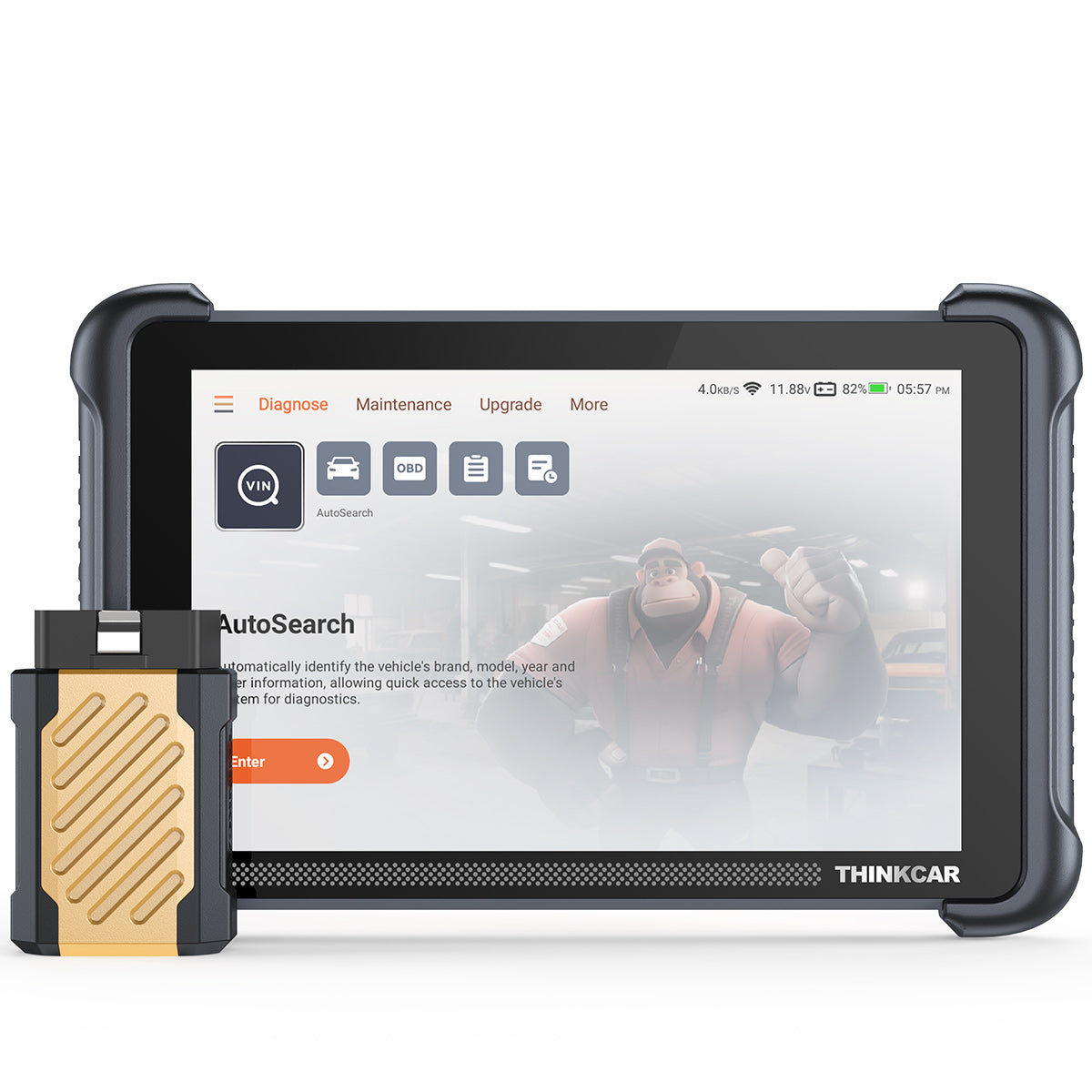
If you are shopping within the ThinkScan Series, this guide references THINKSCAN 689BT for all-system scans plus active tests, and THINKSCAN 662 for core module coverage (ECM/TCM/ABS/SRS) and bidirectional functions.
Official Shop: THINKCAR THINKSCAN 689BT
How to Fix Airbag Warning Light Issues Step-by-Step
Step 1: Confirm the warning behavior
Start with what the light actually does because that changes what you test next.
- Watch the cluster during key-on: does the SRS light come on for a bulb check and then go out, or does it stay on?
- Note steady vs flashing behavior. Some vehicles use a flashing pattern to signal a current fault versus stored history.
- Write down the exact conditions: first start of the day, only after hitting bumps, only with a passenger in the seat.
A common driveway scene: you slide the seat back hard to vacuum, then the next morning the airbag light stays on. That detail matters because under-seat connectors and occupant sensors are frequent suspects, and the next steps help you confirm, not guess.
Step 2: Check vehicle coverage first
Before you plug in and assume you will get SRS data, verify your scanner can talk to your exact car.
- Confirm make, model, year, engine, and market (US vs EU variants can differ).
- Check whether your vehicle uses newer gateways or protocols that can block communication if the tool is not compatible.
- If your scan tool supports a coverage checker, use it before you spend time chasing a no-communication problem.
For example, THINKSCAN 689BT lists support for CAN-FD & DoIP, which matters on many newer platforms where a basic code reader can see engine codes but cannot access body or safety modules reliably.
Step 3: Connect your OBD2 scanner Bluetooth correctly
This step is about avoiding dropped sessions and corrupted scans.

- Find the OBD-II port (usually under the dash, left side). Plug the dongle/cable in firmly.
- Stabilize voltage first. If the battery is weak (common after sitting), connect a maintainer or charger so modules do not reboot mid-scan.
- Pair Bluetooth only once and keep your phone/tablet close if you are using a wireless link.
How THINKCAR tools fit this step:
- THINKSCAN 689BT is designed for all-system diagnostics with a Bluetooth dongle, so you can keep the tablet in hand while you move around the car to check connectors or fuses.
- The hardware configuration shown for THINKSCAN 689BT includes an 8-inch touchscreen and 4GB RAM/64GB storage, which helps when you run an AutoScan and save reports.
Shop: THINKCAR THINKSCAN 689BT
Step 4: Run AutoVIN and a full AutoScan
Do not go straight into SRS first. Many airbag warnings are triggered by related modules (battery voltage, ABS communication, body control faults).
- Run AutoVIN (or manual VIN entry if AutoVIN fails).
- Run a full system scan (often called AutoScan).
- Save the report before clearing anything.
Why this matters in real life:
- If your car logged a low-voltage event during a battery swap, you may see a cluster of codes across modules.
- If a module cannot communicate, that is a clue (blown fuse, gateway issue, wiring) that can also affect the SRS network.
Step 5: Read SRS codes and freeze frame data
Now focus on the SRS/airbag module. Your goal is to capture enough context that you can test the fix later.
- Record each DTC exactly, including any subcode, status (current vs history), and mileage/time stamp if shown.
- Pull freeze frame or event data if the vehicle provides it.
- Write down which seat was occupied, whether the passenger airbag indicator was on/off, and whether the seat was recently removed.
A standards note that helps you avoid misreading codes: Bosch explains in an OBD manual that DTCs are defined in standards such as SAE J2012 or ISO 15031-6, which is why generic tools sometimes show a code format but not the full OEM description. According to Bosch, those standards define DTC structure, but the best repair path still depends on the vehicle-specific test steps.
Step 6: Use bidirectional scanner active tests carefully
This is where a Bidirectional scanner can save hours. Instead of replacing a part because a code mentioned it, you verify whether the module can command it and see the expected response.

- Use active tests to confirm wiring vs component failures. Example: command a warning lamp test, check buckle switch status (if supported), or verify seat occupancy signals (vehicle dependent).
- Watch for tests that fail intermittently. A connector issue will often pass while parked but fail when you move the harness.
- Do not use any function that disables or bypasses safety logic. Active tests are for confirmation, not for defeating safety.
How THINKCAR products support this step:
- THINKSCAN 689BT is positioned as a bidirectional tool with active tests plus ECU coding and all-system coverage. That combination is useful when an SRS light is triggered by a network issue, not a single sensor.
- THINKSCAN 662 also supports bidirectional active testing and focuses on the core systems (ECM, TCM, ABS, SRS). If you mainly need SRS access plus basic engine/ABS context, that narrower focus can be easier to run quickly.
Shop: THINKCAR THINKSCAN 689BT
Step 7: Repair the cause, then clear and recheck
Clear codes only after you repair the root cause; otherwise, you lose useful history.
- Make the repair: reseat connectors, repair wiring, replace a failed sensor, correct a low-voltage condition, or address a communication/fuse issue.
- Clear SRS codes.
- Re-scan the full vehicle and confirm:
- No current SRS DTCs
- The light stays off after a key cycle
- Codes do not return on a short road test (especially for intermittent faults)
A safety reminder with a real-world reason: in a recall safety report, NHTSA describes the risk of false SRS warning illumination because it can fail to properly warn the driver of an actual airbag system fault. According to NHTSA, this can increase injury risk if an accident occurs and the driver is not correctly warned.
Shop: THINKSCAN 662
Airbag Light Fixes in Different Scenarios
After seat removal or interior work
- Focus on under-seat connectors, harness strain relief, and any seat occupancy mat or buckle switch wiring.
- Scan SRS and BCM together because seat-related faults often show up in multiple places.
After collision repair or bumper replacement
- Expect stored crash-related data or calibration needs depending on vehicle.
- Run a full scan first, then target SRS, ABS, and any body modules that share crash signals.
After battery replacement or low-voltage events
- Charge the battery fully and stabilize voltage before diagnosis.
- If you see many low-voltage or communication codes, clear only after you confirm the battery/charging system is stable.
Intermittent airbag light on bumps
- Use active tests and live data where available, then gently move harnesses (wiggle test) with the car safely parked.
- Do not probe airbag circuits directly; use scan tool data and OEM-safe test points.
Prerequisites and Safety Before You Start
Required Tools and Materials
- Vehicle Scanner & Diagnostic Tool: THINKSCAN 689BT (all-systems + active tests) or THINKSCAN 662 (core systems including SRS)
- Battery maintainer/charger (keep module voltage stable during scanning)
- Basic trim tools (for safely accessing connectors without breaking clips)
- Flashlight and inspection mirror (to check under-seat and dash-area connectors)
- Notepad or phone notes (record DTCs, status, and conditions)
- Service information for your exact vehicle (pinouts, connector locations, test procedures)
Safety Considerations
- Disconnect the battery before touching SRS connectors, and wait the OEM-recommended time for capacitors to discharge.
- Never probe airbag squib circuits with a test light or a typical multimeter unless the service procedure explicitly allows it.
- Wear safety glasses and avoid leaning over an airbag module while working.
- Treat yellow SRS connectors and harnesses as no-test zones unless you are following OEM instructions.
- If the vehicle was in a collision or you suspect deployed components, consider professional inspection because SRS repairs are safety-critical.
Troubleshooting Guide for SRS Scans
| Problem | Cause | Solution |
|---|---|---|
| Airbag light returns immediately after clearing | Active fault still present | Re-scan SRS, verify DTC status is Current, then follow the test steps for that exact code before clearing again |
| No communication with SRS module | Wrong coverage, gateway issue, protocol mismatch | Confirm vehicle coverage, stabilize battery voltage, then retry full scan; if other modules also fail, check fuses and network faults |
| DTC description looks generic or unclear | Generic tool text vs OEM meaning | Use the full code plus subcode, check freeze frame/event data, and confirm with an active test or live data before replacing parts |
| Scan session drops or freezes | Low voltage, weak Bluetooth link | Put a charger on the battery, keep the device close, and avoid opening/closing doors repeatedly during the scan |
| Code changes from History to Current after a road test | Intermittent wiring/connector issue | Perform a careful wiggle test with the car parked, inspect connector pins, and secure harness routing to prevent tension |
Conclusion
Fixing an airbag warning light is a repeatable process: confirm the behavior, scan all modules, document SRS codes, verify with bidirectional tests, repair the cause, then clear and recheck. A strong workflow prevents the common trap of clearing codes first and losing the context you needed to diagnose the real issue.
If you want an all-system tablet-style scanner with wireless diagnostics and active tests, THINKCAR THINKSCAN 689BT is built for that style of work. If you want a streamlined core-systems approach that still includes SRS, THINKSCAN 662 can cover the essentials.
FAQ
How do I fix airbag warning light issues using a diagnostic scanner?
Start by scanning the SRS module for current and history codes, then record the exact DTCs and their status before you clear anything. Repair the root cause first, such as a loose connector under a seat, a damaged harness, or a voltage-related issue from a weak battery. After the repair, clear SRS codes and cycle the key to confirm the light stays off. Finish with a short road test and a re-scan to make sure the fault does not return.
How do I interpret fault codes from my diagnostic scanner for accurate fixes?
Match the code to the correct module and confirm whether it is Current or History because that tells you if the fault is happening now. Capture freeze frame or event data when available because it ties the fault to conditions like low voltage or a specific ignition cycle. Use live data or an active test to confirm the system response before replacing parts, especially for seat occupancy and buckle-related faults. If the text description looks vague, rely on the exact code and subcode, then follow vehicle-specific test steps.
What should I do if my diagnostic scanner doesn’t match the fault with my car’s symptoms?
Re-scan all modules because airbag warnings can be triggered by related faults in ABS, BCM, or network communication. Check battery voltage first, because unstable voltage can create misleading communication or sensor codes. Inspect recent-work areas like under-seat wiring if the symptom began after cleaning, seat movement, or interior repairs. If the symptom is intermittent, repeat the scan after a short drive and compare which codes change from History to Current.
What should I do if my diagnostic tool gives inaccurate or unclear fault codes?
Update the tool software first, then re-run AutoVIN and a full scan so the tool loads the correct vehicle profile. Compare the same code across multiple scans and pay attention to whether the code is persistent or only appears once. Save reports before clearing so you can track changes after each repair attempt. If the code still lacks detail, use the code plus subcode to look up the OEM test procedure for your exact year and trim.
Can I use a professional-level scanner for DIY repairs?
Yes, you can use a professional-level scanner for DIY work as long as you treat SRS diagnosis as safety-critical and avoid bypass-style functions. Use the scanner to read codes, capture data, and run active tests only for confirmation, not to defeat safety logic. Disconnect the battery before touching SRS connectors and do not probe airbag circuits unless an OEM procedure explicitly permits it. If the vehicle has crash damage, deployed components, or repeated SRS faults you cannot verify, a professional inspection is the safer call.
How do I avoid compatibility issues when using a diagnostic scanner for DIY repairs?
Check vehicle coverage by make, model, year, and market before you begin, because the same model name can have different modules across regions. Keep the scanner software updated so it recognizes newer gateways and module variants. Stabilize battery voltage with a charger during scanning to prevent module resets that look like communication failures. If the scan drops repeatedly, reduce variables by keeping the device close, minimizing door cycling, and running one full scan before jumping into individual modules.
Table of Contents
-
How to Fix Airbag Warning Light Issues Step-by-Step
- Step 1: Confirm the warning behavior
- Step 2: Check vehicle coverage first
- Step 3: Connect your OBD2 scanner Bluetooth correctly
- Step 4: Run AutoVIN and a full AutoScan
- Step 5: Read SRS codes and freeze frame data
- Step 6: Use bidirectional scanner active tests carefully
- Step 7: Repair the cause, then clear and recheck
- Airbag Light Fixes in Different Scenarios
- Prerequisites and Safety Before You Start
- Troubleshooting Guide for SRS Scans
- Conclusion
-
FAQ
- How do I fix airbag warning light issues using a diagnostic scanner?
- How do I interpret fault codes from my diagnostic scanner for accurate fixes?
- What should I do if my diagnostic scanner doesn’t match the fault with my car’s symptoms?
- What should I do if my diagnostic tool gives inaccurate or unclear fault codes?
- Can I use a professional-level scanner for DIY repairs?
- How do I avoid compatibility issues when using a diagnostic scanner for DIY repairs?

Share:
For DIY Car Users: Is AI Diagnostics Worth the Investment? (A 2026 Ultimate Guide)
For DIY Car Users: Is AI Diagnostics Worth the Investment? (A 2026 Ultimate Guide)