
5 Steps to Do Remote Pre-Checks for Faster Troubleshooting: What to Scan, What Data to Send, What to Ask
Which remote vehicle diagnostics workflow gets useful answers before the vehicle arrives?

Remote vehicle diagnostics usually slow down for a simple reason: the first scan is too thin to support a real decision. You get one engine code, no freeze-frame, no battery reading, and no notes about when the problem happens. Then the shop has to call back, ask the same questions again, and delay parts planning or bay scheduling. A better intake routine fixes that. When you use remote pre-checks for car troubleshooting, the right way, you can sort safe-to-drive cases from tow-in cases, capture stronger evidence, and move toward faster first-pass fault analysis before the vehicle reaches your bay.
This process works well for mobile Bluetooth scanners, app-based report sharing, and full-system tools that can collect more than generic powertrain codes. ThinkCar diagnostic tools fit this workflow because products such as MUCAR BT200 MAX, THINKDIAG 2, and MUCAR 892BT all support broader scanning, live data, and report-oriented use. FlexiHub also documents a different remote vehicle diagnostics model in which a technician accesses connected OBD hardware over the internet instead of relying only on a customer-sent report.
Step 1: Confirm the complaint, trigger conditions, and urgency
Good remote pre-checks for car troubleshooting start before you plug in the scanner. If the complaint is vague, the data will be vague too. Your goal is to reduce the issue to one symptom, one driving condition, and one urgency level so the scan session matches the real problem.
What to do
- Write the complaint in one sentence.
- Record when it happens: cold start, hot restart, idle, highway speed, braking, turning, after refueling, after rain, under load, or intermittently.
- Ask whether warning lights are solid, flashing, or occasional.
- Confirm whether the vehicle is still drivable.
- Note whether the issue affects one vehicle or multiple similar units in a fleet.
Why this matters
- A P0300 matters differently at cold start than under heavy acceleration.
- A transmission fault after a battery replacement points you toward voltage or adaptation issues sooner.
- A brake or ABS warning changes the safety decision immediately.
What to watch
According to NHTSA, a recall exists when a vehicle or equipment creates an unreasonable safety risk or fails to meet minimum safety standards. That is why your first remote decision is not “which code came up,” but “is this safe to keep driving until inspection?” If the complaint includes braking loss, stalling in traffic, no-start after repeated jump starts, or multiple warning lamps with low voltage symptoms, treat the case as higher urgency.
Step 2: Run a full-system scan, not just a basic code check

A basic code pull is fast, but it often misses the clues that matter most in remote vehicle diagnostics. Network faults, ABS issues, SRS faults, gateway problems, and body-module communication errors can all change the diagnosis path. For what to scan before repair, a full-system scan should be your default first pass.
What to do
- Start with vehicle identification or Auto VIN if available.
- Run an all-module health scan.
- Save current, pending, and permanent codes when the tool supports them.
- Note missing modules or communication faults.
- Do not clear anything yet.
Why this matters
- Engine-only scans can hide voltage, network, and chassis faults.
- Full-system coverage improves triage quality before parts are ordered.
- You can separate one bad sensor from a broader communication problem.
Tool fit
The MUCAR BT200 MAX is a practical fit for this step because ThinkCar lists true full-system diagnostics, 15+ reset functions, bidirectional control, CAN-FD support, and freeze-frame/live-data oriented functions on the product page. ThinkCar also says the tool scans engine, transmission, ABS, airbag, and more rather than just powertrain codes, which is exactly what a structured remote pre-check needs.
Shop: MUCAR BT200 MAX
Step 3: Capture the data that actually helps remote support
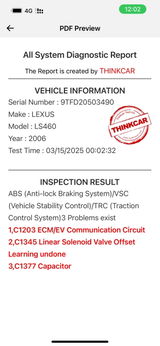
This is the step most shops skip, and it is usually why sending scan results remotely turns into a dead-end text thread. A remote reviewer does not need a loose summary like “check engine light on.” They need the same evidence they would read in person, packaged clearly enough to review in minutes.
What to send to the mechanic
- Fault codes by module
- Freeze-frame data for each main DTC
- Live data PIDs tied to the complaint
- Readiness or emissions status when relevant
- VIN or vehicle ID screen
- Battery voltage at key-on and, if possible, during crank
- Photo of warning lights
- Odometer and recent repair history
Best PID groups by symptom
- Drivability complaints: RPM, calculated load, short- and long-term fuel trims, coolant temp, MAF or MAP, O2 or A/F sensor behavior, misfire counters
- Charging or no-start complaints: battery voltage, charging voltage, RPM during crank, communication faults, immobilizer clues
- ABS or brake concerns: wheel speed signals, brake switch status, ABS module faults, steering angle if relevant
Why this matters
THINKDIAG 2 is especially useful in this step because ThinkCar says it can graph live data, perform OE-level diagnostics across major systems, generate a health report, store reports in report and history menus, and share or print diagnostic reports. The product page also lists Auto VIN, CAN-FD support, ECU coding, bidirectional control, and more than 15 maintenance functions, so it fits a mobile OBD2 scanner for remote support when clean report sharing matters more than a large onboard display.
Shop: THINKDIAG 2
Step 4: Send the report in a format the shop can act on quickly
What data to send to the mechanic matters, but format matters almost as much. If screenshots arrive out of order, file names are generic, and the symptom note is missing, the technician wastes time rebuilding the story. Your packet should let someone review the case in one pass and decide whether to inspect now, schedule later, or recommend towing.
Minimum useful packet
- Full-system scan report
- Freeze-frame screenshot for the main DTCs
- 30 to 60 seconds of live data at idle or during the symptom window
- Dash warning light photo
- Odometer reading
- One short note on symptom timing and recent repairs
Better packet for intermittent faults
- Cold-start and warm-engine scans
- Battery voltage before start and after start
- Weather, fuel level, and trip length notes
- Short symptom video if safe to record
- Timestamps on all screenshots
Common mistake
Do not clear codes before saving the report. If you erase faults too early, you may lose freeze-frame context and readiness status. The EPA’s OBD inspection guidance and federal OBD rules also show why readiness status matters: for 2001 and newer vehicles, more than one unset readiness monitor can affect OBD inspection outcomes, so a pre-check should preserve that information when emissions readiness is part of the complaint. (epa.gov)
Step 5: Ask the last-mile questions that change the diagnosis path

Even the best remote vehicle diagnostics data can still point in two or three directions. That is where guided questioning saves time. A few targeted questions often separate a failing component from a low-voltage event, water intrusion, bad fuel, or a recent repair mistake.
What to ask
- Did the issue start suddenly or gradually?
- Was there a recent battery replacement, jump start, collision, water exposure, or repair?
- Is the problem constant, temperature-related, or only under load?
- Has fuel quality, route type, trip length, or idle time changed recently?
- Are there noises, smells, smoke, limp mode, or crank-no-start symptoms?
Why this matters
- Sudden onset often points to electrical failure, connection loss, or part failure.
- Gradual onset can suggest wear, contamination, or adaptation drift.
- Recent battery work can trigger false leads across many modules.
- Water exposure can create multi-module faults that look unrelated at first.
When a tablet-style tool helps
If your workflow includes a shop helper or field technician who needs a bigger screen, broader protocol support, and more onboard use without depending on a phone, MUCAR 892BT fits better. ThinkCar lists OE-level full-system diagnostics for 120+ car brands, CAN-FD and DoIP support, bidirectional testing, ECU coding, 34+ maintenance functions, an 8-inch 1280×800 display, Bluetooth 5.0, and 9 to 18V working voltage. That makes it useful when you want remote diagnostics for mechanics to start with a stronger in-vehicle capture tool before the report is forwarded for review.
Shop: MUCAR 892BT
What should be scanned first when speed matters in remote vehicle diagnostics?
When time is tight, you still need a repeatable order. The goal is to eliminate false starts before you chase symptom-specific data. That is especially important in remote pre-checks for car troubleshooting, where one bad early assumption can waste an entire message cycle.
Priority scan order for first-pass fault analysis
- Vehicle identification and auto-scan health check
- PCM or ECM codes and freeze-frame
- Transmission, ABS, SRS, and gateway modules
- Battery and charging clues
- Live data tied to the exact complaint
- Recent repair context and warning-light photos
Why this order works
- It catches low-voltage and communication faults early.
- It separates current faults from historical ones.
- It gives enough evidence to choose between remote follow-up and in-person inspection.
- It reduces parts mis-orders on symptom-only jobs.
If you need a more advanced setup than simple report sharing, FlexiHub describes a workflow where a scanner connected to a host device can be accessed remotely over the internet. That model is more complex than an app-based share flow, but it can make sense for fleet support, distributed experts, or cases where the remote technician needs direct access to connected hardware rather than screenshots alone. (flexihub.com)
Setup checks and safety before remote pre-checks
Remote diagnostics for mechanics should stay simple and safe. You are collecting decision-ready data, not trying to complete every test from a parking lot. A few setup rules prevent lost reports, weak voltage readings, and risky operator behavior.
Setup rules
- Use a compatible scanner and app that can save or export reports.
- Keep the vehicle in park with the parking brake set unless a road test is required and safe.
- Confirm healthy battery voltage before a long scan session.
- Save all reports before clearing codes.
- Use bidirectional tests only when the operator understands the function and the vehicle condition.
Safety note
OSHA requires vehicles in use to be checked for safe operating condition, including brakes, steering, tires, horn, controls, and safety devices. In practical shop terms, that means a remote pre-check should never overrule an obvious safety risk. If braking, steering, or repeated stalling is part of the complaint, your workflow should move toward tow-in or immediate inspection rather than more remote experimentation.
Scenario variations that change the workflow
The five-step process stays the same, but your data priorities should change with the complaint. That keeps what to scan before repair aligned with the actual failure pattern instead of following a rigid script.
Check-engine light, vehicle still drivable
- Prioritize full-system scan, freeze-frame, fuel trims, readiness, and warning-light photos.
- Ask about refueling, cold starts, and recent maintenance.
- Decide whether the vehicle is stable enough to schedule normally.
No-start or hard-start complaint
- Prioritize battery voltage, RPM during crank, immobilizer clues, and communication faults.
- Ask about jump starts, battery age, and whether lights dim during crank.
- Treat multiple low-voltage module faults carefully before replacing sensors.
Brake or ABS warning with drivability concern
- Scan ABS and gateway modules early.
- Capture wheel speed and brake switch data if available.
- Move quickly to a drive/no-drive decision.
Fleet or repeat-failure case
- Use the same report template across all operators.
- Capture the same PID list from similar vehicles.
- Compare whether the issue appears on one unit or several.
Troubleshooting gaps in remote vehicle diagnostics
Most remote intake failures are process failures, not tool failures. The table below gives you a quick fix path when the first report is not good enough to support diagnosis.
Common intake problems and fixes
| Problem | Cause | Solution |
|---|---|---|
| One engine code only | Basic scan only | Re-run full-system scan |
| Codes, no context | Freeze-frame not saved | Save code details first |
| Slow review process | Unlabeled screenshots | Send one organized packet |
| Random module faults | Low battery voltage | Check voltage, then rescan |
| Cannot duplicate issue | No trigger notes | Re-interview conditions |
What to do next
- Standardize file names with date and mileage.
- Ask for one photo of the dash every time.
- Require a battery reading on no-start and network cases.
- Keep a short PID checklist by complaint type.
Can remote access tools and scan tools work together?
Yes, but they solve different problems. A mobile Bluetooth scanner is usually the fastest option when the customer or field tech only needs to collect data and send scan results remotely. A remote device-access platform is different: it is for cases where the expert wants to reach connected scanner hardware from another location.
Best use by workflow
- Customer-guided pre-checks: use an app-based Bluetooth scanner.
- Shop-led remote review: use a tool with full-system coverage and clean reports.
- Fleet or distributed expert support: add remote hardware access when direct control is needed.
- Advanced confirmation after intake: use a bidirectional tool once the vehicle is under controlled supervision.
Competitor tools from Autel and TOPDON can also support full-system diagnostics and report sharing in many shop environments, but for this workflow the most important selection criteria are module coverage, report export quality, live-data clarity, and whether the operator will use a phone-based interface or a dedicated tablet. ThinkCar stands out here because its lineup covers all three common remote pre-check roles: compact Bluetooth capture, app-based report sharing, and larger dedicated scan-tablet use.
FAQ
Can I get expert help remotely for car diagnostics?
Yes. Many technicians and scan-tool support teams can help remotely if you send the right pre-check information from your vehicle. Start with a full-system scan, the main trouble code with freeze-frame data, a photo of any warning lights, the odometer reading, and a brief note describing when the problem happens. If it is a drivability issue, include 30 to 60 seconds of live data during idle or while the symptom occurs; for a no-start issue, add battery voltage at key-on and during cranking if possible. Using a capable diagnostic tool such as a Thinkcar scanner can make it easier to capture and share the data needed for faster first-pass analysis.
Can remote diagnostics reduce repair time?
Yes—remote diagnostics can reduce repair time by identifying likely fault areas before the vehicle reaches the shop or before parts are removed. A complete pre-check, including system-wide fault codes, freeze-frame data, basic live data, and battery voltage, helps technicians rule out common causes faster and avoid chasing unrelated symptoms. It also improves parts and labor planning because the technician can arrive with better information about the issue. While it does not replace hands-on testing, it often shortens the diagnostic process and speeds up the overall repair.
Can a mobile scan tool help me guide a customer before I see the car in person?
Yes, as long as the process is simple and tightly guided. Ask the customer to plug in a mobile OBD2 scanner for remote support, run a full-system scan, save the report, and send clear screenshots with a short symptom note. Keep them away from advanced bidirectional tests unless you know the exact function and vehicle condition. Thinkcar is a practical option here because tools like THINKDIAG 2 and MUCAR BT200 MAX are built around app-connected scanning and report sharing.
How do I know whether a remote vehicle diagnostics case is safe to keep driving?
Treat the vehicle as higher risk if the complaint includes brake loss, steering problems, repeated stalling, crank-no-start after repeated jump starts, heavy misfire, overheating, or multiple warning lamps with low-voltage symptoms. A remote pre-check can support that decision, but it should not replace basic safety judgment. If the data is incomplete and the symptom could affect braking, steering, or engine stability, choose tow-in or immediate inspection. In other words, unclear safety cases should become cautious decisions, not optimistic ones.
Which Thinkcar tool fits remote diagnostics for mechanics best?
It depends on who is collecting the data and how the report will be used. Thinkcar MUCAR BT200 MAX fits quick full-system pre-checks with compact Bluetooth use, THINKDIAG 2 fits phone-based health reports and live-data sharing, and MUCAR 892BT fits technicians who want a larger 8-inch dedicated screen with broader onboard workflow. For most customer-to-shop intake jobs, the app-based tools are the easiest path. For field staff or shop helpers doing repeated captures, the tablet-style unit can be faster and more consistent.
Can remote access software replace a scan tool for remote vehicle diagnostics?
No, remote access software does not replace the scan tool; it extends how the tool is reached. You still need compatible OBD hardware connected to the vehicle, plus a method to share that hardware over the internet if direct expert access is the goal. In simpler workflows, it is often faster to collect the report locally and send it to the shop instead of building a remote hardware session. Use remote access only when the added setup produces a clear workflow benefit.
Table of Contents
-
Which remote vehicle diagnostics workflow gets useful answers before the vehicle arrives?
- Step 1: Confirm the complaint, trigger conditions, and urgency
- Step 2: Run a full-system scan, not just a basic code check
- Step 3: Capture the data that actually helps remote support
- Step 4: Send the report in a format the shop can act on quickly
- Step 5: Ask the last-mile questions that change the diagnosis path
- What should be scanned first when speed matters in remote vehicle diagnostics?
- Setup checks and safety before remote pre-checks
- Scenario variations that change the workflow
- Troubleshooting gaps in remote vehicle diagnostics
- Can remote access tools and scan tools work together?
-
FAQ
- Can I get expert help remotely for car diagnostics?
- Can remote diagnostics reduce repair time?
- Can a mobile scan tool help me guide a customer before I see the car in person?
- How do I know whether a remote vehicle diagnostics case is safe to keep driving?
- Which Thinkcar tool fits remote diagnostics for mechanics best?
- Can remote access software replace a scan tool for remote vehicle diagnostics?

Share:
How to Set Up J2534 Pass-Through Programming on Your THINKCAR Device: A Complete Step-by-Step Guide
How to Run a One-Tap Full-Vehicle Scan and Turn DTC + Live Data into a Repair Plan with AI