
Get the scan package ready before you contact the shop

A check-engine light is manageable. A vague message like “the car feels off” is what slows everything down. When a shop gets only one code screenshot and no context, they may have to ask for a second scan, delay parts planning, or avoid giving drive-or-tow advice. The fastest remote car diagnostics workflow starts before you hit send, because the quality of your handoff decides how useful the reply will be.
A cleaner process is to bundle the vehicle identity, a full scan, symptom notes, and one clear question in the same message. That matters whether you are trying to share diagnostic report with mechanic staff, a mobile technician, or a shop advisor handling intake. ThinkCar tools such as the MUCAR 682, THINKSCAN 689BT, and MUCAR 892BT fit this kind of OBD2 scan report sharing because they are positioned for full-system diagnostics rather than engine-code-only reading.
What to prepare first
- Vehicle year, make, model, engine, and VIN if available
- Current mileage if the issue may be maintenance-related
- Battery condition or recent jump-start history
- Current symptoms such as no-start, rough idle, limp mode, or stalling
- Warning lights now on, including ABS, SRS, battery, or transmission lights
- A scanner that can run a full-system or auto scan
Safety checks before scanning
- Do not keep driving if the engine is overheating
- Treat a flashing malfunction indicator lamp as a stop-and-check event
- Avoid extended driving with severe brake or transmission warnings
- Keep battery voltage stable during ignition-on testing
- Park in a ventilated area if the engine must idle during live-data capture
According to EPA, OBD monitor readiness status is a meaningful part of inspection and maintenance decisions, which is why readiness information can help a shop judge whether a fault is current, recently cleared, or still incomplete after a repair.
Step 1: Run a complete scan instead of sending one code photo
A single fault code rarely tells the whole story. If the engine, ABS, airbag, body, and transmission modules were all scanned, a shop can see whether the problem is isolated or part of a wider electrical or network issue. That is the foundation of useful remote vehicle troubleshooting.
What to do
- Run an Auto Scan or full-system scan
- Save all detected modules, not just engine results
- Record stored, pending, and permanent codes if shown
- Keep the ignition state consistent during the scan
- Rescan once if communication drops mid-process
Why this matters
- A P-code alone can hide ABS or transmission faults
- Multiple low-voltage codes may point to battery issues first
- Network faults often appear across several modules at once
- Shops can triage faster when they see the module pattern
The MUCAR 682 is a practical fit for this step because ThinkCar lists full-system diagnostics, bidirectional tests, 20+ reset functions, CAN FD support, FCA AutoAuth, and a 6.2-inch anti-glare touchscreen with lifetime free updates. ThinkCar also says its MUAI feature can parse and generate structured diagnostic analysis from reports, which supports cleaner sending of scan results to repair shop workflows when you need something more useful than a photo of one trouble code.
Step 2: Add symptom notes so the codes make sense
Raw codes are only half the handoff. A technician needs to know when the fault happens, how often it repeats, and what changed before the warning light appeared. That extra context is what turns code reading into remote car diagnostics that a shop can actually use.
Include these symptom fields
- When the warning light first came on
- Whether the problem is constant or intermittent
- Cold start, hot restart, highway speed, idle, braking, or under-load conditions
- Recent repair work, battery replacement, or jump-start events
- Any smell, smoke, vibration, or unusual sound
- Whether the vehicle went into reduced-power or limp mode
Common mistake
Sending “P0300 and car shakes” is not enough. Sending “P0300, rough idle only after warm restart, started two days after battery replacement, no overheating, MIL steady” is much more useful. The second version helps the shop decide whether to look first at voltage history, ignition faults, fuel trim behavior, or mechanical issues.
If your workflow involves serious pre-arrival review, the THINKSCAN 689BT is the stronger mid-to-pro option. ThinkCar positions it as an OE-level full-system diagnostic tablet with bidirectional control, ECU coding support, AutoVIN, AutoScan, CAN-FD, DoIP, and FCA AutoAuth support across a broad vehicle set. That makes it a solid OBD2 scanner with report sharing potential when you need deeper module coverage before a vehicle reaches the bay.
Shop: THINKSCAN 689BT
Step 3: Export the report in a format the shop can open fast

Once the scan is done, the next job is packaging. The best file format is not the most technical one. It is the one the advisor, technician, or dispatcher can open in seconds, forward internally, and read without retyping codes from a text thread.
Best sharing formats
- PDF report for organized handoff and recordkeeping
- App-generated report if the shop already works from phones or tablets
- Email attachment when you need a searchable thread
- Ordered screenshots if export is unavailable
What to watch
- Put the vehicle year and plate or VIN in the file name
- Keep screenshots in module order, not random gallery order
- Avoid blurry photos of the scanner screen
- Do not crop out code descriptions or module names
ThinkCar’s MUCAR 892BT is especially relevant here because the product page highlights free lifetime updates, full-stack diagnostics, ECU coding, bi-directional test support, 34+ maintenance functions, and an 8-inch touchscreen. ThinkCar’s recent MUAI explanation also says the system can analyze imported or native reports, extract fault codes, freeze-frame data, and live-data snapshots, then synthesize a more structured report. For users focused on how to send car codes to mechanic teams in a cleaner format, that tablet-style workflow is easier to manage than texting loose screenshots back and forth.
Step 4: Include freeze-frame, readiness, and voltage details when available
A code tells you what set a flag. Freeze-frame and readiness data help explain when and under what conditions it happened. If your tool shows this information, add it. These details often save one more round of messages with the shop.
What to include
- Freeze-frame engine load
- Coolant temperature at fault time
- Vehicle speed when the code set
- Short- and long-term fuel trim values
- Misfire counts if available
- Battery voltage during scan or at fault capture
- I/M readiness monitor status
Why this matters
- Freeze-frame shows the operating state at failure
- Readiness helps identify recently cleared codes
- Voltage clues can explain false or stacked faults
- Fuel trim and misfire counts guide next tests
According to EPA, OBD readiness remains a core part of emissions inspection logic, so including readiness status in your report package gives the shop extra context on whether monitors have completed or whether the vehicle was recently reset.
Step 5: Ask one focused question the shop can answer remotely
A good report still needs a clear ask. If you end the message with “Any thoughts?” you usually get a vague answer back. If you ask a decision question, the shop can respond with a practical next step.
Better remote-diagnostics questions
- Is this likely safe to drive a short distance?
- Should I tow it instead of driving it in?
- Does this look more like battery, sensor, wiring, or module trouble?
- Do you want one more live-data capture before scheduling?
- Which system should be tested first when the car arrives?
Why this matters
- The shop knows your decision point immediately
- Advisors can route the case faster
- Technicians can suggest a next test instead of guessing intent
- You reduce back-and-forth before scheduling
A useful example is: “Attached is a full-system scan and symptom note. The car has reduced power but no overheating. Is it safe to drive 5 miles to your shop, or should I tow it?” That gives the shop a risk question, a distance, and a scan package in one pass.
According to NHTSA, manufacturers commonly warn that continued driving with a flashing check-engine condition can damage the catalytic converter, so drive-or-tow questions are not just convenience questions. They can prevent expensive follow-on damage.
Step 6: Use a scanner built for remote-friendly reporting
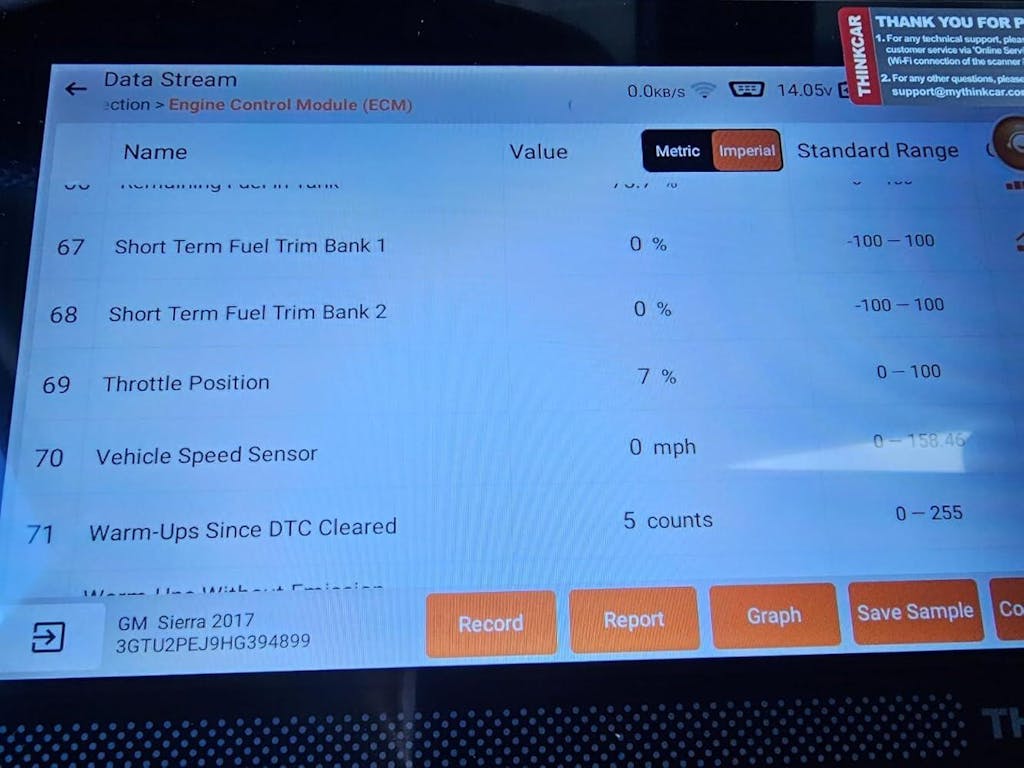
If you regularly send scan results to repair shop staff, the scanner itself changes how smooth the process feels. Basic code readers can still help with generic engine faults, but they often fall short when you need module-wide visibility, active tests, cleaner exports, or better identification on newer vehicles.
Features that make OBD2 scan report sharing easier
- Full-system diagnostics, not engine-only reading
- AutoVIN for faster vehicle identification
- AutoScan for faster intake checks
- Exportable reports or structured screenshots
- Bidirectional functions for deeper troubleshooting
- CAN-FD, DoIP, or FCA support when newer vehicles require them
- Ongoing update support for changing vehicle coverage
Which ThinkCar model fits which workflow
- MUCAR 682: Good for entry-to-mid remote reporting, with full-system diagnostics, bidirectional control, 20+ resets, and lifetime free updates
- THINKSCAN 689BT: Better for advanced users or shops needing wider protocol support, AutoVIN, AutoScan, ECU coding, and broader professional depth
- MUCAR 892BT: Best fit for tablet-style remote vehicle troubleshooting with AI-assisted report analysis and larger-screen workflow
The Scotty Kilmer community guide on scan tools broadly separates basic OBDII readers, four-system tools, all-system scanners, and bidirectional scanners, noting that all-system and bidirectional tools are the better fit when diagnosis goes beyond a basic check-engine event. That aligns with why remote assistance works better when the report shows more than generic powertrain data.
What changes for repair shops handling remote scan reports
Remote intake works best when the shop uses it as triage, not as a substitute for in-bay confirmation. A repeatable intake process can reduce wasted calls, route tow-ins faster, and help the right technician prepare before the vehicle shows up.
A simple shop intake workflow
- Request full-system scan results
- Ask for vehicle identity and symptom timing
- Confirm whether the issue is safe to drive
- Check for freeze-frame, readiness, and voltage details
- Reply with tow, schedule, or rescan instructions
Shop workflow benefits
- Faster front-desk triage
- Better bay assignment
- Fewer incomplete arrivals
- Earlier parts and test planning
If you run a mobile or independent operation, remote pre-screening is especially useful for stranded drivers, no-start cases, and intermittent faults. It also helps DIY owners avoid buying parts too early based on one isolated code.
Troubleshooting remote report sharing
Even a good scan can fail as a handoff if the file is incomplete, unreadable, or missing context. Use this table when the shop says the report was not enough.
| Problem | Cause | Solution |
|---|---|---|
| Report feels incomplete | Only generic codes sent | Run full-system scan |
| Codes mismatch symptoms | Old low-voltage history | Add battery notes, rescan |
| File will not open | Wrong export format | Resend PDF or screenshots |
| Too many modules flagged | Weak battery, network faults | Charge, stabilize, rescan |
| Shop reply is vague | No decision question asked | Ask drive, tow, or test |
What to watch after rescanning
- Compare the second scan to the first before clearing anything
- Note which codes returned immediately
- Separate active faults from historical ones
- Tell the shop if battery charging or repairs happened between scans
Build a repeatable remote handoff so the shop can act faster

The most reliable remote car diagnostics process is simple: full-system scan, symptom note, exportable report, extra data points, and one clear question. When you follow that order, the shop spends less time decoding your message and more time deciding what to do next.
For people who handle this often, the tool matters. The MUCAR 682 works well for practical entry-to-mid OBD2 scan report sharing, the THINKSCAN 689BT fits deeper shop-style work, and the MUCAR 892BT is the strongest option when you want tablet-based remote vehicle troubleshooting with more advanced report analysis. The goal is not to replace hands-on diagnosis. It is to make the first remote exchange complete enough that the next move is obvious.
FAQ
Can I get expert help remotely for car diagnostics?
Yes, expert help for car diagnostics can often be provided remotely if you share complete and accurate scan data. A single trouble-code photo is usually not enough, because related faults in systems like ABS, transmission, body, or network modules may only show up in a full-system scan report. For the best remote assessment, send the full report along with the module name, symptoms, when the problem occurs, and your vehicle’s year, make, model, and engine. With that information, a shop can better tell whether it’s a simple issue or part of a larger fault pattern.
How can repair shops use remote diagnostics?
Repair shops use remote diagnostics by reviewing a customer’s OBD2 scan report before the vehicle arrives, then using the fault codes, freeze-frame data, and readiness status to narrow down likely causes. This helps the technician decide whether the issue looks minor, intermittent, or urgent and prepares them for the right tests, tools, and parts. Many shops also use the report to give a preliminary estimate, confirm whether an in-person inspection is still needed, and reduce back-and-forth during intake. For best results, the customer should send a complete scan that includes vehicle details, all detected modules, and any stored or pending codes.
Can a mobile scan tool help me guide a customer before I see the car in person?
Yes. A mobile scan tool can let you review live data, trouble codes, and a full-system scan remotely so you can give a customer initial guidance before the vehicle arrives. Ask them to share the report along with the year, make, model, engine, VIN if available, warning lights, symptoms, and any recent repairs so you can judge urgency and whether it appears safe to drive. Many tools, including Thinkcar mobile diagnostic options, make it easier to send scan results to a shop for a faster pre-visit assessment.
Do I need a bidirectional scan tool for shops to review my report remotely?
No, but it helps when the problem goes beyond basic engine-code reading. A full-system scanner is the bigger requirement because remote review is much stronger when the report includes ABS, SRS, transmission, and body modules. If you also want active tests, resets, and better shop-style workflows, a bidirectional scan tool for shops or advanced DIY use becomes a smarter long-term choice.
Which scanner features matter most for OBD2 scanner with report sharing workflows?
The most useful features are full-system diagnostics, AutoVIN, exportable reports, stable updates, and broad protocol support for newer vehicles. Bidirectional control and freeze-frame access also matter because they add more context when a shop needs deeper pre-arrival screening. In ThinkCar’s lineup, the MUCAR 682 is a practical starting point, while the THINKSCAN 689BT and MUCAR 892BT fit heavier remote-report and remote vehicle troubleshooting use.
Can a shop give real advice before the car arrives?
Yes, but the advice is best used for triage rather than final repair confirmation. With a complete scan package, a shop can often tell you whether the car is likely safe to drive, whether towing is smarter, and which system should be tested first. They still need hands-on confirmation before replacing parts, especially when low voltage, intermittent faults, or network issues may be involved.
Table of Contents
- Get the scan package ready before you contact the shop
- Step 1: Run a complete scan instead of sending one code photo
- Step 2: Add symptom notes so the codes make sense
- Step 3: Export the report in a format the shop can open fast
- Step 4: Include freeze-frame, readiness, and voltage details when available
- Step 5: Ask one focused question the shop can answer remotely
- Step 6: Use a scanner built for remote-friendly reporting
- What changes for repair shops handling remote scan reports
- Troubleshooting remote report sharing
- Build a repeatable remote handoff so the shop can act faster
-
FAQ
- Can I get expert help remotely for car diagnostics?
- How can repair shops use remote diagnostics?
- Can a mobile scan tool help me guide a customer before I see the car in person?
- Do I need a bidirectional scan tool for shops to review my report remotely?
- Which scanner features matter most for OBD2 scanner with report sharing workflows?
- Can a shop give real advice before the car arrives?

Share:
Future-Proofing Your Shop: A Guide to Smart Scanners for Modern Vehicle Systems
The Ultimate Guide to Future-Proof Scan Tools for Modern Vehicles