
Introduction
Picking a diagnostic tool that is cheap up front is easy. Picking one that stays cheap to own is harder, because many scanners hide long-term costs behind Software Renewal, a Software Subscription, or limited Software Download access.
This how-to guide shows you how to select a Vehicle Scanner & Diagnostic Tool with predictable ownership costs by checking the update model first, then matching coverage, features, and workflow to your actual vehicle and maintenance plan. The goal is to get reliable OBD2 Intelligent Diagnosis without paying for surprises later.
THINKCAR and MUCAR organize products across lines like the ThinkScan Series and the AI Diagnostic Series, plus TPMS & Sensor tools for TPMS Service. If you approach selection in steps, you can land on the right tier (Code Readers vs full system vs Bidirectional scanner) while still keeping lifetime updates in mind.
Official Site: THINKCAR Official Shop
How to Select a Diagnostic Tool Step-by-Step
Step 1: Confirm your update model
Start by reading the update and licensing language before you compare features. This one step prevents most budget regrets.
- Look for explicit wording like "Free Lifetime Software Updates" or "lifetime free license" rather than vague statements like "updates available."
- Scan for phrases that signal ongoing costs: Software Renewal, Software Subscription, or per-brand unlocks.
- Check how updates happen in real life: does the tool update over WiFi, through a mobile app, or via PC? That affects how often you will actually stay current.
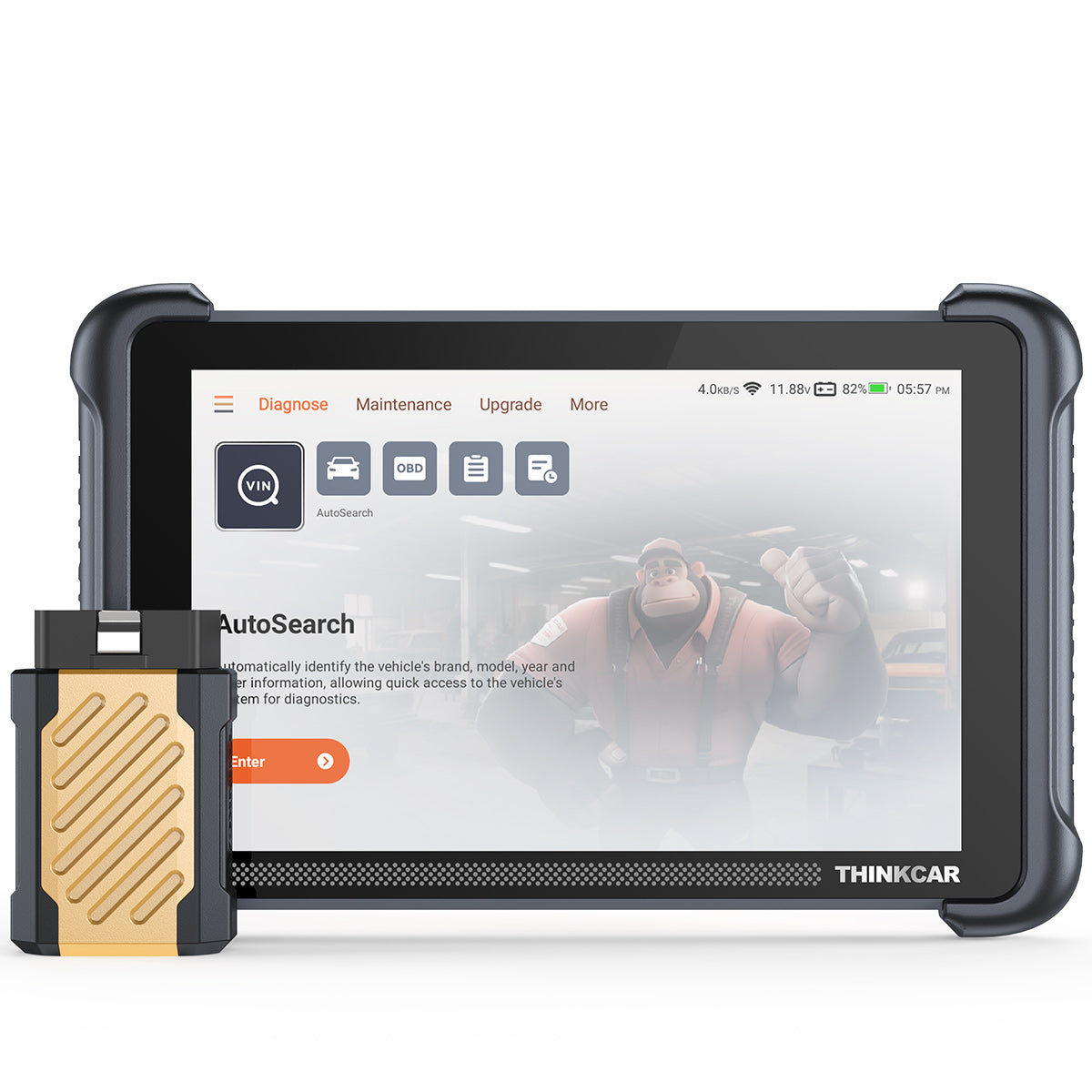
If you want lifetime updates in a higher feature tier, the THINKSCAN 689BT calls out "Free lifetime updates, no subscription fees" and uses onboard 2.4G/5G WiFi for updates. It also states "Monthly upgrades" to keep coverage growing.
- Hardware basics that matter for updates and usability: 8-inch touchscreen, 4 GB RAM, 64 GB storage, and Bluetooth 5.0 VCI.
- If you work on newer vehicles, note that it lists CAN-FD and DoIP support, which you should validate against your car list in Step 2.
Shop: THINKSCAN 689BT
Step 2: Match coverage and protocols
A cheap tool is not cheap if it cannot talk to your car. Coverage problems usually show up as missing modules, incomplete scans, or functions that fail to run.
Do this quick coverage checklist for each vehicle you care about:
- Confirm your vehicle is OBD II equipped. The California Air Resources Board states that 1996+ gasoline passenger vehicles and light trucks (and 1997+ diesel passenger vehicles and trucks) are required to meet OBD II requirements.
- List the modules you expect to access beyond "engine": ABS, SRS/airbag, transmission, body control, TPMS, battery/charging, and immobilizer.
- Identify protocol needs for newer platforms: CAN-FD and DoIP are increasingly relevant on late-model vehicles, but not every low-cost Bluetooth dongle supports them.
If you plan to diagnose more than powertrain codes, avoid basic Code Readers as your only tool. Instead, favor tools that clearly advertise "All System" or "Full System" coverage.
THINKSCAN 689BT is positioned as an all-system, OE-level scanner with AutoVIN and AutoScan, plus FCA AutoAuth support for FCA secure gateway workflows. That matters if you hit "blocked" modules on certain Chrysler, Dodge, Jeep, Fiat, or related platforms.
Shop: THINKSCAN 689BT
Step 3: Choose your feature tier
Next, decide what you actually need the tool to do. This is where many buyers overpay for features they never use, or underbuy and then pay again later.
Use these tiers to pick intentionally:
- Tier A: Code Readers
- Best for reading/clearing generic DTCs, viewing freeze frame, basic live data, and I/M readiness.
- Weak at module-level diagnostics and usually cannot run active tests.
- Tier B: Full system diagnostics (no or limited active tests)
- Lets you scan multiple modules, pull manufacturer-specific codes, and produce reports.
- Good for maintenance planning and pre-purchase checks.
- Tier C: Bidirectional scanner + service functions
- Adds active tests (actuation tests), special functions, and often ECU coding/adaptations.
- Best for diagnosing "it works sometimes" problems because you can command components directly.
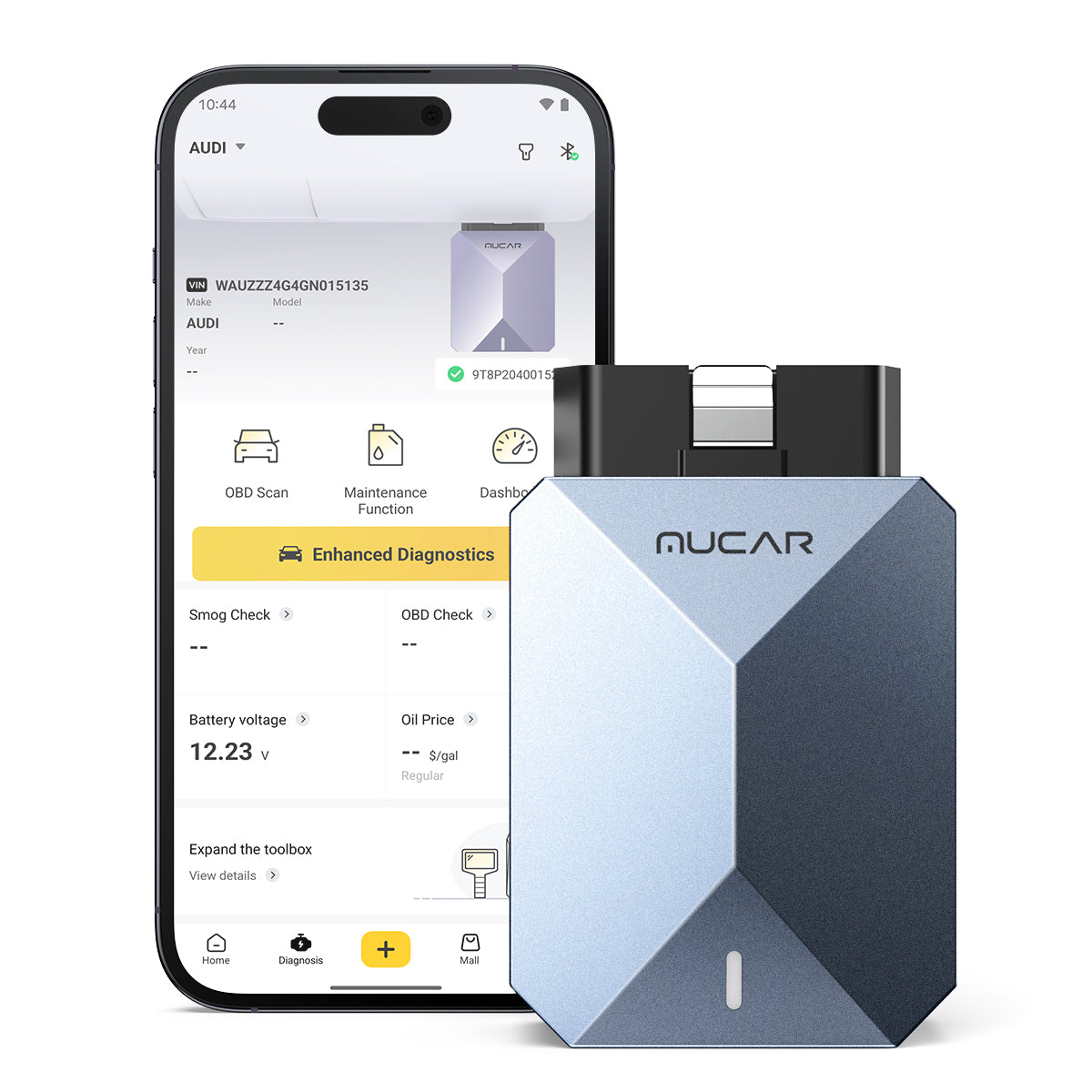
If you want Tier C on a small budget and you are comfortable using your phone, a Wireless OBD2 Scanners approach like MUCAR BT200 MAX can be a strong fit. The MUCAR BT200 MAX is an OBD2 Scanner Bluetooth device that emphasizes:
- Bi-directional control (actuation tests) for faster fault isolation.
- "True Full-System" scanning for more than engine codes.
- CAN-FD support and monthly compatibility growth with lifetime updates.
That said, if you prefer a dedicated tablet workflow with more shop-style speed (and features like ECU coding), the THINKSCAN 689BT is built around a tablet + Bluetooth dongle workflow.
Shop: MUCAR BT200 MAX
Step 4: Validate reset and service needs
Reset functions are where budget tools can quietly fall short. You might have the right diagnostics, but still need a shop visit to finish the job.
First, make a "must-have" list based on what you actually do:
- Oil reset
- EPB service reset
- SAS calibration
- BMS reset
- DPF regeneration (diesel)
- ABS bleeding
- Injector coding
- IMMO matching/key functions
- TPMS reset (and whether you need sensor activation or programming)
Then, confirm two details:
-
Does the tool list your resets explicitly?
-
MUCAR BT200 MAX lists 15+ essential resets (including Oil Reset, SAS, BMS, TPMS, EPB).
-
Does your vehicle support the function through OBD and gateway rules?
-
Some functions fail on SGW-locked vehicles until you complete gateway authorization (for example FCA AutoAuth).
If TPMS Service is a key part of your workflow, separate the problem into two halves:
- Diagnosing TPMS faults and reading IDs (often possible through a full-system scanner)
- Activating or verifying sensors at the wheel (best handled by a dedicated TPMS & Sensor tool)
THINKCAR VENU 90 is designed for TPMS activation and diagnostics and states support for 315 MHz and 433 MHz sensor activation, plus independent TPMS diagnostics without needing an app.

Shop: THINKCAR VENU 90 TPMS Activation & Diagnostic Tool
Step 5: Compare total cost and workflow
Finally, compare tools by how you will actually use them week to week. This is where the "cheap with lifetime updates" goal becomes real.
Use this workflow-first checklist:
- Update path: WiFi on a tablet vs phone app updates. If you hate managing phone permissions, a tablet tool can be simpler.
- Connection style: Bluetooth dongle to tablet/phone vs cable. Bluetooth improves mobility, but you need stable pairing.
- Reports: If you want to share results, confirm report generation and export options.
- Memory and speed: More RAM and storage usually means fewer freezes during scans and updates.
- Warranty and support: Check whether the product includes a 1 Year Extended Warranty option or a standard warranty, and how support is provided.
To make comparison easy, here is a practical table you can reuse.
| Need | What to look for | Example match inside THINKCAR/MUCAR lines |
|---|---|---|
| Cheap DIY check-engine checks | Code reading, I/M readiness, basic live data | Code Readers category; MUCAR BT200 MAX if you also want bidirectional |
| Home garage diagnostics with active tests | Bidirectional scanner, full system scan, key resets | THINKDIAG 2, MUCAR BT200 MAX |
| Shop-style tablet workflow | Larger screen, faster hardware, broad coverage, WiFi updates | THINKSCAN 689BT (ThinkScan Series) |
| TPMS-focused workflow | Dedicated TPMS & Sensor activation and guided steps | THINKCAR VENU 90 TPMS Activation & Diagnostic Tool |
| Coverage growth without surprise fees | Clear "Free Lifetime Software Updates" language | THINKSCAN 689BT; MUCAR BT200 MAX |
If you are deciding between a phone-based Advanced Scanner and a tablet tool, consider how long you will run sessions. Long diagnostic sessions often go better with a bigger screen and a dedicated battery.
Shop: Vehicle Scanner & Diagnostic Tool collection
Adapting Your Approach in Different Scenarios
- DIY check-engine only (quick, low fuss)
- Choose a Wireless OBD2 Scanners workflow.
- MUCAR BT200 MAX can cover full-system scans plus basic maintenance resets, which keeps you from outgrowing the tool too fast.
- Home garage active tests (you want to command components)
- Prioritize Bidirectional scanner capability and a clear update policy.
- THINKDIAG 2 is positioned for car owners, DIYers, and minor repair shops and includes special functions plus active tests through its app.
- Shop-level breadth (multiple brands, newer protocols)
- Focus on protocol support (CAN-FD, DoIP), hardware speed, and stable WiFi updating.
- THINKSCAN 689BT is built around an 8-inch tablet and Bluetooth dongle workflow, which can speed up repeated scans.
What You Will Need Before You Start
Required Tools & Materials
- Vehicle info: year, make, model, engine, and VIN (helps AutoVIN confirm the right profile)
- Stable power: charged tablet/phone, plus a charger cable for long sessions
- Access to the OBD2 port (often under dash near the steering column)
- Reliable WiFi for Software Download and updates, especially for tablet-based tools
- A safe work area with good lighting so you can see pedals, connectors, and warning labels
- Basic hand tools if you need to remove a lower dash panel for port access
Safety Considerations
- Do not run a vehicle in a closed garage during diagnosis. The US EPA warns to never run a vehicle inside a garage because carbon monoxide can build up to deadly levels even with the garage door open.
- Keep hands, cables, and clothing away from radiator fans and belts. Fans can start automatically even when the engine is off.
- Use a stable battery charger if you plan long coding or active-test sessions, because low voltage can cause modules to drop offline.
- If you work around batteries or charging areas, provide ventilation and basic PPE. OSHA battery charging rules require ventilation to prevent explosive gas accumulation and specify protective equipment like face shields and rubber gloves for handling batteries or acids. (See OSHA.)
Troubleshooting Guide
| Problem | Likely cause | Solution |
|---|---|---|
| Tool will not connect | Wrong vehicle profile, Bluetooth not paired, ignition state wrong | Set ignition to KOEO (key on, engine off), re-pair Bluetooth, then retry AutoVIN/AutoScan. |
| Missing modules in an all-system scan | SGW/gateway lock, protocol mismatch, weak vehicle battery | Run gateway authorization if supported (for example FCA AutoAuth), connect a charger to hold 12.4V+, and rescan. |
| "Not ready" / monitors incomplete | Codes cleared recently, drive cycle not completed | Avoid clearing codes before inspection; complete a full drive cycle and recheck I/M readiness. |
| Active test fails to run | Function not supported on this trim, app permission issue, unstable connection | Confirm the exact module supports the test, close other apps, keep the phone within a few feet of the dongle, and retry. |
| Updates fail or stop mid-download | Weak WiFi, storage too full, update server timing | Switch to 2.4G WiFi for stability, free storage space, reboot, and retry during off-peak hours. |
Conclusion
Selecting a diagnostic tool that offers lifetime updates for cheap is mostly about preventing hidden costs. First confirm the update model, then match coverage and protocols, choose the right feature tier, validate your reset needs, and finally compare the workflow you will actually live with.
THINKCAR and MUCAR give you multiple paths: phone-based OBD2 Scanner Bluetooth options for fast DIY work, and ThinkScan Series tablet tools for broader, faster shop-style diagnostics. If you keep lifetime updates and real vehicle coverage as your filter, you will get better results with fewer surprise renewals.
Official Site: THINKCAR Official Shop
Frequently Asked Questions
How to get the most value for money with car diagnostic scanners? Start with a short list of your vehicles and your top 5 maintenance tasks, then buy to that list instead of buying for maximum features. A full-system scan tool often gives better long-term value than a basic code reader because it reduces repeat shop visits. If you need active tests, choose a Bidirectional scanner so you can command components and diagnose faster. Also plan for usability: a stable connection and clear reports can save more time than one extra feature.
What diagnostic tool offers the most features for the lowest price? The best value tool is the one that covers your vehicles, includes the resets you will actually run, and does not force an ongoing Software Subscription for core functions. For many DIYers, a compact Bluetooth tool with full-system coverage and bidirectional tests can deliver the most useful features per dollar. For broader shop-style workflows, a tablet scanner can add speed, easier navigation, and better reporting. The right answer depends on whether you need ECU coding depth, active tests, or mostly maintenance resets.
How does a budget-friendly diagnostic tool perform compared to premium models? A budget tool can handle common diagnostics well if it supports your car protocols, provides stable live data, and includes the right service functions. Premium models tend to add deeper OEM coverage, faster guided workflows, and more consistent access to secure modules across brands. Budget tools also vary more in app experience, which can affect connection stability and update reliability. If you choose carefully, you can get 80% of the practical capability without paying for features you will not use.
How do I select the best Bluetooth scanner for my car’s needs? Confirm your phone OS is supported and plan to keep the phone within a few feet of the dongle during scans. Check that the tool supports the protocols your vehicle uses, especially if the vehicle is newer and may require CAN-FD. Make sure the scanner is truly full-system if you want ABS, SRS, transmission, or body codes. Finally, verify the reset list and whether bidirectional tests are included, because those two items often separate basic Code Readers from more capable tools.
How can I get a diagnostic tool for under $200 that is still effective? Focus on solid core diagnostics first: stable pairing, clear code definitions, live data, freeze frame, and I/M readiness. Then look for full-system access and a small set of resets you will use often, such as oil reset and EPB, because those reduce service visits. Expect some limits compared to a tablet scanner, especially on ECU coding or very brand-specific functions. If you outgrow the tool, keep it as a glovebox scanner and step up later to a higher tier device for deeper work.

Share:
5 Best Reliable Diagnostic Tools with AI assistance for a beginner mechanic
5 Best Reliable Diagnostic Tools with AI assistance for a beginner mechanic