
Introduction
Lost a diagnostic session halfway through a quick check because your tool is missing a newer vehicle profile or a service function? That is the kind of small problem that turns into a wasted hour: you rerun scans, second-guess codes, and still do not know if you are seeing the whole picture.
This how-to guide shows you a step-by-step way to choose a Vehicle Scanner & Diagnostic Tool with low-cost lifetime updates you can actually live with. You will verify software update notices details in writing, match coverage depth to your real jobs (not marketing), and pick a ThinkScan Series or AI Diagnostic Series option that fits how you work.
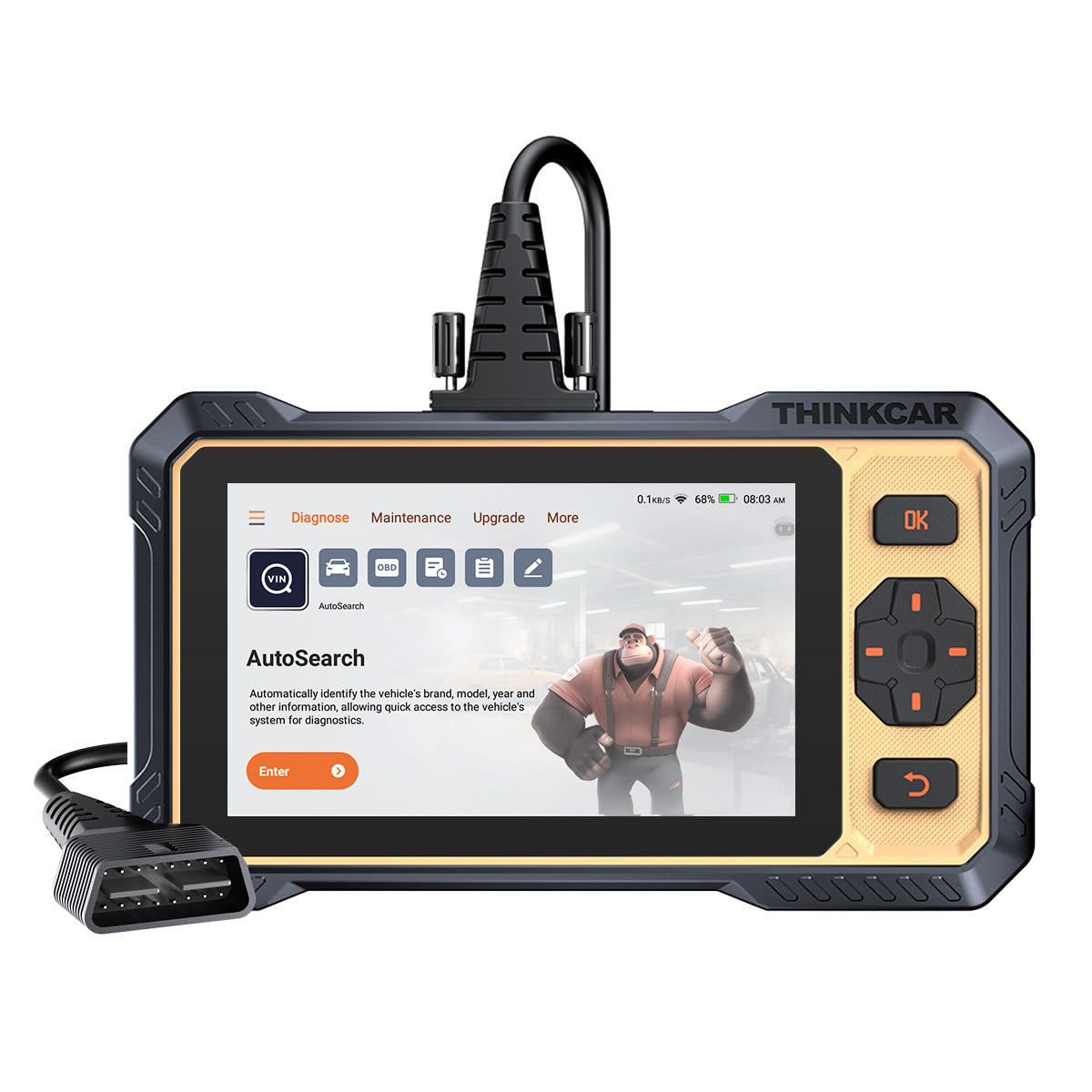
Official Site: THINKCAR ThinkScan 662
Step-by-Step Guide to Choosing Low-Cost Lifetime Updates
Step 1: Define your real update need
Start by writing down what you actually touch in your workflow, because updates only matter if they add coverage you will use. List the makes you see most, the model years, and whether you deal with newer protocols (for example, late-model GM CAN-FD support can be a deciding factor for some tools and apps). Next, list the top three tasks you run weekly: Code Readers checks, OBD2 Intelligent Diagnosis (live data, freeze frame, I/M readiness), or a Bidirectional scanner workflow with active tests and service resets.
Before you look at any tool families (ThinkScan Series, AI Diagnostic Series, VO Series, CS Series, or CDE900 Series), decide what you will not pay for. If you never do ABS bleeding or TPMS Service, do not let a big reset list drive the purchase. This one-page checklist will also help you avoid buying a Bluetooth OBD2 scanner dongle that is fast to set up but expensive to keep updated.
Step 2: Verify update terms in writing
Lock this step first; otherwise, the rest of your buying decision becomes guesswork. You are looking for exact wording that explains whether updates are truly Free Lifetime Software Updates, a limited-time bundle, or a software subscription that renews after a year. Do not rely on banner phrases alone. Look for explicit statements like "lifetime free updates" and also check the warranty line (for example, the THINKSCAN 662 page lists a 12-month warranty while separately calling out lifetime free updates).
Then check how updates happen: is it one-tap on the device, a Wi-Fi download, or a phone app login with software download steps? A clean update path matters because downtime often hits when you are in the bay, not at your desk. If the tool requires an account, confirm how the login works, how software renewal is triggered, and where the Software Update Notice is posted so you can confirm changes over time.
Step 3: Compare the total cost of ownership, not the sticker price
Do the math in a way that protects you from "cheap now, expensive later." Build a simple 3-to-5-year ownership view with two buckets: (1) expected update costs and (2) expected accessories or workflow add-ons. Even if you never enter a number, the structure keeps you honest: a tool that forces software subscription payments to keep core functions can cost more than a higher-spec tool with lifetime updates.
Use a consistent comparison frame:
- Update model: Free Lifetime Software Updates vs 1-year included then renewal
- Coverage growth: monthly or periodic Software Download cadence
- Feature lock risk: resets and active tests tied to subscription
- Hardware longevity: battery capacity, screen size, and connector durability
For example, THINKSCAN 662 is positioned as a lifetime free upgrade and a 6.2-inch anti-glare touchscreen with a 4150 mAh battery, which can reduce replacement pressure if it stays usable for years. If you are evaluating MUCAR or other lines, verify whether their T-code or TCODE model is required to unlock or expand functions, because token-based expansions can shift costs from upfront to ongoing.
Step 4: Confirm the diagnostics depth you need using the "systems" test
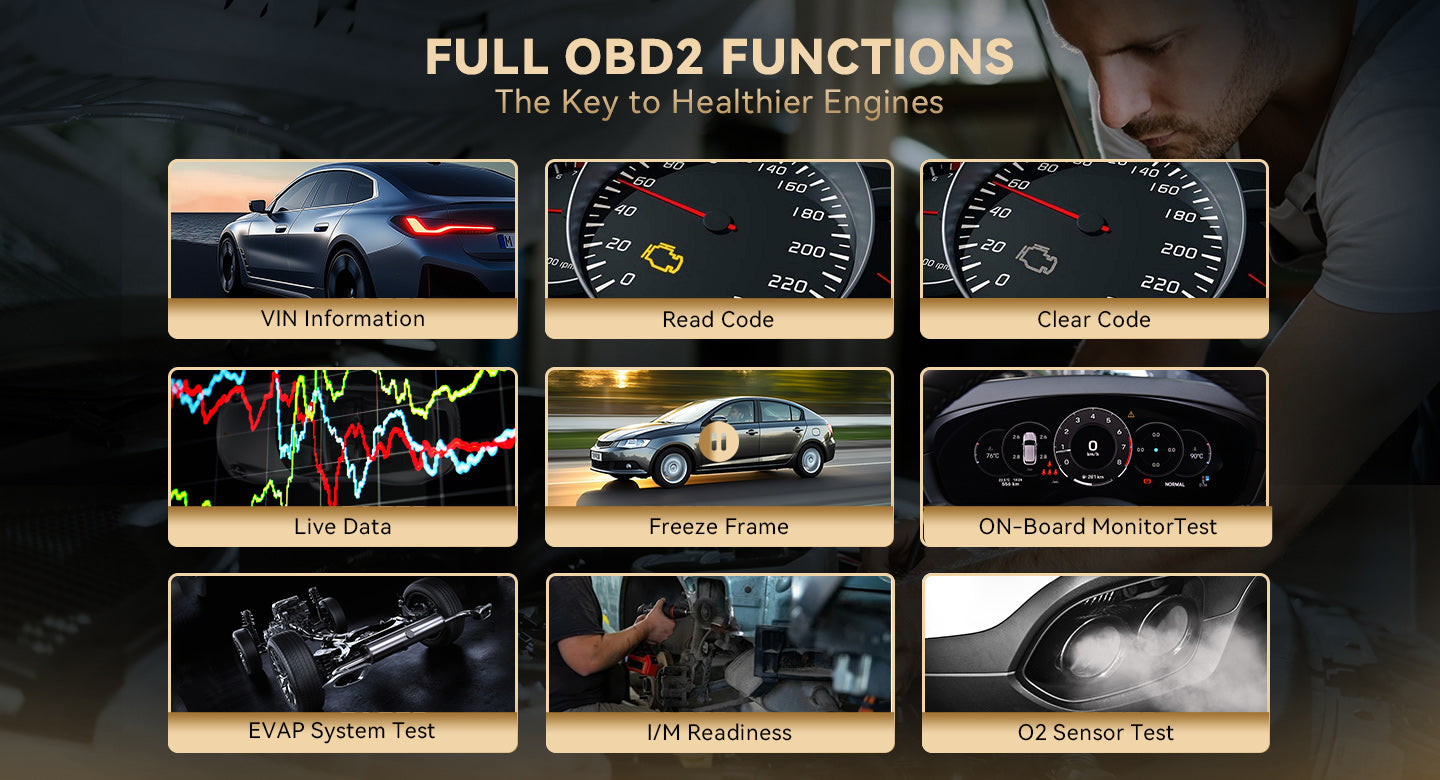
Use a practical test: pick one vehicle you own or see often, then ask, "Which modules do I need to touch to finish my normal jobs?" Basic OBD2 Intelligent Diagnosis covers emissions-related engine data and standard OBD2 functions like VIN, read/clear codes, live data, freeze frame, EVAP tests, O2 sensor tests, and I/M readiness.
When you step up in depth, you are looking at system-level access (for example, ECM, TCM, ABS, and SRS on tools like THINKSCAN 662) and sometimes full-system access on more advanced scanners. The problem is not whether full-system is better. The problem is paying for an All System Diagnosis for All Cars when you only need a few modules.
A fast way to decide:
- DIY and inspection: Code Readers + full OBD2 functions
- Weekend wrenching: add ABS/SRS coverage and resets
- Shop workflow: add all-system scan plus report export
- Intermittent faults: prioritize live data, compare and playback
Step 5: Validate bidirectional and service coverage you will actually use
Do not buy a Bidirectional scanner just because the phrase sounds pro. Buy it because you will run active tests that shorten diagnosis. Bidirectional control means the tool can send commands to a module to actuate a component (for example, commanding a fan on, cycling relays, or toggling a solenoid) so you can isolate wiring, actuator, and module problems without swapping parts.
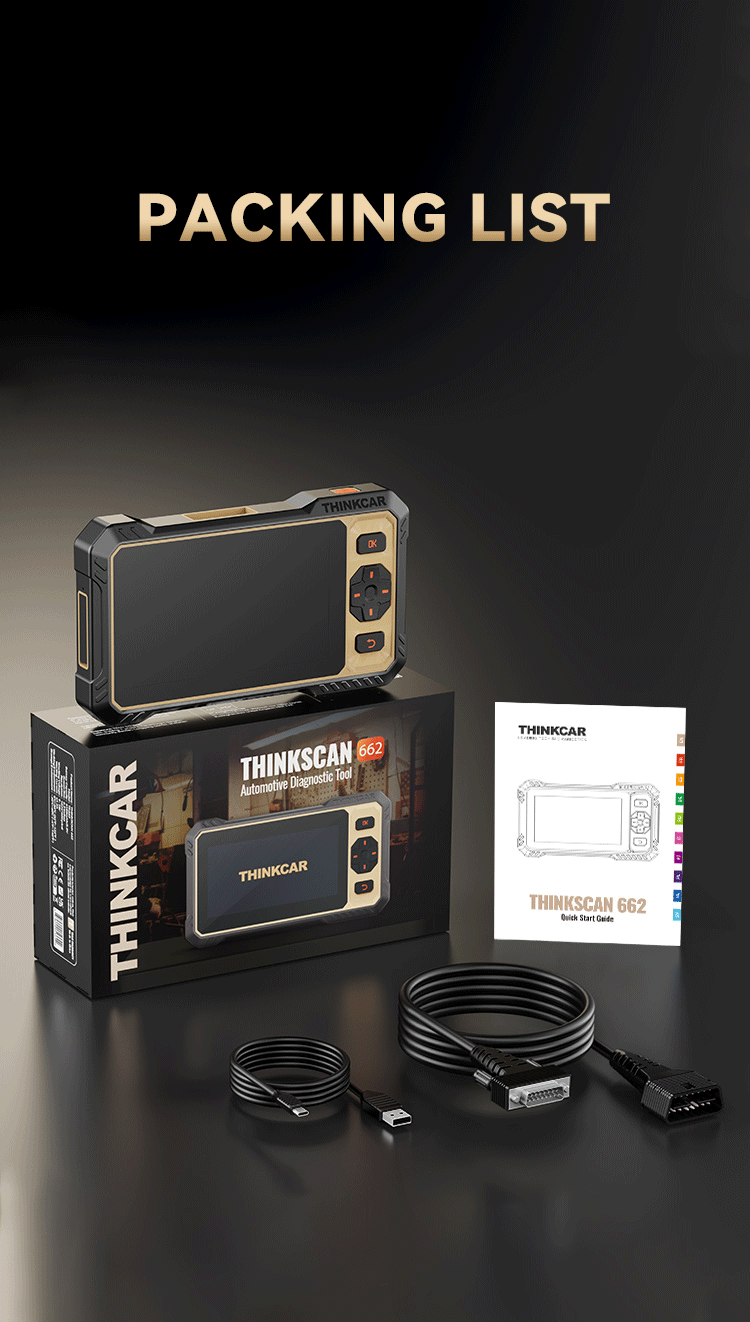
Create a short list of "must-have" active tests and resets based on your work. THINKSCAN 662 highlights bi-directional control and 12 critical service resets, while higher-tier tools in the THINKCAR ecosystem (for example, tablet-style or AI-assisted devices) may add broader maintenance sets. If you need TPMS Service or TPMS & Sensor workflows, confirm whether the tool supports TPMS reset only, or also supports sensor activation and programming with a dedicated device.
For a concrete TPMS example, THINKTPMS VENU iPro supports 315 MHz and 433 MHz sensor activation, plus read/copy/write sensor IDs and pressure/temperature/battery status reading. That is a different need than a simple TPMS reset function.
Shop: THINKCAR ThinkScan 662
Step 6: Check update method, access speed, and "no surprises" usability
Now test the boring stuff that becomes painful later: update speed, Wi-Fi stability, and account friction. If your tool updates over Wi-Fi, verify it supports the networks you use (2.4 GHz is common in shops; some devices also support 5 GHz). If it updates through a phone app, verify the app workflow: registration, device activation, and how software packages are downloaded.
Use this checklist before you commit:
- Update trigger: one-tap upgrade vs multi-step downloads
- Update cadence: monthly enhancements vs occasional
- Report handling: Can you record and export reports?
- Vehicle ID: AutoVIN and AutoScan available?
- Field use: battery capacity and anti-glare readability
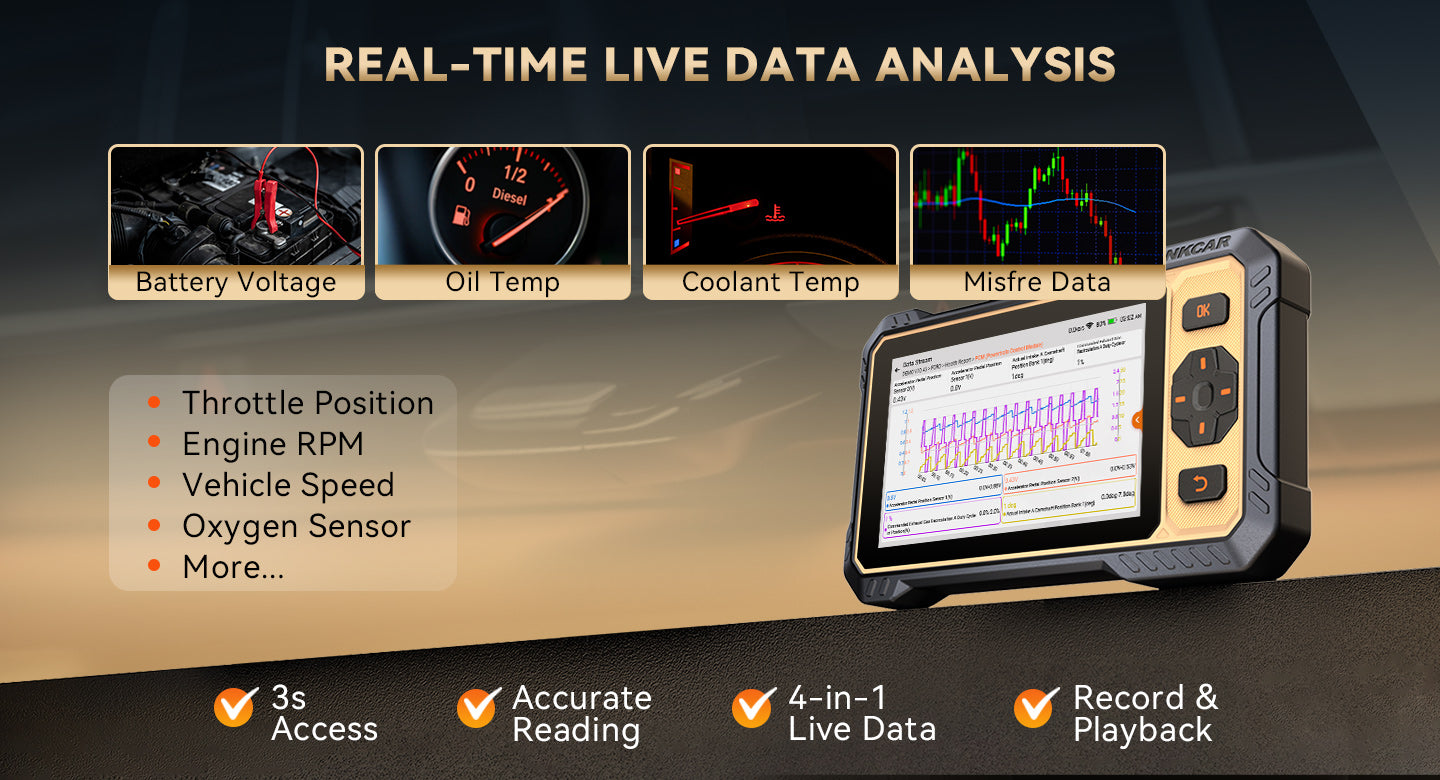
THINKSCAN 662 calls out 3-second access to critical live data streams and 4-channel real-time comparison with record and playback, which matters if you diagnose intermittent faults and do not want to recreate the symptom. If you prefer a Bluetooth OBD2 scanner approach for quick mobile-based scans, consider the trade-off: phones are convenient, but you need consistent app support and predictable software renewal terms.
Step 7: Match tool family to your workflow (ThinkScan, AI, VO, CS, CDE900)
Finish by mapping your checklist to a family, not just a single model name. This is where you keep the "low-cost lifetime updates" goal intact: you pick the smallest tool that reliably covers your jobs, with upgrade room only where you need it.
Use this simple mapping:
- ThinkScan Series: grab-and-go handheld workflows; good when you want quick OBD2 Intelligent Diagnosis plus targeted systems/resets
- AI Diagnostic Series: faster decision support when you handle lots of cases and want AI-powered Insights (for example, tools that highlight AI Intelligent Diagnostic System features)
- VO Series and CS Series: broader service workflows when you need more resets and shop-style coverage
- CDE900 Series: budget-friendly Android-based handhelds when you mainly want OBD2 plus expandable options via T-code/TCODE style packs
- TPMS & Sensor add-on: dedicated TPMS Programming and sensor workflows with a TPMS tool
Within THINKCAR and MUCAR lines, your shortlist might include THINKSCAN 662 for a compact handheld, THINKSCAN 689BT for a larger-screen tablet-style workflow, THINKDIAG 2 or THINKDIAG MINI if you prefer a Bluetooth OBD2 scanner app-driven setup, and MUCAR CDE900 or MUCAR CDE900 PRO if you want an Android handheld in the CDE900 Series.
Adapting Your Approach in Different Scenarios
- DIY checks only (Code Readers focus): prioritize full OBD2 functions, fast AutoVIN, and stable Free Lifetime Software Updates so you can pull codes and readiness quickly without planning around renewals.
- Weekend shop work (Bidirectional scanner plus resets): choose a tool that reliably supports active tests and the reset set you use (oil, EPB, SAS, DPF). Update cadence matters more here because late-model coverage and new service functions tend to change.
- Fleet or repeat vehicles (software stability priority): pick the most predictable update model and the fastest update method. Consistency beats novelty when you maintain the same routine every week.
- TPMS-heavy workflow (TPMS Service tools): split the job. Use your scanner for module work and a dedicated TPMS & Sensor tool for sensor activation/programming, so you do not overbuy on the scanner side.
Shop: THINKTPMS VENU iPro
Before You Start: Required Tools
- Vehicle details: VIN, year, engine, and trim
- Stable internet: shop Wi-Fi or hotspot for Software Download
- Power plan: charged tool, plus a USB-C cable if applicable
- Clean OBD2 port access: flashlight and trim tool if needed
- Note-taking: a simple coverage checklist for your top makes
- Printer or export option: if you share reports with customers
Troubleshooting Guide
| Problem | Cause | Solution |
|---|---|---|
| Updates fail | Weak Wi-Fi signal | Use stable 2.4 GHz |
| Update stalls | Low battery | Charge before downloading |
| Missing functions | Coverage limits | Confirm make-year support |
| Tool requests payment | Subscription-only feature | Recheck update terms |
| Scan disconnects | Loose OBD plug | Reseat connector firmly |
If you see "missing functions" on a specific vehicle, stop and confirm whether the feature is truly supported for that make-year-trim. Some reset functions and bidirectional tests are vehicle-specific even on high-end tools. If the tool asks for payment during software renewal, treat it as a red flag that your "lifetime" assumption may not match the actual software subscription structure.
Conclusion
Choose low-cost lifetime updates by treating updates like a contract, not a marketing phrase. First, document your real vehicles and tasks. Next, verify the update terms in writing and confirm how Software Download works in your shop. Finally, match the right family (ThinkScan Series, AI Diagnostic Series, VO Series, CS Series, or CDE900 Series) to your workflow so you get predictable coverage without paying for features you will not use.
Official Site: THINKCAR ThinkScan 662
Frequently Asked Questions
How do I estimate the total cost for diagnostic tool updates?
You estimate the total cost by listing what stays usable without paying again and what stops working when updates end. Start with a 3-to-5-year window, because that is long enough for new vehicle coverage to matter. Then separate costs into core updates (vehicle software coverage) and optional expansions (like extra service packs or add-on modules). If a tool needs recurring software subscription payments to keep basic functions active, treat that as a higher risk for long-term ownership.
How can I confirm a scanner really has lifetime updates?
You confirm it by finding clear written terms that say lifetime free updates for the tool or for the software category you care about. Do not rely on a headline alone; check the detailed product description and any upgrade section in the menu screenshots. Also, confirm whether "lifetime" applies to all functions or only to basic OBD2 Intelligent Diagnosis, because some tools separate core diagnostics from paid expansions. If the wording is unclear, assume it is not lifetime until proven otherwise.
What is the difference between basic OBD-II and advanced diagnostics?
Basic OBD-II focuses on emissions-related engine data, generic trouble codes, freeze frame, I/M readiness, and common tests like EVAP and O2 sensor checks. Advanced diagnostics adds access to manufacturer modules and deeper functions like ABS, SRS, transmission, body modules, and service resets. A Bidirectional scanner goes further by commanding actuators for active tests, which can cut diagnosis time when a symptom is intermittent. Your best choice depends on whether you need module access weekly or only once in a while.
How do bidirectional scanners affect update value?
Bidirectional scanners make updates more valuable because active tests and special functions often depend on newer vehicle profiles and updated control routines. If your tool is out of date, you might still read codes but lose an actuator test that would confirm a diagnosis in minutes. Updates also matter when protocols change on newer vehicles, because connection and module discovery can fail without the current software. If you rely on active tests, prioritize predictable updates over the longest feature list.
How do I choose between a handheld scanner and a Bluetooth OBD2 scanner option?
Choose a handheld when you want a dedicated screen, fewer connection variables, and a grab-and-go workflow that is less dependent on your phone. Choose a Bluetooth OBD2 scanner option when you prefer mobile app integration, quick sharing, and you are comfortable managing logins and app updates. In practice, Bluetooth setups can be excellent if the app is stable and the update terms are clear. For shop use, handheld tools can reduce interruptions because you are not juggling notifications, battery drain, or phone compatibility changes.
What should I do if the scanner connects but cannot identify my car?
Start by verifying the ignition state the tool expects, because some vehicles require key-on, engine-off for identification. Next, reseat the connector and inspect the OBD2 port for bent pins or looseness. If AutoVIN fails, try manual selection using year, make, and model, then rerun the scan. If it still fails, treat it as a coverage question first, not a hardware defect, and confirm whether that specific make-year-trim is supported by the software version on the tool.
Table of Contents
- Introduction
-
Step-by-Step Guide to Choosing Low-Cost Lifetime Updates
- Step 1: Define your real update need
- Step 2: Verify update terms in writing
- Step 3: Compare the total cost of ownership, not the sticker price
- Step 4: Confirm the diagnostics depth you need using the "systems" test
- Step 5: Validate bidirectional and service coverage you will actually use
- Step 6: Check update method, access speed, and "no surprises" usability
- Step 7: Match tool family to your workflow (ThinkScan, AI, VO, CS, CDE900)
- Adapting Your Approach in Different Scenarios
- Before You Start: Required Tools
- Troubleshooting Guide
- Conclusion
-
Frequently Asked Questions
- How do I estimate the total cost for diagnostic tool updates?
- How can I confirm a scanner really has lifetime updates?
- What is the difference between basic OBD-II and advanced diagnostics?
- How do bidirectional scanners affect update value?
- How do I choose between a handheld scanner and a Bluetooth OBD2 scanner option?
- What should I do if the scanner connects but cannot identify my car?

Share:
Best Smartphone Car Diagnostic Scanners for DIY Use (2026)
Affordable Diagnostic Tools for Repair Shops: A Step-by-Step Price Guide